Hack 25 Hijacking Audio from Mac Apps
Audio
Rogue Amoeba's Audio Hijack (http://www.rogueamoeba.com/audiohijack/), as its
Figure 3-29. Audio Hijack interface with equalizer
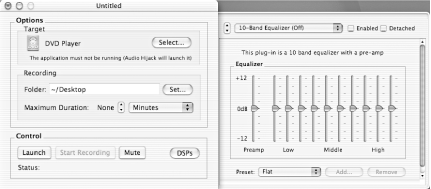
Launch Audio Hijack, select a target application, and launch it with the Launch button. Audio Hijack will attach itself — this is why you must launch the target app from the inside — and pass through all sound generated by the app. You can begin and end recording at any time using the Start Recording/Stop Recording button. You can forego setting a maximum duration if you're not sure what it should be, but I found setting it and letting it record unattended far more
Click the DSPs button and you can apply all manner of sound effects to the sound output and recording. Add flange or reverb, alter the bass and treble levels, display a pair of VU
A friend pointed out that Audio Hijack is the perfect utility for recording live audio streams delivered via Real Audio. The application's timers act as an audio VCR of sorts, launching Real Audio and recording for a specified amount of time. Drop the recording of NPR's All Things Considered onto iTunes and sync with your iPod, and you have your favorite public radio on demand and portable.
Finally, I can grab the audio tracks from my yoga class video, allowing me to take my practice
Audio Hijack is available for a 15-day free trial, after which it's only $16 for a fully licensed version. |
Hack 26 Running Your Own Web Radio Station
Create private playlists you can stream 24/7 to almost any web-enabled device, inside or outside the home.
If you've been paying attention to what's
If the idea of having your own radio webcast, for fun or profit, intrigues you, then you've come to the right place. Even if you don't plan on sharing your musical tastes with the world, you can have a lot of fun creating private playlists you can stream 24/7 to almost any web device in your home. Or maybe you just want to be able to tune into your music
What you'll need:
26.1 Step 1: Calculate Bandwidth
The first thing you need to do is calculate the adequate server bandwidth for your station. If you figure to provide your stream at the same rate to all
A DSL or cable connection isn't fast enough to support a lot of visitors, but it is usually adequate for serving your personal use. Before you start streaming, be sure that it doesn't
26.2 Step 2: Install/Configure QuickTime Streaming Server
The
Figure 3-30. Apple's QTSS icon
Since the server can be configured and controlled through a web browser, this icon will always take you there. Go ahead and configure the server for the first time with the defaults in place. You may need to make some adjustment based on your own network settings or personal preferences. Figures Figure 3-31, Figure 3-32, and Figure 3-33 show various settings being changed in the Setup Assistant. Figure 3-31. Your admin username and password
Figure 3-32. Setting an administrator password
Figure 3-33. For most people, a SSL connection won't be necessary
The QTSS requires that you use one folder as the main source of your media. Most people use iTunes and the music is located in the
Music
folder. You may wish to change the default location, because moving all your media (as shown in Figure 3-34) isn't practical. The
Figure 3-34. The location of your music files
Figure 3-35. A setting that could interfere with Apache or other web servers running on your machine
26.3 Step 3: Create a Promotional Spot
Depending on the level of professional spit and polish you want on your station, you may want to put together a promo spot to let people know who you are. There is a really simple way to pull this off using some
You can use some of the free music Apple provides in your iDisk, but of course you must have a .Mac subscription for that. If you don't belong to .Mac, all you really need is a short piece of music in MP3 format, or you can skip the music portion of your spot completely.
Figure 3-36. You'll find the record button in the Audio tab
Drag the music clip into one of the music tracks down below. Your vocal spot should already be waiting for you. Then just move the two tracks so that they fit together in a manner that sounds good to you (see Figure 3-37). Figure 3-37. Fitting the audio tracks together
Once you're done editing your audio track, export the movie as QuickTime. We need to make some changes to our file as we export it. When you choose to export the file as QuickTime, you'll get an option to alter the format. Select the Expert setting in this menu (see Figure 3-38). Figure 3-38. Select Expert
Now click Prepare for Internet
Figure 3-39. Prepare for Internet . . .
Finally, change the compression settings to MPEG-4 and export (see Figure 3-40). Figure 3-40. Exporting as MPEG-4
You now need to convert the movie file from MPEG-4 to MP3 before you can use it with the other music files. This is very easy. First open iTunes and drag the file into your library (see Figure 3-41). Figure 3-41. Time to edit the promo song information
The next step is to edit the promo spot song information, so that when you convert this file to MP3, it will automatically create a promo folder where we can collect future files. Simply highlight the file and select File
To convert the file to MP3, highlight it and select Advanced
26.4 Step 4: QTSS General Settings
Open the server and jump on over to General Settings. Here we want to
Figure 3-42. QTSS General Settings
26.5 Step 5: Build a PlaylistYou can create playlists using most text editors, but most people will find it easier to create a playlist through the server's web interface. Our main QTSS screen looks like Figure 3-42. Jump to the Playlists link to the left. At the Playlists screen, click on the button to create a new MP3 playlist, as shown in Figure 3-43. Figure 3-43. Playlist
Creating the actual playlist (see Figure 3-44) is quite simple, although there are a few
Figure 3-44. Creating the playlist
26.6 Step 6: Finish UpYou have a few small items to finish up before you are ready to go. First, go back to the main Playlists menu using the link to the left. Now, make sure that your QTSS is running by clicking the Start button in the upper-lefthand corner (see Figure 3-45). Figure 3-45. The QTSS server is running
Next, you need to start the playlist. Click on the Play button in the Playlist window (see Figures Figure 3-46 and Figure 3-47). Figure 3-46. Just press the button . . .
Figure 3-47. Notice the change in status . . .
26.7 Step 7: Tune In
We've installed our server, created our
Open up iTunes and select Advanced
26.8 Step 8: Administer RemotelyOne handy feature of the QTSS is remote administration. You can make changes to the server or your playlist regardless of your location. Access the server by typing your IP address or URL and specifying port 1220. 26.9 Step 9: Getting Help
Apple has an
There are tons of exciting things you can do with the QTSS and Mac OS X. Streaming can be a complicated task, but hopefully this will get you started. —Alan Graham |