Using Themes and Cell Styles
Office Excel 2007 now offers a couple of ways to format globally-meaning you can perform certain tasks to help standardize the look of your worksheets and make it easier to create a consistent appearance for all your documents.
Formatting with Themes

 Themes are a new concept in Excel 2007. A theme is a set of formatting attributes that apply specifically to the line and fill effects, the color palette, and the fonts that are available when formatting documents. The three buttons that control these attributes-Colors, Fonts, and Effects-appear in the Themes group on the Page Layout tab, shown in Figure 9-12. Themes give individuals or workgroups using the Microsoft Office 2007 system programs the ability to use the same sets of basic design attributes for all the documents they create. You'll find corresponding themes in Microsoft Office PowerPoint and Microsoft Office Word as well. You can use themes to standardize all your internal documents, for example, or to maintain a consistent look between pages in a package of presentation handouts.
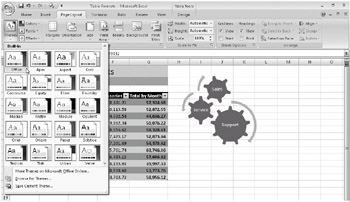
Figure 9-12: Themes control the overall palette of available colors, fonts, and effects.
 When you apply a theme using the Themes button, all applicable formats in the active workbook change instantly, including the colors of text, background, accents and hyperlinks, heading and body text fonts, line and fill effects, and graphic styles, as shown in Figure 9-13.
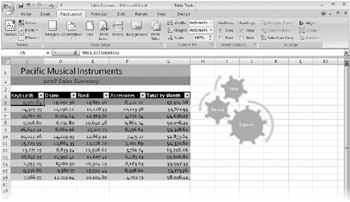
Figure 9-13: Changing the theme instantly changes the look of all the worksheets in the active workbook.
Just as when you choose a theme, changes you make using the Colors, Fonts, or Effects palettes are reflected immediately throughout the workbook. The Colors palette contains a selection of coordinated color schemes that, when selected, change the available colors in all other palettes where colors are used. The Fonts palette offers a selection of font sets, including two fonts each-one for headings and one for body text. The Effects palette gives you a choice of graphic "looks," accomplished using various applications of line and fill effects using the current color scheme.
Inside Out-Mousing Around
 |
Microsoft has gone to great lengths in Office 2007 to try to make features more discoverable and self-explanatory. It crafted a new approach for many of the commands that used to live on menus, transforming them into drop-down palettes containing thumbnail representations of the options they offer. In many cases, these palettes exhibit "live preview" functionality, where you can rest the pointer on items in the palette to get a live preview in the worksheet of what would happen if you actually clicked. This is a great feature, but it can be finicky. For example, if you convert an older Excel file and try to use the Themes palette in this way, you might find that not much seems to happen. This can occur when formatting in the old file overrides the default font, color, line, or fill styles controlled by themes. For example, the default font in Excel 2003 is Arial, and the default font in Excel 2007 is Calibri. When you convert an old Excel file, the original fonts carry over as well. Resting the pointer on the Themes palette might not show any changes in the font, and indeed, applying a theme might not have any effect either.
 To get around this problem, you can start with a fresh workbook and type everything again (but who wants to do that?), or you can copy the contents of each worksheet in the old workbook and click Paste, Paste Values (on the Home tab) to add the data to the new workbook. This requires you to redo all the formatting, but that should be a lot easier with the tools in Excel 2007 anyway. Another approach is to reformat all the text in the converted workbook using one of the fonts from the current theme. Use the same approach to convert any colors, lines, or fill styles to use current theme styles.
|
| Caution | Themes will have no effect on cells to which you have directly applied font, color, line, or fill formatting using settings that are not part of a theme. |
Creating Custom Themes
You can save your own themes using the Save Current Theme command at the bottom of the Themes palette, as you can see in Figure 9-12. Doing so creates a .thmx file and saves it in a special folder on your computer. The name you give the file when you save it becomes the name of the theme, which subsequently appears in the Custom category at the top of the Themes palette, as shown in Figure 9-14. The Custom category appears only if a custom theme exists.
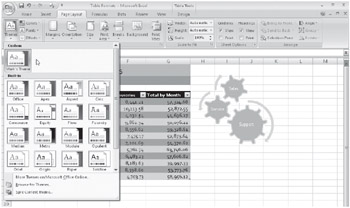
Figure 9-14: The Custom category is created in the Themes palette when you save a custom theme.
The Browse For Themes button at the bottom of the Themes palette lets you load .thmx files from other locations, such as a company theme file on your network, for example. The Search Office Online command opens a browser window and looks for additional predefined themes available on Microsoft Office Online.
Formatting with Cell Styles
 The Excel "reimagined" Cell Styles feature bears little resemblance to the old Styles feature, although the basic idea is the same: applying combinations of formatting attributes all at once, eliminating a lot of time clicking buttons, opening dialog boxes, and choosing individual options. Cell styles help you achieve consistency in formatting, both within a worksheet and across worksheets and workbooks. Using cell styles, you can easily modify the formatting characteristics of many cells at once.
| Note | Cell styles are based on the formatting attributes of the current theme. Changing the theme will cause the displayed cell styles to update accordingly. |
The Cell Styles button appears in the Styles group on the Home tab on the Ribbon. Cell styles wield the following formatting attributes: number and fill formatting, cell alignment, fonts, borders, and even cell-level protection settings. Several built-in cell styles have specific purposes, as you can see in Figure 9-15, and you can create your own custom styles (designed in concert with your company theme, perhaps).
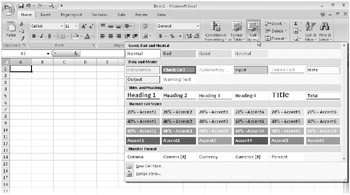
Figure 9-15: The Cell Styles palette offers categories of styles based on the current theme.
You'll find the following six cell style categories, with individual styles that have uses suggested by their titles and the categories in which they live:
-
Good, Bad And Neutral If you want, you can use these styles when highlighting good news, bad news, and . . . just plain old news. The Normal style also lives here, which you can use to "reset" selected cells to default formatting.
-
Data And Model These styles are intended for specific purposes, such as Input and Output styles for cells that are meant to accept user input or reveal the results of calculations.
-
Titles And Headings The intended use is self-explanatory, but it's interesting to note that the top three Heading styles include bottom borders of different weights, making them useful for creating color-coordinated column headers in tables.
-
Themed Cell Styles These Accent and Emphasis styles are heavily dependent on the current theme colors, offering four graduated percentages of each Accent color for quartile comparisons.
-
Number Format Included for continuity, these styles are actually more accessible using the Number buttons on the Home tab on the Ribbon.
-
Custom This category does not appear in the palette until you create a custom style. After you do, the Custom category appears at the top of the palette.
The Cell Styles palette exhibits "mouse hover" functionality, letting you see a live preview in selected cells on the worksheet when you rest the pointer on an item in the palette. To apply a style, select the cells you want to format, and click your chosen style in the palette.
Creating Custom Cell Styles
You can create your own styles using one of two different methods: by modifying an existing style or by clicking the New Cell Style command at the bottom of the Cell Styles palette, which displays the Style dialog box shown in Figure 9-16.
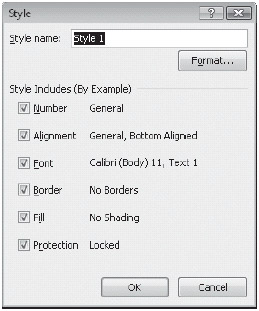
Figure 9-16: Use the Style dialog box to create your own cell styles.
The Style dialog box opens with the attributes of the default Normal style displayed. Styles can have a minimum of one and a maximum of six sets of attributes: Number, Alignment, Font, Border, Fill, and Protection, each with a corresponding check box in the Style dialog box. Use the check boxes to specify particular attributes for your cell style. For example, you could clear all but the Protection check box to define a style that does nothing more than change selected cells to "unlocked" status, allowing user entries on a protected worksheet. Using such a style would have no effect on any of the other five style attributes in cells to which it is applied.
To specify style attributes, click the Format button to display the Format Cells dialog box, where you can specify your formatting choices in detail. The Format Cells dialog box contains a separate tab corresponding to the six categories of Style attributes; you can make as many choices as you want on each tab. When you are done with the Format Cells dialog box, click OK to close it and return to the Styles dialog box. Then type a name in the Style Name box, and click OK. Your custom style appears in the Custom category at the top of the Cell Styles palette, as shown in Figure 9-17, where we created an Unlocked style.
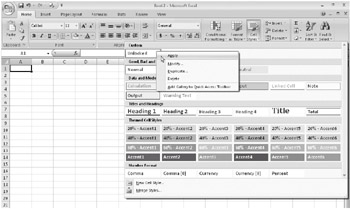
Figure 9-17: Custom styles appear at the top of the Cell Styles palette.
For more information about the Format Cells dialog box, see "Formatting Numbers" on page 298.
As you can see in Figure 9-17, you can right-click a cell style to display a shortcut menu you can use to delete, modify, or duplicate the style. Duplication is handy if, for example, you want to create a number of related styles such as the predefined Accent styles with different fill percentages. Clicking the Duplication command would make it easier because it would copy all the other attributes for you, so all you have to do is change the fill percentage.
Creating Cell Styles by Example If you have already formatted a cell using attributes you would like to use often, you can use the style-by-example procedure to encapsulate those attributes in a new style. For example, suppose you format a cell with right alignment and 18-point Arial Black. To make this combination of attributes a new style, follow these steps:
-
Select the cell that contains the formatting you want.
-
On the Ribbon, click Home, Cell Styles, New Cell Style.
-
Type a name such as HeadRight in the Style Name box.
-
Clear the Number, Border, Fill, and Protection check boxes in the Style Includes area, and click OK. The new style then appears in the Cell Styles palette.
| Caution | The safest way to create a style by example is to select only one cell-one you know has all the attributes you want to assign to the new style. If you select two or more cells that are not formatted identically, the new style assumes only those attributes that all cells in the selection have in common. |
Modifying and Duplicating Cell Styles The principal advantage of using styles is that if you change your mind about the appearance of a particular element in your workbook, you can revise every instance of that element at once by changing the style. For example, if you'd like the font in the custom HeadRight style-which is now 18-point Arial Black-to also be italic, you can redefine HeadRight.
To modify a style definition, follow these steps:
-
Click Home, Cell Styles.
-
Right-click the thumbnail for the style (in this case, HeadRight) from the palette, and click Modify to display the Style dialog box.
-
Click the Format button to display the Format Cells dialog box, and select the appropriate format options, as shown in Figure 9-18. (For this example, click the Font tab, and select the Italic option in the Font Style list.)
-
Click OK to return to the Style dialog box, then click OK to confirm your changes.
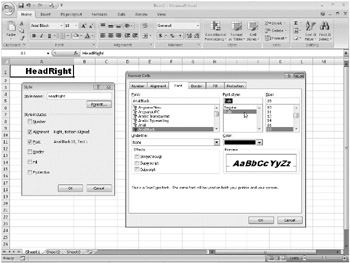
Figure 9-18: Modify an existing cell style by right-clicking its thumbnail in the palette and clicking Modify.
You can also right-click an existing style and click the Duplicate command, which opens a Style dialog box similar to the one shown in Figure 9-18 and appends a number to the end of the style name. You can then change the name if you like and click the Format button to make the desired adjustments to the formatting attributes. Using Duplicate is helpful when you want to create a number of similar styles or when you want to base a custom style on one of the built-in styles. When you finish defining the style, click OK; your new style appears in the Custom category of the Cell Styles palette.
| Note | The predefined Normal style is applied to every cell in every new workbook. Thus, if you want to use the standard set of formatting attributes, you don't need to do anything. If, however, you want to change the default attributes for all cells in a worksheet, you can redefine any or all attributes of the Normal style. |
Merging Cell Styles from Different Workbooks To maintain formatting consistency across a group of worksheets, you can keep the worksheets in the same workbook. If this is impractical but you still want to maintain stylistic consistency, you can copy style definitions between workbooks. (Of course, themes are also helpful in this regard and are covered in "Formatting with Themes" on page 275.)
To copy a style from one workbook to another, take the following steps:
-
Open both the source workbook (the one you're copying from) and the destination workbook (the one you're copying to).
-
Click the destination workbook to make it the active window.
-
On the Ribbon, click Home, Cell Styles, Merge Styles. Excel displays a dialog box listing all the other open workbooks, as shown in Figure 9-19.
-
Select the name of the workbook you want to copy styles from, and click OK.
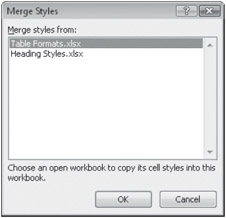
Figure 9-19: Copy cell styles from any open workbook using the Merge Styles command.
| Caution | If a style in the source workbook has the same name as one already in your destination workbook, a message asks whether you want to merge styles that have the same names. You receive this warning only once, however, no matter how many duplicate style names exist. If you click Yes, the styles from the source workbook override those with the same names in the destination workbook. |
Deleting a Cell Style To delete a style, click Home, Cell Styles, and right-click the Custom style you want to delete (you cannot delete a built-in cell style). Then click Delete. Any cells that were formatted using the deleted style revert to the Normal style.

EAN: 2147483647
Pages: 260