6.3 Abstraction in the Code, Detail Outside the Code
What does "Abstraction in the code, detail outside the code" mean? Well, essentially the software should encapsulate the services that are to be provided, but there should not be any detail in the code. What?
To make this clearer we'll define what we mean by detail. Detail would be a GPIB address, measurement parameters, switching connections, and so on. The abstraction would be the component that provides the interface to the instrument at that address, the component that commands the instrument that makes the measurement, and the component that commands the switching.
Here is an interesting fact that we have noticed (that it is something we have noticed probably means it is not a fact, but go with it). When software is beyond the initial construction stages, it's the strings and integers that are changed more than the actual code. This is a double-edged sword because if you design the software with this rule in mind, you also produce code that is better designed, more flexible, more reusable, loosely coupled , and hence, easier to maintain.
Okay, this sounds a bit soapbox, so here is the golden rule:
When you look at your VIs, every time you see a number or string it should be taken out and placed in a file or database, yes, every single one of them!
We're serious. Think about it, every string and number in your code is detail, and detail changes. The GPIB address changes, the frequency span of your measurement changes, and the switching changes with a design change or addition of new hardware ”these are all detail. But, the abstraction doesn't change. The instrument can be at any address, the address does not change how the component operates, a frequency measurement is the same regardless of the span, and switching is the same operation regardless of the location. As a simple illustration, your program is compiled to an exe and the hardware GPIB address has to change because of a clash somewhere, all you have to do is change the detail in a file (maybe a configuration file), no code changes, no recompiling. At the other extreme, the GPIB addresses are spread through the four corners of your code. If you change the address, then you have to hunt down all the occurrences ” miss one and your application will fall over!
So, here's an example. Your application uses an analogue I/O board, and you want to measure data coming in on the analogue input (AI) channel. Now we have a nicely designed component that measures what we want, as shown in Figure 6.25.
Figure 6.25. Detail in the code ”Bad!
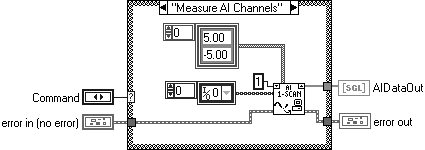
But, we can see that the VI has DETAIL in it! The detail is the channel limits (array of clusters 5/ “5), device (1), and channels. If for any reason this changes we have to change the code, which is exactly what we want to avoid.
So, an updated version is shown in Figure 6.26.
Figure 6.26. Detail outside the code ”Good!
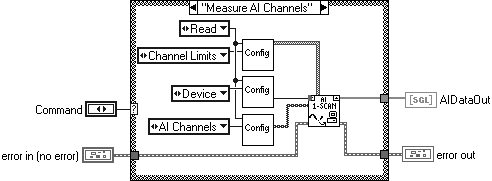
We can see that there are no longer any constants in our code, they have been replaced by three instances of the VI called Config. Simply put, the Config VI has the detail stored in a file outside the code.
As with most things in this book this seems simple. So, all detail in files or databases, okay that's easy. But bear in mind there will be huge dividends gained by adhering to this general rule. However, the simple thing to do is put the detail in the code with the mental note that you will take it out later (we know this because we're tempted every time). Multiply this by 500 VIs and you've missed the boat. Therefore, when you recognize detail, stop and put it outside the code. In the short term this becomes a little monotonous, but soon most of the data will be extracted and you will just reference it in later VIs.
6.3.1 Section Key Files
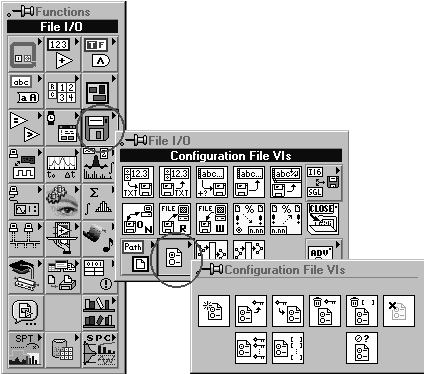
You will need a place to store all of the detail data previously discussed, and we've found an ideal solution in section keyed files. There is a set of useful functions available on the function palette for implementing these files, as shown in Figure 6.27.
Figure 6.27. Configuration file functions.
What is a section key file? It's the old .ini file as used by Windows 3.1, and it is a Text file with the following format:
[section name ]
key1=Data1_1Data1_2Data1_3
key2=Data2_1
key3=Data3_1
The data held in these files is essential to the running of your application, therefore, there is an issue of security to consider, we don't want anyone coming and idly fiddling with the data held in these files. The configuration file functions as they stand do not give any encryption facilities, so as a first step let's add some.
All we need to do is replace "Config Data Read From File.vi" and "Config Data Write To File.vi" in "Close Config Data.vi" and " Open Config Data.vi" with encrypted versions and save them under a different name.
Let's do it step by step.
First open "Open Config Data.vi" from the functions palette and save it as "Encrypted Open Config Data.vi" as in Figure 6.28.
Figure 6.28. Open Config Data icon.

Open up the block diagram and double-click on "Config Data Read From File.vi", as shown in Figure 6.29 and Figure 6.30.
Figure 6.29. Open Config Data diagram.
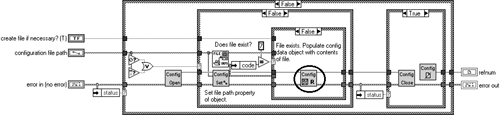
Figure 6.30. Config Data Read From File before.
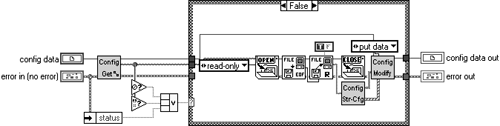
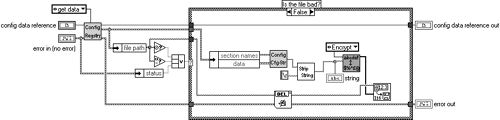
Rip out all of the file opening and reading stuff and replace it in Figure 6.31.
Figure 6.31. Config Data Read From File after.
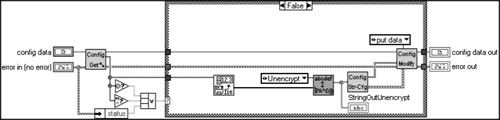
So, we read the file as a bunch of integers and push them through an encryption component that decodes them. The encryption VI does some rotating and math on the incoming integers.
That's the data decoded when we read it. Now, let's finish it off by encrypting the file. If all the data is read when the config file is opened it stands to reason that it is saved when the file is closed. In a similar fashion to what we have just done, open "Close Config Data.vi", as shown in Figure 6.32. Then, double-click on "Config Data Write To File.vi", as shown in Figure 6.33.
Figure 6.32. Close Config Data diagram.
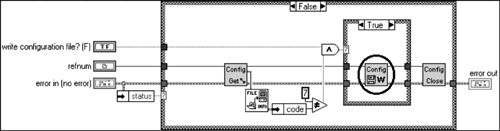
Figure 6.33. Config Data Write To File before.
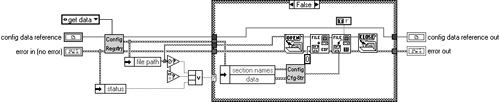
Once again replace all the writing to file stuff with the encryption component as in Figure 6.34.
Figure 6.34. Config Data Write To File after.
If you don't want to go through all of this you could always swipe the code off the Web site.
It would be ideal if we could add items to these files as we go along, developing our application without incurring a large programming overhead. What we need is a component that handles all of this for us.
By using Strict Type Def enumerations as keys and another Strict Type Def enumeration as the section, the following component allows items to be added simply by updating the relevant enumerated type. It encapsulates all of the functionality required for loading, saving, and editing data in section key files.
So, here's a list of the functionality.
| Action | Description |
|---|---|
| Invalid: | This is the default condition and should throw an error |
| Get: | Returns the selected data item |
| Set: | Sets the selected data item |
| Save: | Saves the selected data item to file |
| Load: | Loads the selected data item from file |
| Save All: | Saves everything to file |
| Load All: | Loads everything from file |
| Reset: | Clears out local memory manually |
Storing the data in a shift register that is an array of clusters of arrays (?!?) works okay for reasonable amounts of data, and is simple to implement. For extravagant amounts of data you could store the data in a hashed array structure, or something similar. The interface stays the same no matter what method of organizing the data is employed (demonstrating the power of information hiding).
Let's briefly discuss each of the component actions and look at the implementation.
The Front Panel is shown in Figure 6.35.
Figure 6.35. System Config Data Manager Front Panel.
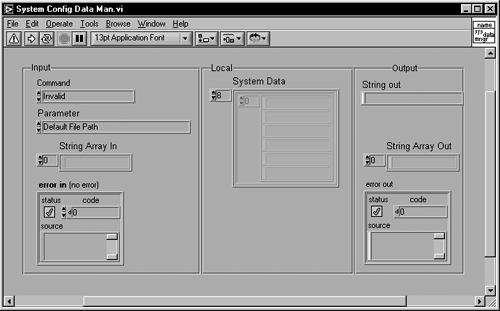
To run the component, select the action [Command] and the attribute [Parameter], fill out the data in [String Array In] if required, and run it. There is a File Handler Component that will need setting up prior to filing operations, but this will need to be done only once. It holds the references to the systems files. We'll now describe the source code in detail.
Invalid
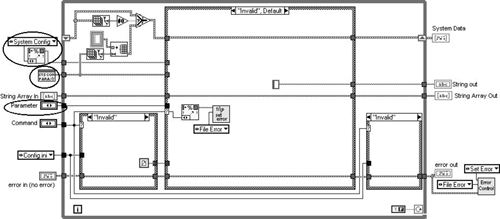
The Invalid state, in Figure 6.36, should never be called and is only there to pick up development errors and mis-wires. If it does occur the software should throw a tantrum about it.
Figure 6.36. System Config Data Manager Invalid diagram.
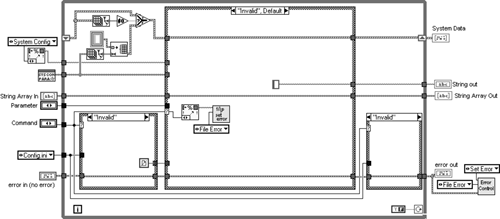
The code in the top left-hand part of the While Loop checks if the local array has been initialized , and if not, sets it to the number of parameters in the "Parameter" Enumeration. The two small cases open and close the files if the Command is file related . The middle case is where all the action is, and for the Invalid state it fires the Error Control into action, throwing up a dialog box moaning about being called and listing who called it.
Get
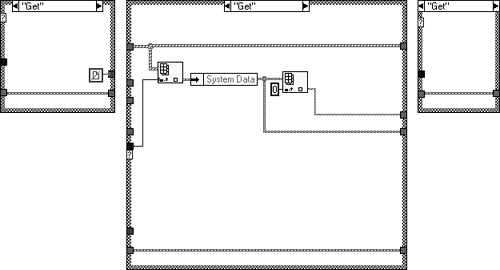
Figure 6.37 shows the "Get" action. The relevant array is selected by using the index of the enumerated type, and output as a string and an array.
Figure 6.37. System Config Data Manager Get cases.
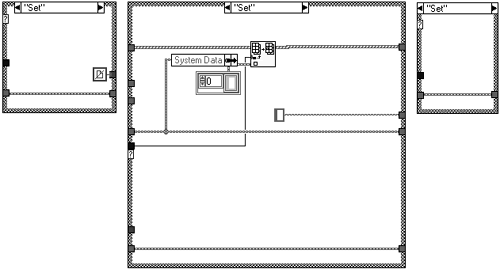
Set
Figure 6.38 shows the "Set" action. Once again the new array is input at the index desired by the enumerated type "Parameter". This new data is persistently stored in the shift register.
Figure 6.38. System Config Data Manager Set cases.
Save
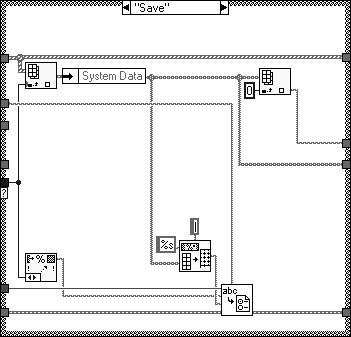
Figure 6.39 is the "Save" action. The array selected by the index of the "Parameter" enumerated type is stored in the section-keyed file at the key defined by the text of the "Parameter" enumerated type.
Figure 6.39. System Config Data Manager Save case.
Load
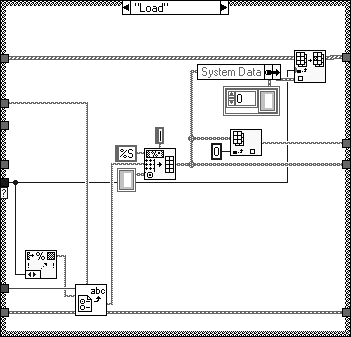
In addition to saving the data you will want to load it from the file as well. Figure 6.40 shows the "Load" action. The text of the "Parameter" enumerated type is again used as the key for selecting the data to pull from the file. The returned string is then converted to an array and inserted into the shift register at a location defined by the index of "Parameter" enumerated type.
Figure 6.40. System Config Data Manager Load case.
Save All
Figure 6.41 demonstrates the "Save All" action. The "For Loop" will auto-index for every element in the shift register array, saving to the key produced from the "Strings[]" property of the "Parameter" enumerated type.
Figure 6.41. System Config Data Manager Save All case.
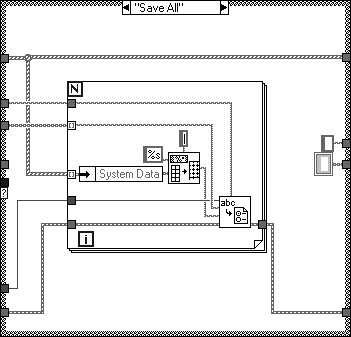
 | LabVIEW 5.1 does not have the "Strings[]" property for Strict Type Definitions and this has to be done manually. |
Load All
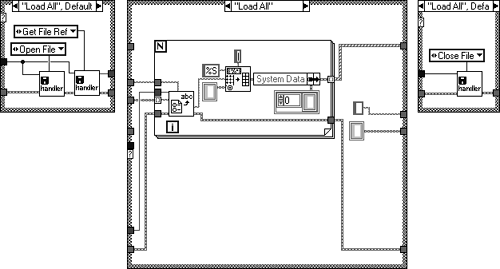
The "Load All" action shown in Figure 6.42 iterates through all the parameters, filling up the shift register array. The "File Handler" component holds all the file references and is also responsible for opening and closing the files.
Figure 6.42. System Config Data Manager Load All cases.
Reset
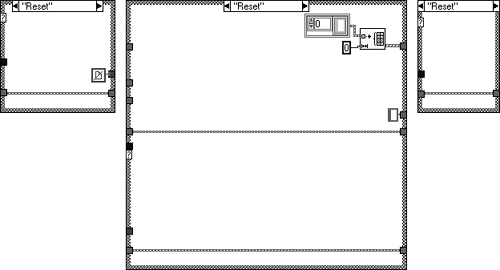
The action in Figure 6.43 clears all the data held in the shift register.
Figure 6.43. System Config Data Manager Reset cases.
If you want to have multiple data managers for storing different data all you need to do is save the data manager under a different name, replace the Parameter Strict Type Def, the Parameter Strings Attrib VI, and add a new element to the Section enumeration, as shown in Figure 6.44.
Figure 6.44. New data manager changes.
Finally, after doing all of this it would be useful to have a dialog that will help you manage this data. The following dialog gives full access to every piece of data held in the data managers, although this may not be appropriate, and we've seriously thought about giving some extra protection to specific data.
Once again, by using Strict Type Def enumerated types we can make the whole exercise reusable.
The enumerated type that describes the sections will be used to select the relevant data manager for display. It then will display all the keys and their data in a table. The Front Panel is shown in Figure 6.45.
Figure 6.45. System Config Dialog Front Panel.
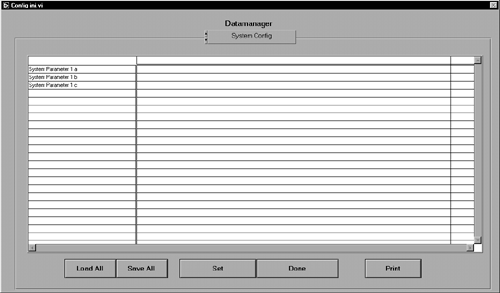
Embedding this utility in your program will enable you to pull out all of your constants and manage them simply and efficiently . To update the values in the table, press [Set] to store them in local memory, press [Save All] to store everything to file, [Load All] reloads the data from file, [Print] prints the contents of the file, and [Done] closes the dialog.
Briefly the dialog initializes and then monitors the buttons . The file reference should have been set up prior to it being called, but to make a stand-alone example we've put the file reference setup as part of the initialize screen. The diagram is shown in Figure 6.46.
Figure 6.46. Config Ini Dialog Diagram Initialize.
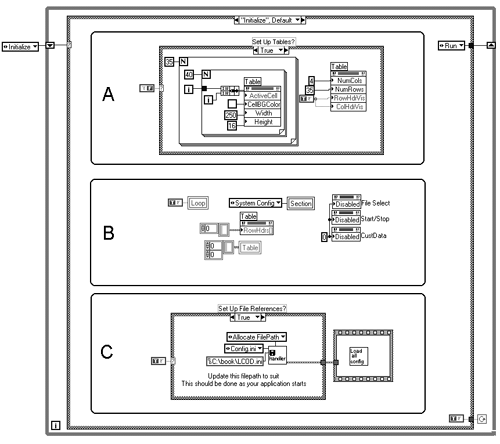
You can see general screen setup code (B), a table auto setup case (A), and a case that sets the file references (C).
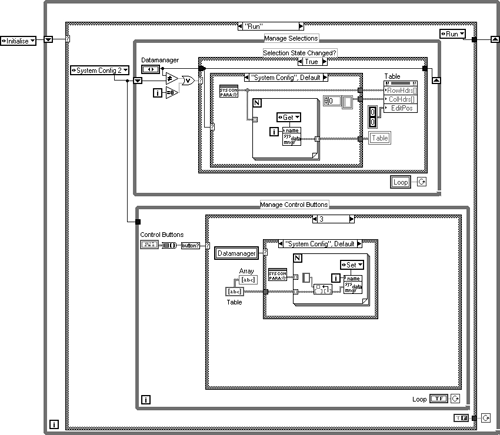
Regarding the block diagram in Figure 6.47, we can see that the lower While Loop monitors the control button cluster, a press on any button will squirt a number into the case. The upper While Loop looks for a change in the Datamanager enumeration and loads the table on a change.
Figure 6.47. Config ini Dialog Run State.
 |
| Top |

EAN: 2147483647
Pages: 66