Project 3. Superhero Comics Ah, superheroes and their comics. I grew up reading about them all: Superman, Batman, the Flash, Suprr Puppy...Suprr Puppy? Yep, Suprr Puppy. Come on, you must remember the best superhero of them all. Mild-mannered boxer pup by day, Sugrrr becomes Suprr Pup at night, when she's allowed out, that is. 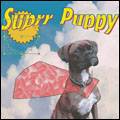 This project will give you a good idea of how you can plan a shot with a certain outcome in mind. I wanted the comic book cover for this project to mimic the oldie-but-goodie comic books where you might see the superhero flying above the clouds. While Sugrrr may not appear as majestic as the superheroes of yore, she will appear to be flying above the clouds decked out in her finest superhero cape. Keeping in mind what I wanted for the shot of our superhero, I used a wide-angle setting on my digital camera. With the puppy sitting waiting for a cookie, I had my wife and digital photo assistant extraordinaire hold the cookie up and get Sugrrr to perform the sit-pretty trick. We did this a couple of times and I found the best result to be the one pictured in Figure 5.17. Figure 5.17. Mild-mannered Sugrrr performs puppy tricks for the camera. 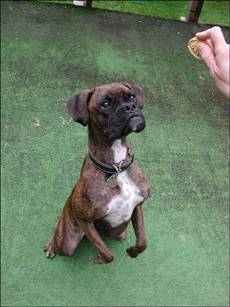
The next shot I wanted was some really nice clouds. As it happens, I took several shots of some clouds right after a storm, just outside my front door in the middle of suburbia for a completely different project and at a completely different time. Although taken at different times (almost a year apart) and with different digital cameras, the two images will work together quite well for this project (see Figure 5.18 for the photo of the clouds). Figure 5.18. Just the kind of place you would expect to find a superhero. 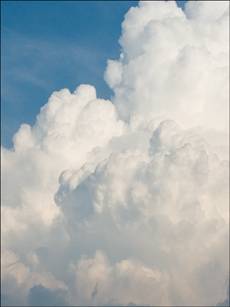
Note that the photo in Figure 5.18 has already been moved into place as a layer in the working image. To do so, I opened both images and selected the entire cloud image (Selections, Select All) and then copied and pasted the clouds from one image to the other as a layer (Edit, Paste As New Layer). The clouds came in quite large because the puppy's photo was taken with a 3.3MP camera and the clouds were taken with a 6MP camera. No matter, thoughthe image can be resized or, as in this case, used as is to bring the clouds even closer than the apparent shot. Now that the photos have been opened and they are together in one image (the clouds pasted into a layer with the puppy image), we can get started creating our superhero. Notice how I added the larger image to the smaller one. I could have done it the other way around, but the puppy's image would have been much smaller. It's best to start with the smaller image and do any resizing downward to help keep the best-quality image for printing.
1. | To get started, make a copy of the puppy image layer, or whichever superhero photo you're working with. Move the new puppy layer above the layer that has the clouds.
| 2. | Use your favorite combination of methods to get rid of the background. Because there is a similar color around the dog, I used the Magic Wand tool and the Select Similar dialog box from the Selections, Modify menu. After getting most of the material removed, I used the Eraser tool to get rid of the rest; my results are shown in Figure 5.19.
Figure 5.19. The Suprrr Puppy in placealmost. 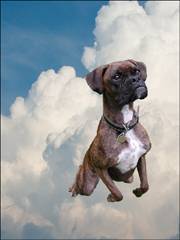
|
Adding a Superhero Cape I know what you're thinking: This puppy looks pretty super already. Isn't she a sweetie? I think it's time to add a cape, though, to really give her that superhero look. This requires a bit of an artistic adventure. If you're not comfortable drawing the cape, you can skip over it. Or perhaps the photo you're using doesn't require a capesay, if one is already present. 3. | To add a textured effect without having to draw one, set the Background and Fill properties to use a texture. I used, believe it or not, Blue Spruce. I set the color to superhero redthat is, fully saturated, or very bright, red. Superheroes need to be recognized, after all.
| 4. | Select the Rectangle tool and drag a rectangle shape onto the image (see Figure 5.20).
Figure 5.20. Starting the cape with a rectangle filled with a red textured effect. 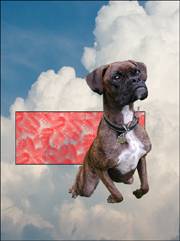
| 5. | Select the Pen tool and click and drag one of the corners of the rectangle, this will round the corners of the cape and give us a few more points to play with. If you would like to know more about how the Pen tools work, take a look at Appendix B.
| 6. | Right-click the rectangle shape and select Convert to Path.
| 7. | Use the Pen tool to reshape the rectangle into something that resembles a cape (see Figure 5.21).
Figure 5.21. Bending the cape into shape. 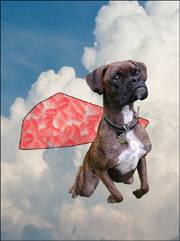
If you find that the cape is below the puppy, as mine is, simply move the layer with the cape above the dog, or whichever superhero you're working on.
| 8. | With the cape layer in place, right-click the layer in the Layers palette and select Convert to Raster. This converts the vector shape into a bunch of pixels that you can further modify.
| 9. | Zoom in close and use the Eraser tool to remove some of the cape. I removed everything above the puppy's collar and also whatever was in front of her medallions. Those might be the source of her superpowers, right? You can see what I did to enhance the image in Figure 5.22.
Figure 5.22. Fine-tuning the cape's collar. 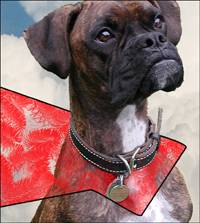
|
Adding Some Headings At this point, it's time to add some headings, like a title and the price. 10. | Use the Text tool to enter a comic book title. I used Albertus Extra Bold at 100 points with a stroke width of 8.0, the stroke color set to a bright blue, and the fill set to bright yellow.
| 11. | With the title in place, use the Pick tool to stretch the text a little so it's a little longer than normal.
| 12. | Select Effects, 3D Effect, Drop Shadow. You'll be warned that the type must be rasterized. Click OK to proceed.
I set the Vertical Offset to 11, the Horizontal to 8, and the Color to bright red. I also set the opacity to 100 and the Blur to 0. These settings give the effect of 3D more than they do a drop shadow (see Figure 5.23). You've gotta love the versatility.
Figure 5.23. Adding a 3D title. 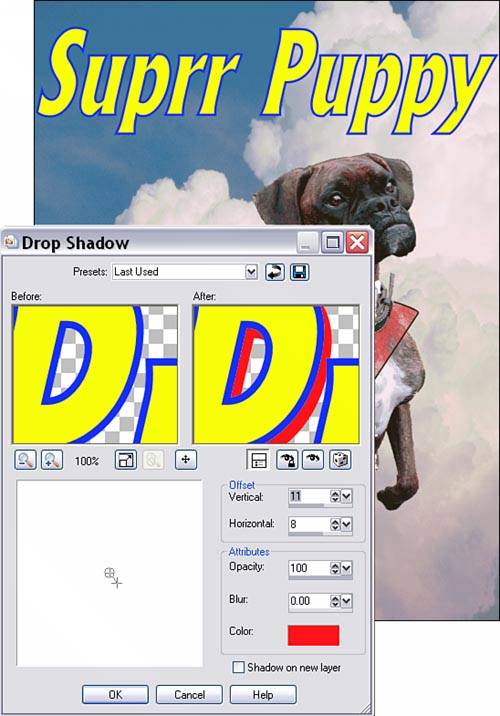
|
Add a Comic Book Curve to the Title I want the title to have a bit of a wave in it like some of the old comic book titles have. This will give the text a better look, and it will be less static. 13. | Select Effects, Distortion, Warp. As you can see in Figure 5.24, I set the Horizontal to 5, the Vertical to 46, the Size to 75, and the Strength to 70. I had to play around with the various settings a little at a time to get the look I was after. Depending on your image, even if you've been following closely, these numbers will only be starting points.
Figure 5.24. Adding a shape. 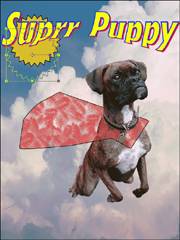
| 14. | Select the Symmetric Shape tool and set the Number of Sides to 25 and the Radius to 5.00.
| 15. | Set the Foreground color to black and the background color to a gold-ish shade. I chose R: 216 G: 190 B: 44.
| 16. | Click the Background layer to activate it, set the line Width to 5.00, and click and drag to draw a shape near the upper-left corner of the image. Use the Pick tool to move the shape into place, as in Figure 5.24.
| 17. | Use the Text tool to add a price to the cover. I entered $1.25 and used the Pick tool to rotate the text.
| 18. | Finally, use the Text tool to add some eye-catching headlines. You'll see what I've added after we add the finishing touch.
|
Creating the Comic Book Effect With the right settings, color reductionreally strong color reduction that iswill give the image a comic book cover effect. 19. | Select Image, Decrease Color Depth, 256 Color Palette.
In the Decrease Color Depth 256 Colors dialog box, set Palette to Optimized Median Cut, set Reduction to Error Diffusion, and place a check mark in the Reduce Color Bleeding box. These, as you can see in Figure 5.25, are the settings I used. You can play with the various settings to see what they do, and you might find something that better suits the image you're working with.
Figure 5.25. The comic book effect applied by reducing the image's number of colors. 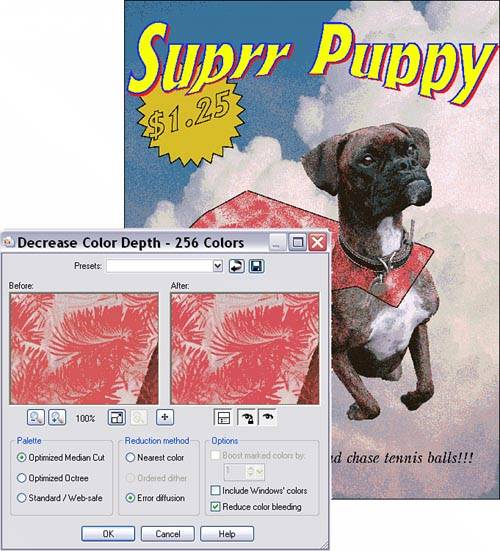
|
Note that reducing the colors flattens your image into a single background layer, so be sure you have everything the way you want it before you cut the number of colors.
|
