There is more than one way to trim a clip, and
this is one of them. Later in this chapter you will be instructed
in other trimming
methods
. The trimming method described in this
task is not intended for fine, detailed editing, but it
is
a good way to quickly remove
unwanted scenes or footage from a clip. As you trim your clip, you
can see the corresponding frame in the
Monitor
to help you keep track of where you
are and what you are trimming.
|
1.
|
Drag the Right
Edge to Extend the Duration of a Still
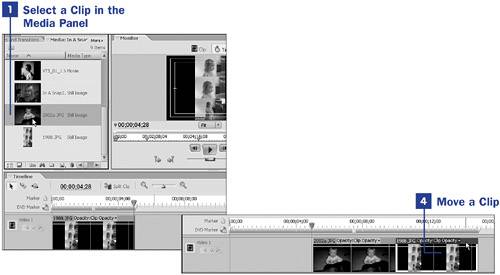
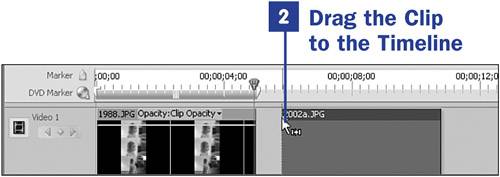
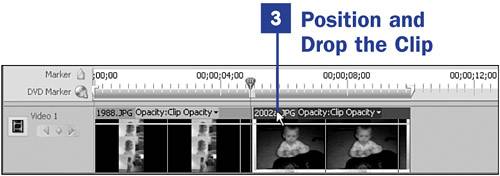
Drag a still image from the
Media
panel to the beginning of the
Timeline
. If the default
Still
Image Duration
has not been changed, the image will have a
duration of 5 seconds on the
Timeline
. If you need to extend
the duration of a single clip without changing the default setting
for still-image duration, you can drag out some additional time for
this specific still image.
NOTE
To change the default
Still Image Duration
, select
Edit, Preferences, General
from the menu at
the top of your screen. The default duration for a still image is
150 frames (30
frames
per second times 5 seconds). Change this
value and click
OK
to change the
default duration for still images.
Click the left mouse button over the right edge of the still image
clip in the
Timeline
. Make sure that you can see the
Right Trim
icon before clicking.
Drag the edge to the right until the CTI gets to the 8-second mark.
Release the mouse button; this single still image clip now has an
8-second duration. All other still images maintain the default
duration set in the
Preferences
dialog box.
34. Trim a Clip on the
Timeline
NOTES
If you drag the mouse to the left, you will
decrease the duration of the still. When trimming or extending a
still image, you are adding or removing identical frames. The only
change trimming makes to a still image is to its duration on the
Timeline
.
When you release the mouse button after
extending or
decreasing
the duration of a still image on the
Timeline
, the work area bar
adjusts
to the new image length.
This works as long as you have not manually made adjustments to the
position of the bar.
Now right-click the still image in the
Timeline
and select
Clear
from the context menu to
delete this practice still from the
Timeline
. Alternatively,
select the clip and press the
Delete
key to delete the clip.
|
|
2.
|
Drag the Right
Edge of a Video Clip to Trim
Drag a video clip from the
Media
panel and drop if at the beginning of the
Timeline
. Click
the right edge of the video clip, making sure that you see the
Right Trim
icon before clicking
the mouse button.
If you are working with a still image, you can always drag the
trimmer to the right; Premiere Elements adds as many additional
frames as needed. However, if you are working with video- or
audio-only
clips, you can only extend to the end of the clip;
Premiere Elements will not add or repeat frames in this case. You
can grab a still of the last image in the clip and drag that out
farther if that is your goal (see
21
Grab a Still from Video
).
NOTE
As you drag the
Right Trim
icon, watch the
Monitor
; it will give you a view of what you
are trimming from your clip.
Drag the edge of the clip to the left 10 seconds. As you drag,
notice that both the video and audio tracks are being trimmed.
Release the mouse button, and your
trimmed
clip will be 10 seconds
shorter than it originally was.
To trim only the video or the audio, right-click the clip and
select
Unlink Audio and Video
from the context menu. To trim only the audio, position the mouse
pointer over the edge of the audio track and drag without affecting
the video track; to trim only the video, position the mouse pointer
over the edge of the video track and drag without
affecting
the
audio track.
TIP
If you are trimming your clip to be used in an
L-cut or a J-cut, see
38 Create an
L-Cut or a J-Cut
.
|
|
3.
|
Drag the Left Edge
of a Video Clip to Trim
Now move to the beginning of the clip, the left side. Click the
left edge of the clip, making sure that you see the
Left Trim
icon before clicking.
Drag the edge to the right 10 seconds and release the mouse button.
The clip will now be 20 seconds shorter than the originalyou've
trimmed 10 seconds off each end of the clip. You can trim as much
or as little as necessary; it is totally up to you. Don't be afraid
to experiment because the original clip on the hard drive is not
altered
during the nonlinear editing process.
NOTE
As you trim your clips, the clips automatically
move to the left on the
Timeline
to close any space or gaps.
(see
35 Delete and Close Gaps in the
Timeline
).
If your trimming has left gaps in the
Timeline
, Premiere
Elements automatically deletes and
closes
any gaps. In the example
you just completed, the clip was moved back to the beginning of the
Timeline
, even though you trimmed 10 seconds from that
end.
TIP
If you would rather the clip did not move to the
left and fill in any gaps in the
Timeline
, hold the
Ctrl
key while you drag the
Trim
icon. Be sure to release
the mouse button before releasing the
Ctrl
key. As you hold the mouse pointer over
a clip and press the
Ctrl
key or
the
Shift
key, notice the
messages under the
Timeline
. These messages let you know
what will happen when you drag or drop with one of these keys
pressed.
|
|
4.
|
Drag to Restore
Trimmed Clips
If you
accidentally
trim too much from a clip, move the
Trim
icon in the
opposite
direction to get the trimmed
parts
back. The trimmed scenes are
never deleted from the actual footage, so the trimmed frames are
always available to be added to your project.
|