The Timeline
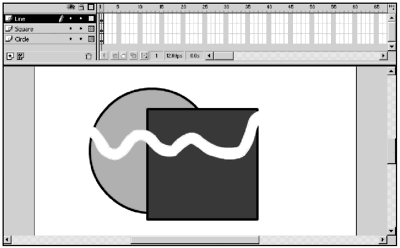
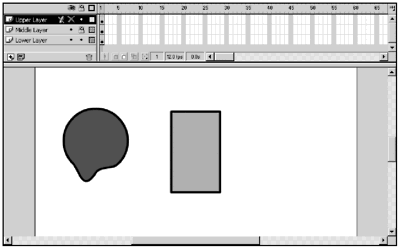
| The timeline in Flash is made up of layers and frames. The layers enable you to separate your artwork in space. Frames enable you to separate your artwork in time. In this section, you'll explore how you use both layers and frames when you create a Flash movie. LayersThink of layers in Flash as sheets of acetate stacked on top of each other. Layers have a stacking order. If you have a shape on your top layer, it will obscure anything on a lower layer, as illustrated in Figure 1.21. How many layers can you have in Flash? The actual limit is 16,000 layers, but if you need that many layers, it's probably time to rethink the organization of your movie. Layers do not increase the file size of your published movie, so use as many layers as you need to create an organized file. Figure 1.21. A series of layers in a Flash movie. Notice how the shapes in the lower layers are partially obscured by shapes in the higher layers. Changing the stacking order of your layers is as simple as clicking on a layer in the layer stack and dragging it to a new position. You can hide or lock layers as necessary by clicking the dot beneath the appropriate icon in the layer stack. The eyeball shows or hides layers. Lock layers to prevent any accidental changes. If your movie is very complex, you might want to view your layers as outlines only. (See Figure 1.22.) Figure 1.22. In this example, the upper layer is hidden, the middle layer is locked, and the bottom layer is shown as outline only. Double-clicking a layer name enables you to rename the layer. Always use meaningful layer names . When you have a movie with 50 layers all named Layer 1, Layer 2, and so on, finding the appropriate layer can become difficult, if not impossible . One of the benefits of layers in Flash is that you can select any object on any layer without first switching to that layer (unless, of course, the layer is locked or hidden). If you've worked in other programs where you've clicked an image or shape and dragged it, only to find you were actually dragging something on another layer, you'll quickly appreciate this. Another benefit of layers is that simple shapes on different layers do not interfere with each other. Unlike some other graphic programs, there is no option in Flash for merging layers. However, you can cut an object from one layer and use the Paste in Place option to paste the object into exactly the same position on another layer. FramesA frame in Flash is used to represent time. Each movie begins with 595 available frames, but you can add as many frames as you need. Flash movies default to a frame rate of 12 frames per second, but for simple Web work, you can get away with as low as 8 frames per second. Increasing your frame rate speeds up your movie and smoothes out your animation. Slowing down the frame rate slows down your movie and can cause your animation, depending on its complexity, to appear jumpy. Keep your frame rate as low as is reasonable for the movie you're creating to help keep your file size low. As a point of reference, you should know that film is shot at 24 frames per second, and video is shot at 30 frames per second. Tip At Fig Leaf, we usually shoot for a frame rate of 15 to 18 frames per second. We've found that 18 frames per second keeps the animation nice and smooth, and 15 frames per second is a little less taxing on the processor. You'll see two types of frames in Flash: regular frames and keyframes. Keyframes exist where changes in the animation take place. Any time there is an object on the Stage, a keyframe in the timeline shows a small filled circle. If a keyframe is empty, you'll either see a small open circle (if you are displaying the frame in the Flash 4 style) or a darkened vertical line (Flash 5 style). When you insert a keyframe in Flash, the contents of the last keyframe are duplicated in the new keyframe. The frames between keyframes are regular frames. Regular frames display the content of the previous keyframe (either blank or filled). Much of the animation you see in Flash is produced by tweening. Tweening , short for in-betweening, is the process of generating intermediate frames between two keyframes to give the appearance of a smooth animation. Flash saves you time by creating the tweened frames for you. Note You have the option of using the Flash 4 frame drawing style or the Flash 5 frame drawing style. You can change from one style to the other in the Preferences dialog box (Edit > Preferences). Personally, I prefer the Flash 4 style. I like my blank keyframes to be really obvious. A quick survey of the other Flash users in our offices came up with a split of 50 percent for the Flash 4 style and 50 percent for the Flash 5 style. It's really whatever you're comfortable with. As your movies become longer and more complex, you might want to consider breaking them up into scenes, movie clips, or multiple movies to simplify the editing process. You'll find that scrolling through thousands of frames quickly becomes annoying.  |

EAN: 2147483647
Pages: 257
- Structures, Processes and Relational Mechanisms for IT Governance
- A View on Knowledge Management: Utilizing a Balanced Scorecard Methodology for Analyzing Knowledge Metrics
- Measuring ROI in E-Commerce Applications: Analysis to Action
- Technical Issues Related to IT Governance Tactics: Product Metrics, Measurements and Process Control
- Governance Structures for IT in the Health Care Industry