Communicating Through Senders
|
| < Day Day Up > |
|
As we’ve seen, SMS uses a sender to connect to another site and transfer information to that site. A sender is a highly reliable and fault-tolerant communication mechanism that transfers data in 256 KB blocks, making it more efficient than dragging and dropping or using an XCOPY command. Senders can communicate using the standard LAN/WAN connection that exists between two sites, or they can use one of four RAS Sender types: Asynchronous RAS Sender, ISDN RAS Sender, X.25 RAS Sender, and SNA RAS Sender. There is also a Courier Sender type, which enables you to create and send package information to another SMS site if you have a slow or unreliable (therefore not well-connected) link between a site and its parent. However, one of the other sender types must still be installed and available for regular intersite communication.
Sender Process Flow
Three main SMS components are involved in sending data from one site to another: Replication Manager, Scheduler, and a sender. With the exception of the Courier Sender, the sender component wakes up when it receives a send request file in its outbox. The process begins earlier than that, however, as illustrated in Figure 4.37. When a request to send data is made, an SMS component will create a replication file and place the file in Replication Manager’s inbox. When the parent-child relationship is established, for example, the Inventory Data Loader places an .MIF file in Replication Manager’s inbox (SMS\Inboxes\Replmgr.box\Outbound) so that it can send the child site’s inventory data to the parent site. As another example, when a package is identified for distribution to another site, Distribution Manager places a replication object file (.RPL or .RPT) in Replication Manager’s inbox.
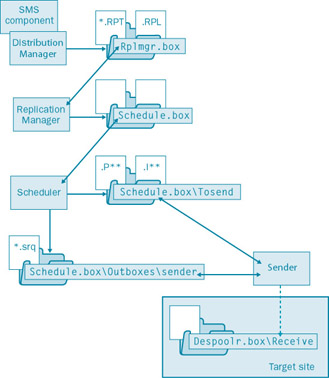
Figure 4.37: The sender process flow, showing the flow of information among SMS components.
Replication Manager will in turn bundle the data if necessary and then create information files for the Scheduler. The Scheduler creates packages, the instructions needed for sending the data in question, and a send request file (.SRQ) for the sender. The package and instruction files are placed in the SMS\Inboxes\Schedule.box\Tosend directory. The send request file is an instruction file for the sender that contains information such as the priority of the request, the site code and preferred address of the target site, a job identifier, the location of the sender’s outbox, the location and names of the package and instruction files, action codes, and routing information if a direct address to the target site doesn’t exist. This file is written to the preferred sender’s outbox (SMS\Inboxes\Schedule.box\Outboxes\sender, where sender is the sender type, such as LAN, RASAsynch, RASISDN, and so on).
When this file is written, the sender wakes up and reads the send request file. It also checks to see whether the address properties have placed any restrictions on when requests of this priority can be sent and whether any bandwidth limits have been set. The sender then changes the extension of the send request file to .SRS and writes status information to the file, including when the sending process started, when it ended, and how much data has been transferred at any point in time.
| Note | The Total Bytes To Send and Bytes Left To Send values in the send request file serve an important fault-tolerance role. If the sending process is interrupted for any reason—for example, if a send request of higher priority is created—the sender knows how to pick up where it left off. |
The sender connects to the target site’s SMS_Site share—the SMS\Inboxes\ Despoolr.box\Receive directory—where the Despooler component will complete the processing of information at the target site. If the sender comes across an error while transferring the data, it will write an error status to the .SRS file. When the data has been completely transferred, the send request file is updated to Completed status and is then deleted.
Defining a Sender
When the SMS site server is first installed, Setup creates the Standard Sender and Courier Sender by default. The SMS administrator can then choose to install additional senders as necessary. As mentioned, only one sender of each type can be installed on the same server. However, you can install the same sender type on multiple servers. These servers will become SMS component servers when you install a sender on them.
There is nothing special involved in adding a Standard Sender on an SMS component server. The only requirement is that you have an existing LAN or WAN connection between the Standard Sender component server and the target site server. Then, of course, you must configure an additional address to the target site using the new Standard Sender.
The other four sender types are RAS senders: Asynchronous RAS Sender, ISDN RAS Sender, X.25 RAS Sender, and SNA RAS Sender. Enabling the use of one or more of these sender types assumes that you have already established a RAS server at each site installed with the appropriate hardware and software support—that is, a modem, ISDN, X.25, or SNA connection. It’s not necessary, or even desirable, that the site server itself be installed as a RAS server; it’s only necessary that the site server for each site have access and connectivity to a RAS server (appropriately configured) on their local networks.
 |
When you install an SMS sender on another server, such as the Asynchronous RAS Sender on a RAS server, that server becomes an SMS component server. The SMS Executive, support files, and directories for the sender are all installed on that server. Since the sender doesn’t reside on the site server, it won’t wake up when a send request file is created. Instead, the sender wakes up on a 5-minute polling cycle.
This polling cycle will require some additional resources on the sender’s server. Also, network traffic will be generated between the site server and the sender server to transfer send request, package, and instruction data. The ultimate effect on the network’s and sender server’s performance will depend on the amount of usage the sender will experience and, of course, the current usage of the server itself. Alternative senders do provide a means for the Scheduler to improve sending performance from one site to another. The SMS administrator will need to determine the significance of any trade-off between having an alternative sending mechanism and the network and server performance hits that might occur.
The immediate benefit that your SMS site will have when you install additional senders on other servers is that the site will then have one or more alternative ways to send data to a target site—assuming that you created addresses to those sites referencing each available sender. Data can be sent using an alternative sender when the primary sender is unavailable. Data can also be sent concurrently to the same site or to different sites using all available senders. Again, the trade-off will be in the area of network traffic and network performance. As always, be sure to monitor network usage to be sure that you’re gaining the most out of your senders’ configuration.
|
You add new senders to the site through the SMS Administrator Console as a site setting. To establish a new sender, follow these steps:
-
In the SMS Administrator Console, navigate to the Site Settings folder and highlight the Senders object. One sender will be displayed—the Standard Sender installed by default. (Please note that the Courier Sender isn’t displayed. Although the Courier Sender is installed by default, it can’t be modified. For details, refer to the section entitled “Courier Sender” later in this chapter.)
-
Right-click the Senders object and choose New from the context menu to display the five sender type options, as shown in Figure 4.38. Select the type of sender you want to establish.
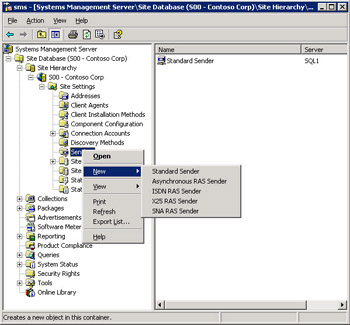
Figure 4.38: The list of sender type options.Note Because all the sender types will display a similar series of Property dialog boxes, we’ll show only the pages for the Asynchronous RAS Sender here.
-
Right-click a sender in the details pane and select Properties from the context menu. In the General tab of the Sender Properties dialog box, shown in Figure 4.39, enter the name of the server on which you want to create the sender—in this case, the name of the RAS server.
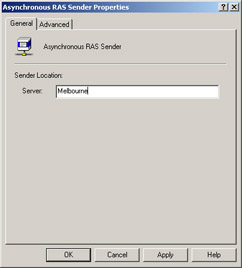
Figure 4.39: The General tab of the Sender Properties dialog box. -
Select the Advanced tab, as shown in Figure 4.40, and enter values for the Maximum Concurrent Sendings and Retry Settings options.
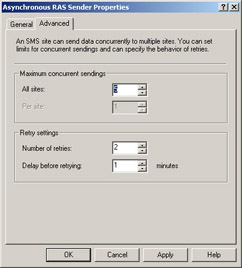
Figure 4.40: The Advanced tab of the Sender Properties dialog box.Maximum Concurrent Sendings represents the number of concurrent transmissions that can be made to all sites through this sender or to any single site (Per Site). The Per Site setting is set to 1 and disabled for RAS senders by default. The Retry Settings options consist of the number of retries to attempt if a connection fails and the number of minutes to wait between retries (Delay Before Retrying). Your choices for these options depend primarily on the kind of network connection you have between the sites. For example, if you have a well-connected network connection and the amount of bandwidth used is low, you might increase the Maximum Concurrent Sendings value and decrease the Retry Settings options.
-
Click OK to begin the site configuration process.
Establishing a new sender initiates the same site configuration change process we’ve seen in earlier examples. Part of this process includes creating an outbox for the sender in the SMS\Inboxes\Schedule.box\Outboxes directory. If the sender is being installed on another server, the process will include installing the SMS Executive on the sender server (making it a component server), installing the sender support files and the sender’s support directory, and then updating the site server’s site control file appropriately. Status messages for the new sender will include a notice of successful installation, as shown in Figure 4.41. Of course, you can also follow the process by checking status messages and logs for Hierarchy Manager, Site Control Manager, and Site Component Manager.
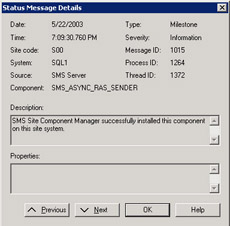
Figure 4.41: Status message indicating that the RAS Sender has been successfully installed on the component server.
Courier Sender
As mentioned, the Courier Sender enables you to create and send package information to another SMS site through non-network channels, such as regular postal service or a package delivery service if you have a slow or unreliable link between a site and its parent. It can also be used to send packages that are so large that an existing address might not provide adequate performance levels. It’s not, however, meant to be used as a consistent alternative to existing network communication mechanisms, nor can it be used to transmit data packages generated internally by SMS.
As with other senders, to use the Courier Sender as an alternative means of sending packages, you must create an address to the target site using the Courier Sender as the sender type, as shown in Figure 4.42. We have discussed how to create an address to the target site using other sender types in the section entitled “Creating an Address to Another Site” earlier in this chapter. Similarly, in the SMS Administrator Console, navigate to the Site Settings folder and expand it. Right-click the Addresses object and choose New and then Courier Sender Address from the context menu, which will bring you to the Properties dialog box shown in Figure 4.42.
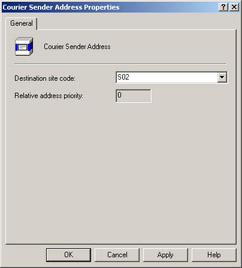
Figure 4.42: The General tab of the Courier Sender Address Properties dialog box.
When you create the package, you can also identify the Courier Sender as the preferred sender type for that package, as shown in Figure 4.43. (For details on creating packages, please refer to Chapter 12, “Package Distribution and Management.”)
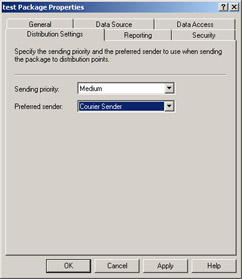
Figure 4.43: The Distribution Settings tab of the Package Properties dialog box.
You’ll also need to identify the target site as a distribution point for the package. Please refer back to Chapter 3 for details.
| Tip | If you have more than one address to a target site and you want to send a package using the Courier Sender, choose Courier Sender as the preferred sender type when you create the package. |
When you use the Courier Sender as the sending mechanism to transfer a package, the package files are compressed into a single package (.PCK) and placed in the SMS\Smspkg directory. A send request file is also created and placed in the Courier Sender’s outbox. Because no automatic connection needs to be made to the target site, you must next launch Courier Sender Manager from the Systems Management Server program group. To create outgoing parcels, follow these steps:
-
In Courier Sender Manager, choose Create Outgoing Parcel from the File menu.
-
Select your package from the list and click Next.
-
In the Parcel Properties section, enter the name of the package, a tracking name, the method you’re using to send the parcel (for example, UPS or Federal Express), and a descriptive comment. Click Next.
-
Enter the path where you want to save the parcel. The default is SMS\Inboxes\Coursend.box\Out. Click Next.
-
Click Finish to create the parcel (.PCL) file.
You can now copy this parcel to some other medium, such as CD-ROM, and then send it on using some non-network method, such as the U.S. Postal Service. The SMS administrator at the target site will in turn copy this parcel to a directory on the target site server. (The default used by Courier Sender Manager is SMS\Inboxes\Coursend.box\In.) The SMS administrator will then launch Courier Sender Manager on the target site server, essentially reversing the sending process by following these steps:
-
In Courier Sender Manager, choose Receive Incoming Parcel from the File menu to display the Courier Sender Wizard’s Receive An Incoming Parcel page.
-
Click Browse, select the package from the list, and click Open.
-
Click Next and then Finish to complete the package receiving process.
Courier Sender Manager will process this parcel as though a package had been sent using one of the other senders. If necessary, a SMSPkgx$ directory will be created (where x stands for the drive letter) and the package files will be uncompressed and copied to a subfolder below the directory. When the process has been completed, you can check the parcel’s status by choosing Parcel Status from the Courier Sender Manager’s File menu at the sending site. Since the nature of Courier Sender is that the package is being sent by some non-network method, parcel status is also updated by a non-network method—that is, you need to manually update the status.
When you first create the parcel, the parcel status will be displayed as “created.” After you send the parcel to the target site, you can change the status to either “sent” or “confirmed.” After you change the status to “sent,” your only other option can be “confirmed,” which you might select, for example, when the administrator from the target site notifies you that the parcel was received and processed.
Change the status of a parcel by following these steps:
-
In the Courier Sender Manager, right-click the parcel whose status you want to change and select Properties from the Action menu.
-
In the Parcel Properties dialog box, click Change Status.
-
In the Change Status dialog box, select the option that reflects the parcel’s new status.
Note For more information about using and troubleshooting the courier sender process, see the online help available when you launch the Courier Sender Manager.
|
| < Day Day Up > |
|

EAN: 2147483647
Pages: 178
- Basic MPLS Configuration
- Frame-Mode MPLS Configuration and Verification
- Cell-Mode MPLS over ATM Overview, Configuration, and Verification
- BGP PE-CE Routing Protocol Overview, Configuration, and Verification
- Case Study 2: Implementing Multi-VRF CE, VRF Selection Using Source IP Address, VRF Selection Using Policy-Based Routing, NAT and HSRP Support in MPLS VPN, and Multicast VPN Support over Multi-VRF CE