Flylib.com

Books Software


Aligning and Distributing Objects

Aligning and Distributing Objects

Often when you work with three similar or identical objects, they look best when aligned in relation to each other. For example, you can align three objects so the tops of all three objects match along an invisible line. Sometimes your task will not be alignment but distributing objects evenly across a space. Excel includes commands to distribute your items horizontally and vertically. You can specify whether you want the distribution to occur in the currently occupied space or across the entire worksheet.

Align Objects

graphics/one_icon.jpg

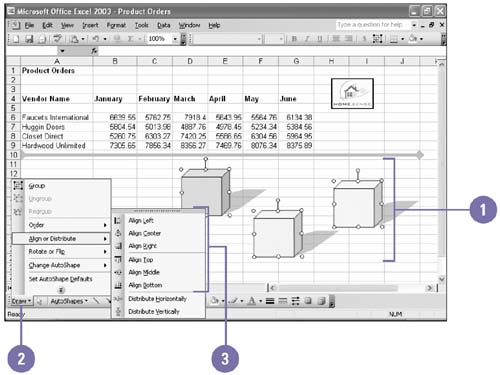
Press Shift, and then click the objects that you want to align.

graphics/tow_icon.jpg

Click the Draw button on the Drawing toolbar, and then point to Align Or Distribute.

graphics/three_icon.jpg

Click the alignment option you want.

  • Align Left . Lines up the left edges of the selected objects.

  • Align Center . Lines up the centers of the selected objects.

  • Align Right . Lines up the right edges of the selected objects.

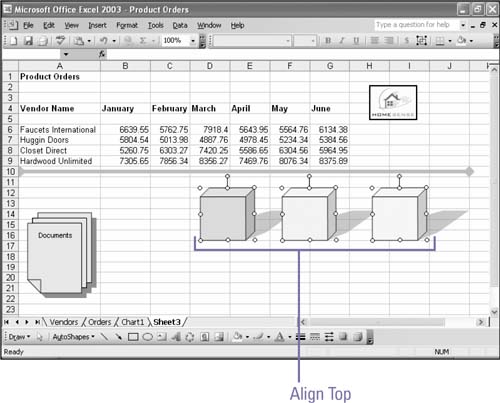
  • Align Top . Lines up the top edges of the selected objects.

  • Align Middle . Lines up horizontally the middles of the selected objects.

  • Align Bottom . Lines up the bottom edges of the selected objects.

graphics/08inf32.jpg

graphics/08inf33.jpg

Distribute Objects

graphics/one_icon.jpg

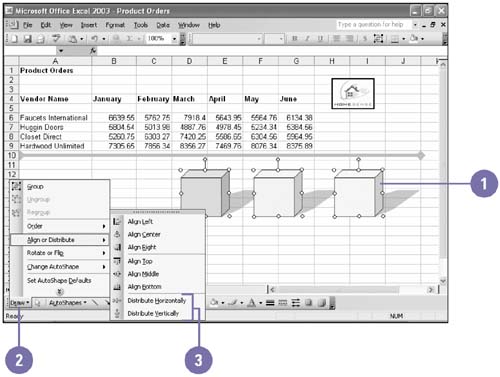
Press Shift, and then click the objects that you want to distribute.

graphics/tow_icon.jpg

Click the Draw button on the Drawing toolbar, and then point to Align Or Distribute.

graphics/three_icon.jpg

Click the distribution option you want.

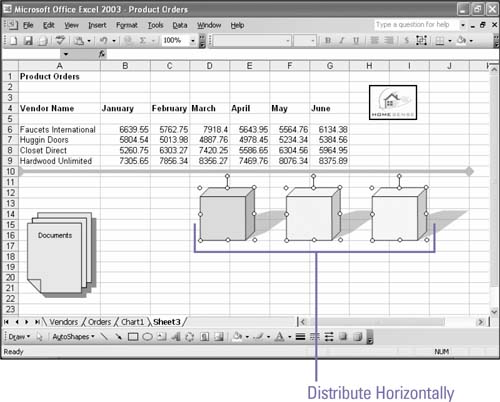
  • Distribute Horizontally . Distributes the objects evenly horizontally.

  • Distribute Vertically . Distributes the objects evenly vertically.

graphics/08inf34.jpg

graphics/08inf35.jpg

Did You Know?

You can open the Drawing toolbar . If the Drawing toolbar is not open, click the View menu, point to Toolbars, and then click Drawing.

You can snap an object to a shape or grid . When you drag an object, you can have Excel snap the object you're dragging to another object or an invisible grid on the worksheet. Click the Draw button on the Drawing toolbar, point to Snap, and then click To Grid or To Shape.

Arranging and Grouping Objects

When a worksheet contains multiple objects, you might need to consider how they interact with each other. If the objects overlap, the most recently created drawing will be placed on top of older drawings, but you can change how the stack of objects is ordered. If you have created a collection of objects that work together, you might want to group them to create a new drawing object that you can move, resize, or copy as a single unit.

Change the Order of Objects

graphics/one_icon.jpg

Click the drawing object you want to place.

graphics/tow_icon.jpg

Click the Draw button on the Drawing toolbar, and then point to Order.

graphics/three_icon.jpg

Click the stacking option you want.

  • Click Bring To Front or Send To Back to move the drawing to the top or bottom of the stack.

  • Click Bring Forward or Bring Backward to move a drawing up or back one location in the stack.

graphics/08inf36.jpg

Group Objects Together

graphics/one_icon.jpg

Press Shift while you click to select the drawing objects you want to group together.

graphics/tow_icon.jpg

Click the Draw button on the Drawing toolbar.

graphics/three_icon.jpg

Click Group.

graphics/08inf37.jpg

Ungroup an Object

graphics/one_icon.jpg

Select the object you want to ungroup.

graphics/tow_icon.jpg

Click the Draw button on the Drawing toolbar.

graphics/three_icon.jpg

Click Ungroup.

graphics/08inf38.jpg

Regroup an Object

graphics/one_icon.jpg

Click one or more of the objects in the original group.

graphics/tow_icon.jpg

Click the Draw button on the Drawing toolbar.

graphics/three_icon.jpg

Click Regroup.

graphics/08inf39.jpg