Flylib.com

Books Software


9.2 Creating a JSP


9.2 Creating a JSP

The web server is running and now it's time to put it to use. At its simplest, you can use Eclipse to write JSP files, which don't require compilation. These files can enclose Java code in scriptlet , declaration , and expression elements. The most general of these are scriptlets, which can enclose multiline Java code. Scriptlets are enclosed with the markup <% and %> , as you can see in Example 9-1. You can use the out object's println method to send text back to the browser; in this case, we're simply sending the text "Using JSP" back to the browser in this JSP.

Example 9-1. A sample JSP
<HTML>

  <HEAD>

    <TITLE>A Web Page</TITLE>

  </HEAD>


  <BODY>

    <H1>Working With JSP</H1>

    <% out.println("Using JSP"); %>

  </BODY>

</HTML>

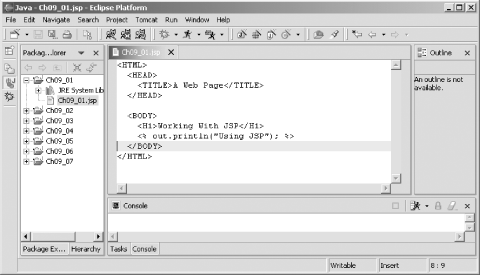
An easy way to create this JSP file is just to enter it into Eclipse, as you can see in Figure 9-2, where we've created a new project, Ch09_01 , and a new file, Ch09_01.jsp , to hold the JSP code. There's no syntax checking going on here; Eclipse is just using its standard default editor.

If you do want to check syntax of JSP documents, give the free XML editor XML Buddy a try (available at http://www.xmlbuddy.com).


Figure 9-2. Entering JSP code
figs/ecps_0902.gif

How can you install Ch09_01.jsp so Tomcat can serve it to client browsers? To handle the examples from this chapter, we're going to create a subdirectory of the Tomcat webapps directory, Ch09 . This new directory must itself have a subdirectory named WEB-INF , which must have two subdirectories, classes and lib :

webapps

_ _ch09                       The folder for Chapter 9 examples

    _ _WEB-INF                Information about Chapter 9s web applications

         _ _classes           Java classes used by Chapter 9s web applications

         _ _lib               JAR files used by Chapter 9s web applications

At this point, the WEB-INF , classes , and lib directories are emptybut they must exist, or Tomcat won't consider Ch09 a valid directory for storing web documents. After creating these directories, store Ch09_01.jsp in the Ch09 directory. Then shut down Tomcat (if it's running) and restart it.

When you add a new directory to the webapps directory, or install .class files anywhere in the webapps directory, you should shut down Tomcat and start it again. By default, Tomcat copies over what's in the webapps directory to the work directory and actually uses what's in the work directory to run, which means you should restart Tomcat when you make major changes in the webapps directory. Tomcat can be configured to detect those changes so it won't need to be restarted, but we're not going to do that here.


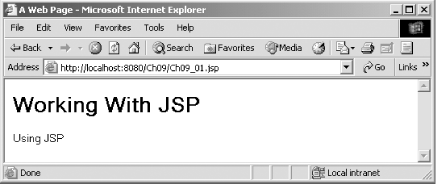
To see the JSP document at work, navigate to http://localhost:8080/Ch09/Ch09_01.jsp in a browser, as you see in Figure 9-3. Tomcat translates the Java code in the JSP into servlet form, compiles it, and runs it, and you can see the results in the figure.

Figure 9-3. Viewing a JSP file
figs/ecps_0903.gif

That got us started with Tomcat and our first JSP, but as you can see, Eclipse wasn't very deeply involved. We created Ch09_01.jsp using Eclipse, but not much more. It's time to bring Eclipse to the forefront.


9.3 Creating a Servlet

JSPs were introduced to make Java web programming more appealing for the novice, letting you mix HTML and Java code. JSPs are actually based on Java servlets (they're translated into servlets before being run), which are pure Java code, and which we're going to focus on for the most part in this chapter. You can see an example servlet in Example 9-2.

Example 9-2. A sample servlet
import java.io.*;

import javax.servlet.*;

import javax.servlet.http.*;


public class ch09_02 extends HttpServlet 

{

    public void doGet(HttpServletRequest request,

        HttpServletResponse response)

        throws IOException, ServletException

    {

        response.setContentType("text/html");

        PrintWriter out = response.getWriter( );


        out.println("<HTML>");

        out.println("<HEAD>");

        out.println("<TITLE>");

        out.println("A Servlet Example");

        out.println("</TITLE>");

        out.println("</HEAD>");

        out.println("<BODY>");

        out.println("<H1>");

        out.println("Working With Servlets");

        out.println("</H1>");

        out.println("Using servlets");

        out.println("</BODY>");

        out.println("</HTML>");

    }

}

Servlets like this one are based on the javax.servlet.http.HttpServlet class, and they often simply override the doGet method, which is passed a request object that holds data from the browser (including the browser type and the data from any HTML controls) and a response object that lets you tailor your response to the client browser.

You override the doGet method to handle HTTP GET requests (as when the METHOD attribute in an HTML form is set to GET ) or default servlet accesses . The doPost method, which takes the same arguments, handles the POST method (as when the METHOD attribute in an HTML form is set to POST ). To handle either GET or POST requests, you can override the servlet service method, which also takes the same arguments (and is actually the method responsible for calling doGet or doPost ).


In this case, we're tailoring our response to the browser by using the response object's getWriter method to get a PrintWriter object, and we're using that object's println method to send HTML back to the browser. In this case, we're just sending back an HTML page with the text "Using servlets" in it.

To follow along, create a new project, Ch09_02 , and enter the code in Ch09_02.java into a new class, Ch09_02 , in that project, using the package name org.eclipsebook.ch09 . To satisfy the imports we need for this code, include servlet.jar , which comes with Tomcat, in the build path . You can find servlet.jar at jakarta-tomcat-4.1.29\common\lib\servlet.jar ; right-click the Ch09_02 project in the Package Explorer, select Properties, and then add servlet.jar to the build path.

At this point, you should be able to build the servlet by selecting the Ch09_02 project in the Package Explorer and selecting Project Build Project, creating Ch09_02.class . Class files like this go into the Tomcat classes directory. Our servlet is in the org.eclipsebook.ch09 package, and the directory structure must mirror the package structure, so put Ch09_02.class in webapps\Ch09\WEB-INF\class\org\eclipsebook\ch09 :

webapps

_ _ch09                       

    _ _WEB-INF

_ _classes


_ _org


_ _eclipsebook


_ _ch09  Directory for the servlet code

_ _lib

To let Tomcat know that this new class is a servlet, you use a file named web.xml that holds configuration data for web applications. In this file, we use two XML elements, servlet and servlet-mapping , to connect the URL Ch09_02 to the actual Java code for the servlet, org.eclipsebook.ch09.Ch09_02 . You can see what web.xml looks like in Example 9-3.

Example 9-3. Updating web.xml
<?xml version="1.0" encoding="ISO-8859-1"?>

<!DOCTYPE web-app PUBLIC "-//Sun Microsystems, Inc.//DTD Web Application 2.3//EN"

"http://java.sun.com/dtd/web-app_2_3.dtd">

<web-app>

  <display-name>Example Applications</display-name>


  <servlet>

    <servlet-name>Ch09_02</servlet-name>

    <servlet-class>org.eclipsebook.ch09.Ch09_02</servlet-class>

  </servlet>


  <servlet-mapping>

    <servlet-name>Ch09_02</servlet-name>

    <url-pattern>/org.eclipsebook.ch09.Ch09_02</url-pattern>

  </servlet-mapping>


</web-app>

Create this new document, web.xml , in Eclipse now, by right-clicking the project and selecting New File. To open web.xml in Eclipse, right-click it and select the Open With Text Editor item (if you just double-click it, your default XML editorfor example, Internet Explorer in Windowswill open the file instead, unless you have an XML plug-in like XMLBuddy installed). Enter the XML in Example 9-3, store the file, and then copy it to the Ch09 directory's WEB-INF directory:

webapps

_ _ch09

_ _WEB-INF                Information about Chapter 9's web applications

_ _classes           

         _ _lib

Finally, shut Tomcat down and restart it. We're ready to go; in the browser, navigate to the URL http://localhost:8080/Ch09/org.eclipsebook.ch09.Ch09_02 , and you should see the results in Figure 9-4.

Figure 9-4. Viewing a new servlet
figs/ecps_0904.gif

Not badwe've used Eclipse to develop a new servlet. At this point, we've still been developing our code and then copying it to the Tomcat directories, but Eclipse can also handle the file handling for us.