Flylib.com

Books Software


Section 6.2. Create a Data Source View


6.2. Create a Data Source View

Create a data source viewa logical data model based on the data sourcefor the Adventure Works data source. Follow these steps.

  1. Right-click the Data Source Views node in the Solution Explorer pane. Select Add New Data Source View from the context menu to launch the Data Source View Wizard.

  2. If the Welcome dialog for the Data Source View Wizard appears, click the Next > button.

  3. Select the Adventure Works data source in the Select a Data Source dialog as shown in the following figure.

    Figure 6-3. Data Source View Wizard: Select a Data Source

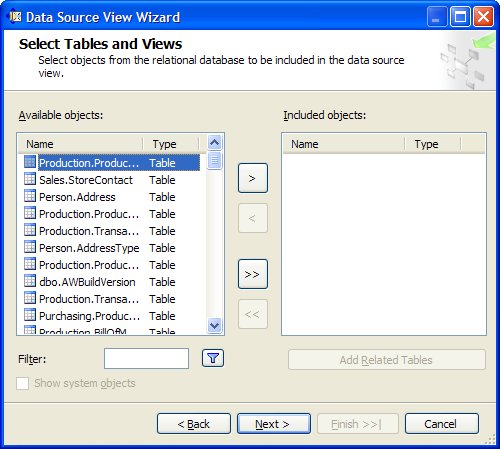
  4. Click the Next > button to open the Select Tables and Views dialog shown in the following figure.

    Figure 6-4. Data Source View Wizard: Select Tables and Views

  5. Click the >> button to include all of the tables and views from the AdventureWorks database in the data source view.

  6. Click the Next > button to open the Completing the Wizard dialog shown in the following figure.

    Figure 6-5. Data Source View Wizard: Completing the Wizard

  7. Click the Finish button in Completing the Wizard to create the new data source view and end the wizard.

The new data source view Adventure Works.dsv appears in the Solution Explorer pane under the Data Source Views node.


6.3. Create a Report Model

To define a new report modela metadata abstraction of the underlying database that identifies business entities, fields, and rolesfollow these steps:

  1. Right-click on the Report Models node in the Solution Explorer pane and select Add New Report Model from the context menu to launch the Report Model Wizard.

  2. If the Welcome dialog for the Report Model Wizard appears, click the Next > button.

  3. Select the Adventure Works.dsv data source view in the Select Data Source View dialog as shown in the following figure.

    Figure 6-6. Report Model Wizard: Select Data Source View

  4. Click the Next > button to open the Select report model generation rules dialog shown in the following figure.

    Figure 6-7. Report Model Wizard: Select Report Model Generation Rules

  5. Accept the defaults and click the Next > button to display the Collect Model Statistics dialog shown in the following figure.

    Figure 6-8. Report Model Wizard: Collect Model Statistics

  6. Accept the dialog defaults and click the Next > button to display the Completing the Wizard dialog shown in the following figure.

    Figure 6-9. Report Model Wizard: Completing the Wizard

  7. Click the Run button to create the new report model. The dialog displays metadata rules for the report model in the Status list box, and a Finish button (in place of the Run button).

  8. Click the Finish button after processing completes to end the wizard.

The new report model Adventure Works.smdl appears in the Solution Explorer pane under the Report Models node.


6.4. Publish a Report Model

Finally, publish the report model to the report server so that you can use it to create new reports using Report Builder. Follow these steps.

  1. Right-click the SS2005RE Model node in the Solution Explorer pane. Select Deploy from the context node to publish the model.

  2. View the deployment results in the Output pane as shown in the following figure.

    Figure 6-10. Output Pane: Deploy Report Model

  3. Open the Report Manager Home page. A new Models folder has been created as shown in the following figure.

    Figure 6-11. Report Manager: New Data Source

    The Models folder is the default location for the new Report Model project. You can change this in the Property Pages dialog displayed by selecting Project Properties... from the main menu.

  4. Click on the Models folder. The new Adventure Works report model is listed.

  5. Click the Report Builder button on the toolbar to launch Report Builder. The new data source Adventure Works is available for use in the data source list box in the Getting Started pane.