Keyboard Technology
| The technology that makes up a typical PC keyboard is very interesting. This section focuses on all the aspects of keyboard technology and design, including the keyswitches, the interface between the keyboard and the system, the scan codes, and the keyboard connectors. Keyswitch DesignKeyboards in portable systems can use any one of several switch types to create the action for each key. This section discusses these switches and the highlights of each design. Keyswitches are available in the following variations:
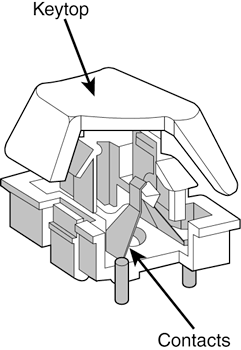
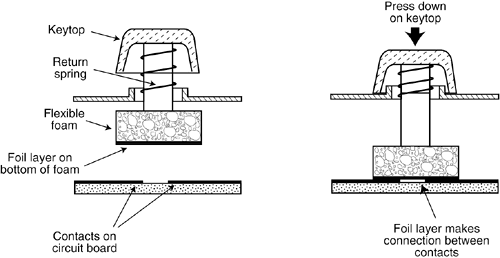
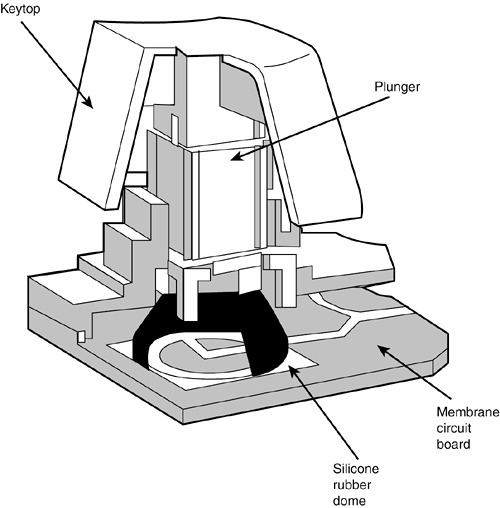
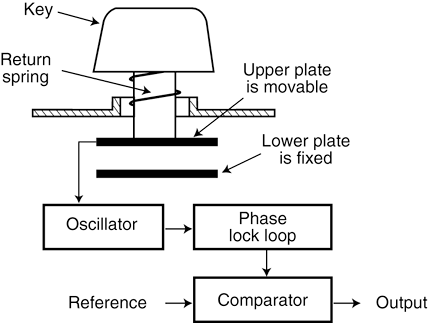
Pure Mechanical SwitchesThe pure mechanical switch type is just that ”a simple mechanical switch that features metal contacts in a momentary contact arrangement. The switch often includes a tactile feedback mechanism, consisting of a clip and spring arrangement designed to give a "clicky" feel to the keyboard and offer some resistance to the keypress (see Figure 13.5). Figure 13.5. A typical mechanical switch. As the key is pressed, the switch pushes down on the contacts to make the connection. Mechanical switches are very durable, usually have self-cleaning contacts, and are normally rated for 20 million keystrokes, which is second only to the capacitive switch in longevity. They also offer excellent tactile feedback. Foam Element SwitchesFoam element mechanical switches were a very popular design in some older keyboards. Most of the older PC keyboards, including models made by Key Tronic and many others, used this technology. These switches are characterized by a foam element with an electrical contact on the bottom. This foam element is mounted on the bottom of a plunger that is attached to the key (see Figure 13.6). Figure 13.6. Typical foam element mechanical keyswitch. When the switch is pressed, a foil conductor on the bottom of the foam element closes a circuit on the printed circuit board below. A return spring pushes the key back up when the pressure is released. The foam dampens the contact, helping to prevent "bounce." Unfortunately, this gives these keyboards a "mushy" feel. The big problem with this type of keyswitch design is that often, little tactile feedback exists. These types of keyboards send a clicking sound to the system speaker to signify that contact has been made. Preferences in keyboard feel are somewhat subjective ; I personally do not favor the foam element switch design. Another problem with this type of design is that it is more subject to corrosion on the foil conductor and the circuit board traces below. When this happens, the key strikes can become intermittent, which can be frustrating. Fortunately, these keyboards are among the easiest to clean. By disassembling the keyboard completely, you usually can remove the circuit board portion ”without removing each foam pad separately ”and expose the bottoms of all the pads. Then, you easily can wipe the corrosion and dirt off the bottom of the foam pads and the circuit board, thus restoring the keyboard to a "like-new" condition. Unfortunately, over time, the corrosion problem will occur again. I recommend using some Stabilant 22A from D.W. Electrochemicals to improve the switch contact action and prevent future corrosion. Because of such problems, the foam element design is not used much anymore and has been superseded in popularity by the rubber dome design. Rubber Dome SwitchesRubber dome switches are mechanical switches similar to the foam element type but are improved in many ways. Instead of a spring, these switches use a rubber dome that has a carbon button contact on the underside. As you press a key, the key plunger presses on the rubber dome, causing it to resist and then collapse all at once, much like the top of an oilcan. As the rubber dome collapses, the user feels the tactile feedback, and the carbon button makes contact between the circuit board traces below. When the key is released, the rubber dome re-forms and pushes the key back up. The rubber eliminates the need for a spring and provides a reasonable amount of tactile feedback without any special clips or other parts . Rubber dome switches use a carbon button because it resists corrosion and has a self-cleaning action on the metal contacts below. The rubber domes themselves are formed into a sheet that completely protects the contacts below from dirt, dust, and even minor spills. This type of switch design is the simplest, and it uses the fewest parts. This made the rubber dome keyswitch very reliable for several years . However, its relatively poor tactile feedback has led most keyboard manufacturers to switch to the membrane switch design covered in the next section. Membrane/Rubber Dome SwitchesThe membrane keyswitch is a variation on the rubber dome type and uses a flat, flexible circuit board to receive input and transmit it to the keyboard microcontroller. Although low-end membrane keyswitches have a limited life of only 5 “10 million keystrokes, some of the better models are rated to handle up to 20 million keystrokes, putting them in the range of pure mechanical switches for durability (see Figure 13.7). Figure 13.7. A typical membrane/rubber dome keyswitch. Capacitive SwitchesCapacitive switches are the only nonmechanical keyswitch in use today (see Figure 13.8). The capacitive switch is the Cadillac of keyswitches. It is much more expensive than the more common mechanical membrane switch, but it is more resistant to dirt and corrosion and offers the highest-quality tactile feedback of any type of switch. This type of keyboard is sometimes referred to as a buckling-spring keyboard because of the coiled spring used to provide feedback. Unfortunately, capacitive switches were only used in some of the older luggable or briefcase- sized portables and are not used in modern laptop or notebook systems due to size, weight, and cost issues. Figure 13.8. A capacitive buckling-spring keyswitch. A capacitive switch does not work by making contact between conductors. Instead, two plates usually made of plastic are connected in a switch matrix designed to detect changes in the capacitance of the circuit. When the key is pressed, the plunger moves the top plate in relation to the fixed bottom plate. Usually, a buckling-spring mechanism provides distinct, over-center tactile feedback with a resounding "click." As the top plate moves, the capacitance between the two plates changes. The comparator circuitry in the keyboard detects this change. Because this type of switch does not rely on metal contacts, it is nearly immune to corrosion and dirt. These switches are very resistant to the "key bounce" problems that result in multiple characters appearing from a single strike. They are also the most durable in the industry ”rated for 25 million or more keystrokes, as opposed to 10 “20 million for other designs. The tactile feedback is unsurpassed because the switch provides a relatively loud click and a strong over-center feel. The only drawback to the design is the cost. Capacitive switch keyboards are among the most expensive designs. The quality of the feel and their durability make them worth the price, however. Originally, the only vendor of capacitive keyswitch keyboards was IBM. Although some of IBM's keyboards still feature capacitive keyswitches, many IBM keyboards also use rubber dome or other lower-cost keyswitches. In 1991 IBM spun off their keyboard/printer division as Lexmark, who then spun off the keyboard division as Unicomp in 1996. Today, Unicomp still manufactures and sells "IBM" keyboards with the classic buckling-spring capacitive switch ("clickety" as some would say) technology. As a bonus, some models have the IBM TrackPoint built in. You can purchase new Unicomp (IBM) keyboards direct by calling toll free (1-800-777-4886) or going to the online store at www.pckeyboard.com. Because of the buckling-spring capacitive keyswitches (and the resulting clickety feel), I've always been a huge fan of the IBM, Lexmark, and now Unicomp keyboards. I feel they are the absolute best keyboards in the world; the only ones I willingly use on desktop systems. I especially like the fact that they have models that include the IBM TrackPoint, because I use a laptop system as my main machine, and I only use laptops that include the TrackPoint device ( mainly IBM, Toshiba, and some Dell, HP, and others). The feel and durability of the buckling-spring capacitive keyswitches is outstanding, and with the integrated TrackPoint, I never have to move my hands off the keyboard, which results in much greater efficiency in working with my systems. The Keyboard InterfaceA keyboard consists of a set of switches mounted in a grid or an array called the key matrix . When a switch is pressed, a processor in the keyboard identifies which key is pressed by determining which grid location in the matrix shows continuity. The keyboard processor, which also interprets how long the key is pressed, can even handle multiple key presses at the same time. A 16-byte hardware buffer in the keyboard can handle rapid or multiple keypresses, passing each one to the system in succession. When you press a key, the contact bounces slightly in most cases, meaning that several rapid on/off cycles occur just as the switch makes contact. This is called bounce . The processor in the keyboard is designed to filter this (or "debounce" the keystroke). The keyboard processor must distinguish bounce from an intended double keystrike. This is fairly easy, though, because the bouncing is much more rapid than a person could simulate by striking a key quickly several times. The keyboard in a laptop or desktop PC is actually a computer itself. It communicates with the main system in one of two ways:
The serial data link used by conventional keyboards transmits and receives data in 11-bit packets of information, consisting of 8 data bits plus framing and control bits. Although it is indeed a serial link (in that the data flows on one wire), the keyboard interface is incompatible with the standard RS-232 serial port commonly used to connect modems. The keyboard serial interface is connected to a special keyboard controller on the motherboard. This controller was an Intel 8042 Universal Peripheral Interface (UPI) slave microcontroller chip in the original IBM design. This microcontroller is essentially another processor that has its own 2KB of ROM and 128 bytes of RAM. Modern systems incorporate the keyboard controller into the main system chipset. The keyboard connector was renamed the "PS/2" port after the IBM PS/2 family of systems debuted in 1987. At that time, the connector changed in size from the DIN (Deutsches Institut f ¼r Normung e.V.) to the mini-DIN, and even though the signals were the same, the mini-DIN version became known from that time forward as the PS/2 port. Keyboards connected to a USB port work in a surprisingly similar fashion to those connected to conventional DIN or mini-DIN (PS/2) ports after the data reaches the system. Inside the keyboard, a variety of custom controller chips are used by various keyboard manufacturers to receive and interpret keyboard data before sending it to the system via the USB port. Some of these chips contain USB hub logic to enable the keyboard to act as a USB hub. After the keyboard data reaches the USB port on the system, the USB port routes the data to the 8042-compatible keyboard controller, where the data is treated as any other keyboard information. This process works very well after a system has booted into Windows. But what about users who need to use the keyboard at a command prompt or within the BIOS-configuration routine? In that case, USB Legacy support must be enabled in the BIOS. A BIOS with USB Legacy support is capable of performing the following tasks :
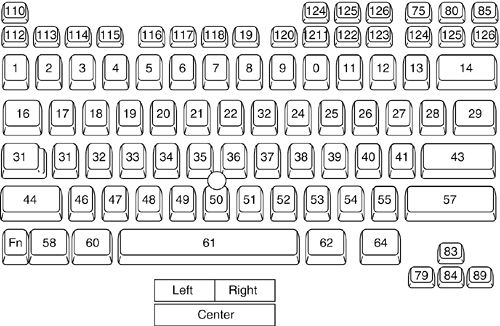
Systems with USB Legacy support enable users to tap the BIOS to control the USB keyboard until a supported operating system is loaded. At that point, the USB host controller driver in the operating system takes control of the keyboard by sending a command called StopBIOS to the BIOS routine managing the keyboard. When Windows shuts down to MS-DOS, the USB host controller sends a command called StartBIOS to restart the BIOS routine that manages the keyboard. When the BIOS controls the keyboard, after the signals reach the 8042 keyboard controller, the USB keyboard is treated just like a conventional keyboard if the BIOS is correctly designed to work with USB keyboards. A BIOS upgrade might be necessary in some cases to provide proper support of USB keyboards on some systems. The system chipset also must support USB Legacy features. Typematic FunctionsIf a key on the keyboard is held down, it becomes typematic , which means the keyboard repeatedly sends the keypress code to the motherboard. The typematic rate is adjusted by sending the appropriate commands to the keyboard processor. You can adjust the typematic repeat rate and delay parameters with settings in your system BIOS (although not all BIOS chips can control all functions) or in your operating system. In DOS, you use the MODE command. The next section describes how to adjust the keyboard parameters in Windows, because this is more convenient than the other methods and enables the user to make further adjustments at any time without restarting the system. In Windows, you can modify the default values for the typematic repeat rate and delay parameters in any version of Windows using the Keyboard icon in the Control Panel. The Repeat Delay slider controls the number of times a key must be pressed before the character begins to repeat, and the Repeat Rate slider controls how fast the character repeats after the delay has elapsed. Note The increments on the Repeat Delay and Repeat Rate sliders in Keyboard Properties in the Control Panel correspond to the timings given for the MODE command's RATE and DELAY values. Each mark in the Repeat Delay slider adds about 0.25 seconds to the delay, and the marks in the Repeat Rate slider are worth about one character per second each. The dialog box also contains a text box you can use to test the settings you have chosen before committing them to your system. When you click in the box and press a key, the keyboard reacts using the settings currently specified by the sliders, even if you have not yet applied the changes to the Windows environment. Keyboard Key Numbers and Scan CodesWhen you press a key on the keyboard, the processor built in to the keyboard reads the keyswitch location in the keyboard matrix. The processor then sends to the motherboard a serial packet of data containing the scan code for the key that was pressed. This is called the Make code . When the key is released, a corresponding Break code is sent, indicating to the motherboard that the key has been released. The Break code is equivalent to the Make scan code plus 80h. For example, if the Make scan code for the "A" key is 1Eh, the Break code would be 9Eh. By using both Make and Break scan codes, the system can determine whether a particular key has been held down and whether multiple keys are being pressed. In AT-type motherboards that use an 8042-type keyboard controller, the 8042 chip translates the actual keyboard scan codes into one of up to three sets of system scan codes sent to the main processor. It can be useful in some cases to know what these scan codes are, especially when you're troubleshooting keyboard problems or reading the keyboard or system scan codes directly in software. When a keyswitch on the keyboard sticks or otherwise fails, the Make scan code of the failed keyswitch usually is reported by diagnostics software, including the Power On Self Test (POST), as well as conventional disk-based diagnostics. That means you must identify the malfunctioning key by its scan code. See the "Technical Reference" section of the CD-ROM included with this book for a comprehensive listing of keyboard key numbers and scan codes for both the 101/102-key (Enhanced) keyboard and the 104-key Windows keyboard. By looking up the reported scan code on these charts , you can determine which keyswitch is defective or needs to be cleaned. A unique key number is assigned to each key to distinguish it from the others (see Figure 13.9). This can be useful when trying to figure out which key is assigned to which scan code. Figure 13.9. Typical 84-key laptop keyboard key numbers. Knowing these key number figures and scan codes can be useful when you are troubleshooting stuck or failed keys on a keyboard. Diagnostics can report the defective keyswitch by the scan code, which varies from keyboard to keyboard as to the character it represents and its location. Many enhanced and USB keyboards now feature hotkeys that either have fixed uses ”such as opening the default Web browser, sending the system into Standby mode, and adjusting the speaker volume ”or are programmable for user-defined functions. Each of these keys also has scan codes. USB keyboards use a special series of codes called Human Interface Device (HID), which are translated into PS/2 scan codes. Keyboard/Mouse Interface ConnectorsExternal keyboards have a cable with one of two primary types of connectors at the system end:
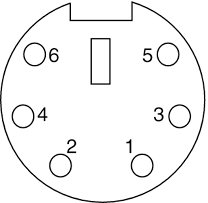
Figure 13.10 and Table 13.7 show the physical layout and pinouts of the PS/2 connector found on most laptop systems. Figure 13.10. PS/2 (6-pin mini-DIN) connector socket. Table 13.7. Laptop PS/2 (6-pin Mini-DIN) Connector Pinout
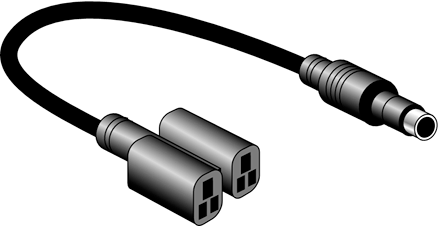
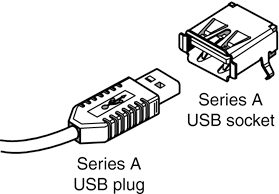
Note that this layout is not exactly the same as on desktop systems in that a single connector supports both mice and keyboards. However, only an external mouse can be directly connected. A keyboard can only be used via a "Y" or splitter connector that reroutes the signals to the proper pins for a keyboard. An example of this is the Keyboard/Mouse "Y" Connector sold by IBM under part number 54G0441 (see Figure 13.11). Figure 13.11. Keyboard/Mouse "Y" splitter cable. USB keyboards use the Series A USB connector to attach to the USB port built in to modern computers. Figure 13.12 and Table 13.8 show the physical layout and pinout of the USB Series A connector used on most laptops. Figure 13.12. USB Series A plug and socket. Most notebooks with USB connectors feature one or more Series A connectors on the rear or sides of the system. Table 13.8. USB Connector Pinouts for Series A Connectors
USB KeyboardsThe latest innovation in keyboard interfacing is connecting the keyboard to the PC via a USB port instead of the standard keyboard port. Because USB is a universal bus that uses a hub to enable multiple devices to connect to a single port, a single USB port in a system can replace the standard serial and parallel ports as well as the keyboard and mouse ports. Most current systems still include the standard ports (now called legacy ports ) as well as USB, but some so-called "legacy-free" systems have only USB ports for interfacing all input/output devices. Several keyboard manufacturers are marketing USB keyboards, including Microsoft with the Natural Keyboard Elite and Pro series keyboards. The Natural Keyboard Elite is virtually unique among USB keyboards because it is designed to work with standard keyboard ports and also comes with an adapter that enables it to connect to the USB port on systems using Windows 98/Me/2000/XP. Also, adapters are available from Logitech and other manufacturers that can convert a USB port to a standard keyboard port if you want to use a non-USB-enabled keyboard on a newer legacy-free system. Note The internal electronics of the Natural Keyboard Elite are different from other models, and the USB adapter included with the Natural Keyboard Elite will not work on other standard keyboards, such as the original Microsoft Natural Keyboard version 1.0. Not all systems accept USB keyboards, even those with USB ports, because the standard PC BIOS has a keyboard driver that expects a standard keyboard port interface keyboard to be present. When a USB keyboard is installed, the system can't use it because no driver exists in the BIOS to make it work. In fact, some systems see the lack of a standard keyboard as an error and halt the boot process until one is installed. To use a keyboard connected via the USB port, you have to meet three requirements:
USB Legacy support means your motherboard has a chipset and ROM BIOS drivers that enable a USB keyboard to be used outside the Windows GUI environment. When a system has USB Legacy support enabled, you can use a USB keyboard with MS-DOS when configuring the system BIOS, when using a command prompt within Windows, or when installing Windows on the system for the first time. If USB Legacy support is not enabled on the system, a USB keyboard will function only when Windows is running. Most recent systems include USB Legacy support, although it is disabled by default in the system BIOS. Also, if the Windows installation fails and requires manipulation outside of Windows, the USB keyboard will not function unless it is supported by the chipset and the BIOS. Almost all 1998 and newer systems with USB ports include a chipset and BIOS with USB Legacy (meaning USB keyboard) support. Even though USB Legacy support enables you to use a USB keyboard in almost all situations, don't scrap your standard-port keyboards just yet. Here are some Windows- related bugs and glitches reported by some users:
If you have problems with Legacy USB support, look to these possible solutions:
| |||||||||||||||||||||||||||||||||||||||||||||||||

EAN: 2147483647
Pages: 182