Flylib.com

Books Software


Changing the Appearance of Your Toolbar Buttons


Changing the Appearance of Your Toolbar Buttons

By default, the buttons on Firefox's toolbars are comprised solely of images that represent their respective functions. The Back button, for example, is symbolized by a green arrow pointing left. Firefox lets you change the appearance of buttons in a number of ways.

For example, what if a mere image isn't enough? You might find that you have trouble remembering what a particular button does, especially if you add a host of new buttons as I describe in the beginning of this chapter. To remedy this problem, you can instruct Firefox to display explanatory text beneath each button's image (for example, Bookmarks or New Window) or even indicate that you want buttons to consist of only text and no images at all.

To change the appearance of your toolbar buttons, follow these steps:

  1. From the Show drop-down list, select one of the following options:

    • Icons and Text: Indicates that toolbar buttons should consist of an image followed by explanatory text underneath, as shown in the top of Figure 18-10.
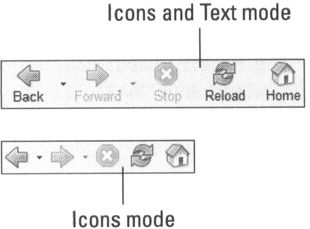
      image from book
      Figure 18-10: If you have trouble identifying buttons by their pictures alone, add descriptive text.

    • Icons: Indicates that toolbar buttons should consist only of images. This is the default.

    • Text: Indicates that toolbar buttons should consist only of text and no images.

    If you select the Icons and Text option or the Icons option, you can also specify whether the images that appear in toolbar buttons should be large (the default) or small by using the Use Small Icons check box. This isn't just a cosmetic choice. Small icons conserve space and provide more room for viewing Web sites, but they're more difficult to click. The top of Figure 18-10 shows Icons and Text mode with large icons, and the bottom of Figure 18-10 shows Icons mode with large icons.

  2. Click Done to close the Customize Toolbar window.


Restoring the Default Configuration

Suppose you play around with the toolbars for a few hours and decide the original way was the best after all. Now, how did that look again? And how long will it take to get back there? Luckily, Firefox offers one-click access to restore the default configuration at any time.

Warning 

The restoration process really is as easy as a single click. There's no confirmation window and no Undo button, so make sure you want to revert to the original configuration before proceeding. You will lose all the changes you have made to your toolbars — both built-in toolbars and extension toolbars such as Google Toolbar — and any toolbars you created will be deleted.

  1. Click the Restore Default Set button to revert to the original Firefox toolbars immediately.

    There is no confirmation process and no way to undo this action.

image from book
Quicker clicking just for you

Not all of our decisions had such highly visible ramifications as the Location Bar debate I describe in the "What's the best toolbar design?" sidebar in this chapter. In fact, another one revolved around a single pixel! Think about that Back button again. Suppose it takes you 1 second to navigate to and click it, and you do that 60 times a day. That's a minute a day, or 365 minutes — over 6 hours — per year! Isn't there some way we could speed that up just a little bit and save you some time?

Yup. Think about when you click the X button in the top-right corner of the window. Not very strenuous, is it? That's because you don't need to spend any time at all locating the button. Because it's located in the rightmost and uppermost part of the screen, all you have to do is jam your mouse into the corner as far as it will go and click. If the button were shifted just one pixel down or left, you would have to spend an additional half-second every time ensuring that the cursor is in the right place before clicking.

The same is true of the Back button. Although we can't put it in a screen corner, we can ensure that it's aligned properly with the left edge of the screen so you only have to find the button vertically. The Firefox toolbar used to have a thin border that prevented the toolbar from butting up against the screen edge, and we removed it for exactly this reason.

You can rest assured that every aspect of Firefox has received this kind of careful scrutiny. We're worried about you down to the pixel.

image from book