Security Options
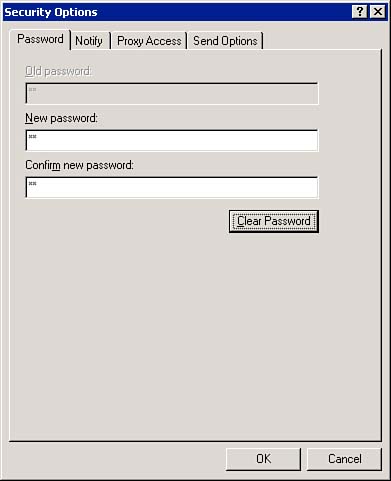
| When you double-click the Security icon, you see the Security Options dialog box. These options affect your entire Mailbox. You can also set up the encryption and digital signature default options using the Send Options tab. Remember, this tab is a duplicate of the Security tab under Send Options. PasswordOne of the most important security options is found on the Password tab, which is shown in Figure 11.12. This password is used to enter your Mailbox when GroupWise is started, with the Web access gateway, routed item completion, and Remote Mode configuration. Figure 11.12. This dialog box controls the password for your Mailbox. To set a password on your Mailbox, follow these steps:
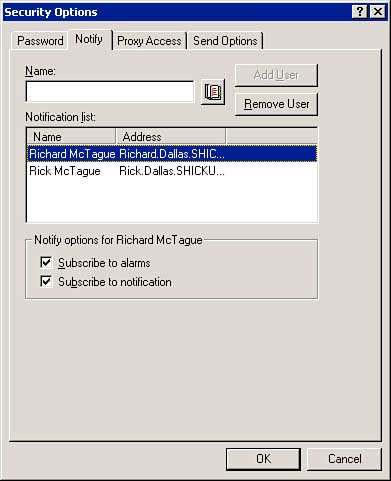
NOTE Keep in mind that your password is case sensitive. Also, even though the administrator can reset it, you should be sure to record your password somewhere secure. Once you have set up your password, you can move ahead to configuring the Notify options. NotifyThe Notify tab enables you to use the Notify program to alert you when you receive a message or when someone else receives a message. You can also be alerted by alarms set in your own Calendar as well as in other peoples' Calendars. As with the Proxy feature, the other person must grant you the right to subscribe to notifications or alarms within his or her Calendar. (See "Proxy" in Chapter 8 for instructions on granting access to your Mailbox.) The Notify tab's options are shown in Figure 11.13. Figure 11.13. You can use Notify to be alerted to other user 's email messages and appointments. To receive notification when someone else receives a message (or to be alerted for another person's alarms), follow these steps:
In the next section, you establish the rights other people have to your Mailbox through Proxy. Proxy AccessProxy Access establishes the rights that other users have to your Mailbox when they use Proxy. This is explained in detail in Chapter 8. Send OptionsThe Send Options tab of the Security Options dialog box is described in the "Security" section earlier in this chapter. |

EAN: 2147483647
Pages: 191