Flylib.com

Books Software


My iDisk Free Space Is Wrong

 < Day Day Up > 

My iDisk Free Space Is Wrong

Sometimes the amount of space available on your iDisk isn't correct—either you should have more than your iDisk says you do, or you should have less than your iDisk says you do. If you're confronting either of these situations, you can do something about it.

To correct your reported iDisk free space, try the following:

  • Wait a while. If you wait 24 hours or so— especially if you maintain a local copy of your iDisk or you've just upgraded your iDisk storage—the problem may correct itself. Sometimes it takes a while for these changes to take effect, or a hiccup on the server may cause the wrong disk size to be shown. If the problem hasn't corrected itself after a day or so, it's time to try something new.

  • Try unmounting your iDisk by dragging it to the Trash, and then remounting it (see Chapter 3, "Using iDisk"), which may force the disk size to be represented properly. If that doesn't work, try unmounting your iDisk, restarting your Mac, and then remounting it.

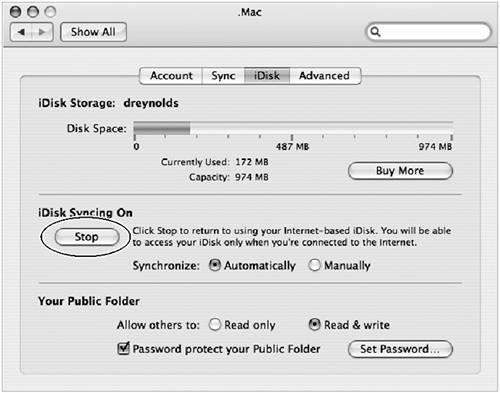
  • If you're maintaining a local copy of your iDisk, try turning off iDisk synchronization. To do this, open Apple menu > System Preferences and click the .Mac icon. Make sure the iDisk tab is selected. Next, click the Stop button in the iDisk Syncing On section ( Figure 10.5 ). Wait until your iDisk shows the proper size, and then turn synchronization back on. This should also take care of cases where you receive a message that your local and remote iDisks are different sizes.

    Figure 10.5. A click of the Stop button turns off iDisk synchronization. In Mac OS X 10.4, it'll also leave you with a disk image on your Desktop that contains the contents of your iDisk, which is an easy way to create a backup of your entire iDisk.

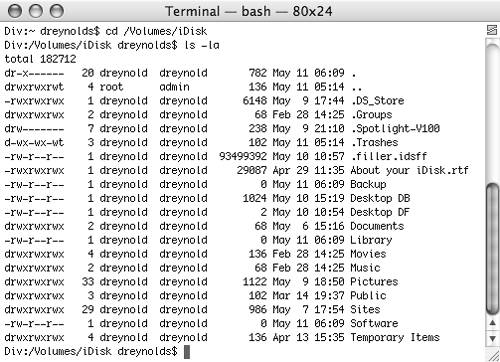
  • If you're comfortable using Terminal, you can use it to hunt for invisible files that may be using space you don't know about. (You can use the Get Info command when selecting folders in your iDisk to see if folders are larger than they should be.) To look for invisible files, open Terminal (in Applications > Utilities), and type the following, with each line followed by a return (and replace YouriDiskName with the name of your iDisk, typically iDisk), as shown in Figure 10.6 :

    cd /Volumes/YouriDiskName
    
    ls -la
    

    Figure 10.6. Although it looks like near-gibberish to the uninitiated, these two Terminal commands merely move you to your iDisk and then list all of its files (visible and invisible) as shown in Figure 10.7.


    So, what's going on here ( Figure 10.7 )? The cd command changes your present working directory to /Volumes/iDisk (or whatever your iDisk name is). The ls command lists the files in the iDisk's root level. In the -la flags (which are l and a ), the l flag shows the long version of the file listing, and the a flag shows all files—even invisible ones. Use the file listing to look for files that don't belong, and delete them.

    Figure 10.7. Well, who knew all this stuff was on an iDisk? Nothing here is amiss, though, so if we're looking for space savings, we'll have to look elsewhere.

Tip

  • Do not perform this task if you do not feel comfortable using Terminal to perform basic file manipulations.


 < Day Day Up > 
 < Day Day Up > 

I Can't Connect to My iDisk

There are a few things that can cause trouble when connecting to your iDisk—from failed connections to somewhat obscure errors with descriptions consisting almost entirely of a negative number.

To troubleshoot iDisk connection problems, try the following:

  • If you're using Windows (98, 2000, or XP) to access your iDisk and you're having problems, try restarting your PC. If that doesn't help, remove and then re-create the iDisk connection (see Chapter 3). You might also try using a more expanded URL by ensuring that the URL has a /? (slash followed by a question mark) at the end. For example, instead of http://idisk.mac.com/yourmembername , TRy http://idisk.mac.com/yourmembername/? .

  • Get a faster Internet connection. iDisk works much better with a high-speed Internet connection (as do a lot of other things). If you're running into iDisk problems, see about a high-speed connection— especially with a higher upload speed.

  • Proxy servers can cause all kinds of connection problems. For example, iDisk Utility for Windows XP will not work with a proxy server, so you'll have to use Network Places. If you're still having problems, ask your ISP if it uses proxy servers, and if so, find out if those servers support WebDAV connections. If they don't, you'll have trouble connecting to your .Mac account. Your ISP may be willing to find a way around the proxy server for you.

  • If you're getting a -36 error (which is a WebDAV error), make sure you're running the latest version of Mac OS X. If that doesn't solve the problem, then a proxy server may be at issue. Ask your ISP if it uses them and see if your ISP is willing to help you find a way around the proxy server. Also, try a faster Internet connection. This can help solve -36 errors.

  • If you're getting a -38 error when you try to do something with your iDisk, odds are you're trying to change a file or folder that your iDisk needs in order to work properly. If you're trying to change iPhoto or HomePage files (in the Pictures or Sites folder) on your disk when you see this error, use iPhoto or the HomePage portion of the .Mac Web site to change them instead of doing it through the Finder. If you try to rename a file that HomePage needs to display a Web page, for example, you may see this error.

  • If your iDisk password is longer than eight characters and you're using iDisk Utility for Windows XP, use only the first eight characters of your password. iDisk Utility for Windows XP doesn't support the longer passwords.

What Is WebDAV, Anyway?

Thought you'd never ask! WebDAV is a way of using the HTTP protocol (which is merely the way your computer requests and loads Web pages) for something it wasn't intended for: moving files over the Internet.

WebDAV, which stands for Web-based Distributed Authoring, was originally intended to provide a way to read pages with a Web browser as well as edit them. Often these days, WebDAV is used to handle moving files to and from remote storage volumes , such as an iDisk.

A great place to find out more about WebDAV is at the WebDAV FAQ (www.webdav.org/other/faq.html).


What Is a Proxy Server?

Proxy servers allow computers to make indirect connections to the Internet (or other networks). A proxy server works like an intermediary middleman—that is, users request a connection (such as for a Web page) from the proxy server, and the proxy server goes out and finds that file, grabs it, and then returns it to the user who requested it.

Proxy servers do the following:

  • Provide additional network security for users (because bad guys have to break in through the proxy server first before reaching a user's computer)

  • Provide control over what users can see (by blocking requests for certain Web pages or other resources)

  • Help speed up browsing (by keeping local copies of frequently fetched files that can be loaded by users much faster than if they had to be retrieved over the Internet)

If you're working with a broadband router that relies on NAT (Network Address Translation), you're using a kind of proxy. Many ISPs use proxy servers to help speed up the customer browsing experience.

Proxy servers, though, can sometimes cause unexpected problems, such as breaking large file downloads or causing problems with some Internet services, such as VPN or .Mac.

Curious about proxies? Visit the Wikipedia article at http://en.wikipedia.org/wiki/Proxy_server.


 < Day Day Up >