Calculating Task Duration with Multiple Resources Assigned
| < Day Day Up > |
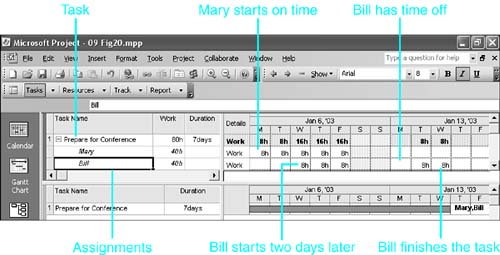
| Task duration is defined by Microsoft Project as the number of active working time periods on the calendar required to complete a task. When multiple resources are assigned to a task, some might not be scheduled during the entire task duration. Individual schedules for some resources can be modified to delay an assignment or to split the assignment with a period of inactivity. NOTE The consumption of material resources is not considered in calculating duration. As an example, suppose Bill and Mary are both assigned 5 days of work preparing for a conference. The task duration is 5 days if Bill and Mary do their work during the same time periods. Suppose that Bill is taking 2 vacation days when the task starts, so Mary starts working on the task alone. Bill also has 1 more vacation day at the beginning of the following week. Bill starts working on the task 2 days later than Mary does. Then, they work together for 3 days, at which time Mary has completed her part of the task. Bill still has 2 days of work to do, but he doesn't do those days until after his second vacation. Bill's work schedule does not match Mary's. Mary's earlier start date and Bill's later finish date define the task's start and finish dates. The task duration is the number of time periods during which anyone is working on the task. In this case, the task duration is 7 days ”2 days when Mary worked alone, 3 days when they were both working on the task, and 2 days when Bill worked alone after Mary finished her part and after he got back from vacation. Figure 9.20 illustrates this example. The top pane displays the Task Usage view, and the timephased work details show the precise work schedule for both Mary and Bill. Bill's work doesn't start until 2 days after Mary's begins. Mary completes her assignment on Friday. Bill has the day off on the following Monday and then completes the last 2 days of his assignment. The taskbar in the Gantt Chart view in the bottom pane shows a continuous bar over 8 working days. However, the task duration is only 7 days because there are 7 days when at least 8 hours of work is done by someone. Figure 9.20. Task duration is the number of time units when at least one resource is working. You can see in Figure 9.20 that Bill and Mary work independently some days and together some days. If you count the number of days in the task row where total work is a full day or more (8 hours or more), you see that there are 7 such days, and that is what determines the task duration of 7. |
| < Day Day Up > |

EAN: 2147483647
Pages: 283