Burning Your Song to a CD via the SCSI Burner
| < Day Day Up > |
Burning Your Song to a CD via the SCSI BurnerThe end goal of your recording is to get the song created on a CD. In the beginning of the previous chapter, I discussed the two most common ways to do this: via the SCSI CD burner and via a stand-alone audio CD burner. If you have a stand-alone audio CD burner connected to your VS workstation, simply play the tracks on the VS while recording on the stand-alone audio CD burner. If you want to burn via the SCSI CD burner, you must have first bounced all your tracks, effects, and signal processing down to a stereo pair. Let's walk through the process of getting that final stereo pair burned to a CD.
SCSI CD Burner LimitationsThe ability to connect a CD burner to your VS workstation provides a way to both create audio CDs and back up your work. However, there are some important things to understand regarding the CD burner. First, the CD burner must have a SCSI port, and only certain brands of SCSI CD burners will work. All of the Roland-branded burners will work, but they are expensive. You can save some money by purchasing a SCSI CD burner manufactured by Plextor. All Plextor SCSI CD burners, up to the 12x10x32 model, will work with the VS-880/890 workstations. If you were considering purchasing a SCSI CD burner made by any other manufacturer, I'd recommend against it, unless you know that it is already being used by a VS workstation. The VS operating system only supports a particular list of SCSI CD burners. You can think of the operating system of your VS like the operating system found on some older computers. When you connect peripheral devices to these computers, you need to install a driver in order for the device to be recognized by the operating system. The VS is similar, except that you cannot install your own drivers; the only drivers available are those included within the operating system.
Regardless of the write speed available on the actual SCSI CD burner, the VS limits the actual write speed to a maximum of 4x. This is another reason why the older Plextor models are attractive, as most people don't want to spend hundreds of dollars for a new SCSI CD burner only to find that it can't burn faster than 4x speed. Preparing to BurnBefore you actually burn your song to CD, there are a number of things to consider. First, your song must have been recorded using a sample rate of 44.1kHz in order for it to be burned to the SCSI CD burner. If you used a different sample rate for your song, you'll have to record the song to an external device. Also, remember that if you apply any effects or signal processing changes ”or change any track parameters such as level, pan, EQ, and so on ”these changes will not be applied during the burn. Also know that when the song gets burned to CD, the VS assumes the song starts at 00:00:00:00. If you have blank space before your song actually starts, consider using Track Cut so that the true beginning of your song starts in the 0.2 “0.5-second range. The same principle applies to the end of your song. Figure 7.1 shows an example of using Track Cut to eliminate blank space at the beginning and end of a song. Figure 7.1. Use Track Cut to eliminate blank space before burning to CD The process of burning the song to CD requires additional space on the internal hard drive. When you perform the burn, the VS first creates a CD-R image file on the internal hard drive and then writes this image file to CD. To put this in perspective, attempting to burn a four-minute song to CD can take 10 minutes or more. The VSR-880 and VS-890 workstations provide a feature called the mastering room, which provides a simpler method for getting your song burned on CD. When you enable the mastering room function, you can bounce six tracks down to two, insert effects to the entire mix via the Master Block, and have the resulting two tracks be created in CD-R image format. Data existing on the Mastering Tracks can then be more quickly burned to CD. When you burn your song to CD, you'll have the option of choosing Disc-At-Once (DAO) or Track-At-Once (TAO). If you are burning a single song at a time, choose TAO. TAO will place two seconds of silence after each song. If you eventually want more than one song on this CD, and you do not want a two-second gap between songs, you'll need to use DAO. If you use DAO, you'll need to have the final stereo pair of tracks for each song on the same V-Tracks within a song. This works well if you've recorded a live concert of multiple songs as a single song within the VS. However, if you had recorded multiple individual songs that you wanted to burn using DAO, you'd need to have all of these songs created as one long song in the VS. Unfortunately, the VS-880/890 workstations don't provide a function to combine multiple songs into one song. The only way to accomplish this would be to record each song to an external recording device, such as a DAT or stand-alone audio CD burner, and then record each song back-to-back into the VS within a single song. If you are using DAO, you need to place song markers at the beginning of each song. To place a song marker, hold the SONG Edit Condition button and press TAP. The VS automatically assumes a song marker at 00:00:00:00, so you only need to do this for subsequent songs.
Performing the Burn to CDTo burn your song to CD, press the SONG Edit Condition button multiple times until you see SNG CD-R Write ?, and then press YES. The VS will search for the SCSI CD burner, and it will briefly show some information about the CD burner in the display. Next, you'll be prompted with SNG Disc at Once ? If you want to burn using DAO, press YES; otherwise press the At this point, the display will show useful information about the size of the song you want to burn, the amount of space remaining on the hard drive, and the amount of space remaining on the CD, as shown in Figure 7.2. After reviewing the display and verifying there is enough room on the CD and hard drive to perform this operation, you're ready to select the pair of tracks to burn to CD. Press the SELECT button for the track that represents the left side of the stereo pair, press the YES button, and press the SELECT button for the track that represents the right side of the stereo pair. During this step, you cannot change which V-Track is selected for a given track. For example, if you want to burn from tracks 7-2 and 8-2, but V-Track 1 is the currently selected V-Track for tracks 7 and 8, pressing track 7s SELECT button will show 7-1 in the display, and you will not be able to select 7-2. Instead, cancel out of this procedure, select the appropriate V-Tracks, and invoke this procedure again. Figure 7.2. The display shows current song size and free space information when creating your song on CD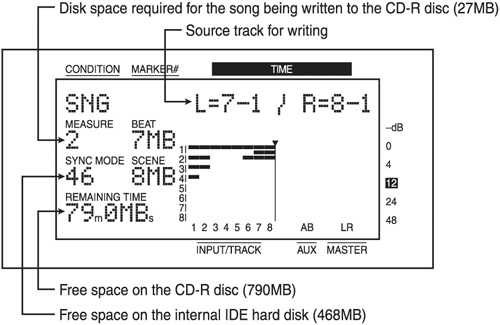 After selecting the appropriate tracks, press the |

| < Day Day Up > |
