Adobe GoLive CS2 Tips and Tricks The 250 Best
Authors: Pratt A. Grillo L.
Published year: 2005
Pages: 98-100/301
Buy this book on amazon.com >>

TIP 88: Adding Missing End Tags with the Outline Editor

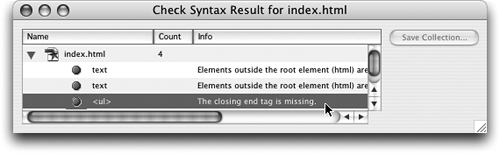
When you run the Syntax Checker (see Tip 84) to validate your source code, you might get an occasional warning that the closing end tag for an element is missing ( Figure 88a ). This means the opening tag of a pair such as a table, multimedia object, or layer is missing the required end tag. There are some elements such as <img> and <meta> that don't need a closing tag, but these are exceptions to the rule.

Figure 88a. The Syntax Checker warns you of missing end tags.

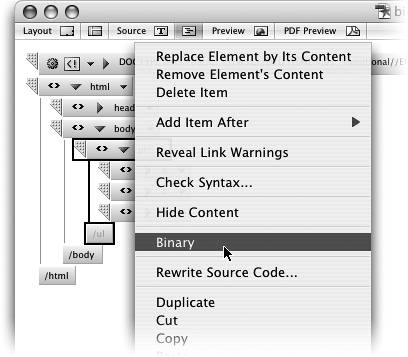
If you need to fix a missing end tag error, switch to the Outline Editor instead of wading through lines of lines of source code trying to locate the problem. You can easily toggle an element in the Outline Editor from unary (no closing tag) to binary (closing tag) by Control-clicking (Mac) or right-clicking (Windows) on the element and choosing Binary from the contextual menu ( Figure 88b ).

Figure 88b. Add the closing tag by choosing Binary from the contextual menu.


You can also toggle from unary to binary with the Toggle Binary icon in the toolbar. GoLive is smart enough to determine where the closing tag of a binary pair should be placed in the page and creates it in the correct location.


TIP 89: Viewing Images in the Outline Editor

The Outline Editor is a great way to navigate and edit your Source Code, but it can also be really helpful to see your images in this editing mode. If you're trying to select and edit a certain image or a specific button in a navigation bar, an accurate preview of the image in the Outline Editor helps you make sure you've selected the right file.

Choose Another Picture

What if you want to use a different image? Toggle open the <img> attributes and click the little arrow to the right of the <src> attribute. A dialog box opens allowing you to browse through your drives and select another image (Figure 89b).

Figure 89b. Click this little arrow in the Outline Editor to open a dialog box that lets you browse to an image (see sidebar).


By default, images are disabled in the Outline Editor to keep things simple, but you can turn them on with a single click. Switch to the Outline Editor and open the View palette from the Window menu if it's not open already. Then check the Images option in the View palette and you'll be able to see all images at their natural size right in the Outline Editor ( Figure 89a ).

Figure 89a. Use the View palette to enable images in the Outline Editor.


TIP 90: Expanding and Collapsing the Outline Editor

The Outline Editor is really one of our favorite features in GoLive, but if you use it a lot you'll find it can require a lot of mousing around the screen. You can navigate most of the features with the keyboard, and here are a few of the most helpful shortcuts:

  • Unfold/Collapse Selected Element : Select the element and press Return/ Enter to toggle the unfolding or collapsing of an element ( Figure 90a ).

    Figure 90a. Collapsed element (top), unfolded element (bottom).


  • Unfold/Collapse Selected Element Recursively : Select the element and press Option-Return (Mac) or Shift-Enter (Windows) ( Figure 90b ).

    Figure 90b. Element unfolded recursively.


    Automatically Show All Content

    Hold down Option (Mac) or Alt (Windows) when you switch to the Outline Editor from any other editing mode to automatically reveal every element in the outline.


  • Unfold/Collapse Attributes of Selected Element : Select the element and press Return (Mac) or the Enter key in the numeric keypad (Windows).

  • Unfold/Collapse Attributes of Selected Element Recursively : Select the element and press Option-Return (Mac) or Shift-Enter key in the numeric keypad (Windows).

You can also navigate from one element to another using the keyboard. Use the arrow keys to navigate up and down the outline tree and press Tab to jump to the next text box.

Adobe GoLive CS2 Tips and Tricks The 250 Best
Authors: Pratt A. Grillo L.
Published year: 2005
Pages: 98-100/301
Buy this book on amazon.com >>