Flylib.com

Books Software


TIP 80: Selecting Tags Easily in the Source Editor


TIP 80: Selecting Tags Easily in the Source Editor

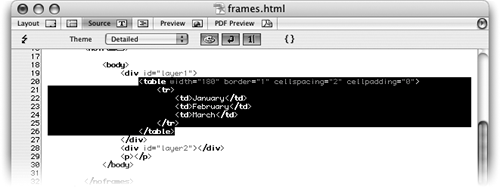
Here is a small but handy-dandy tip: While in the source code, double-click on the opening bracket of any tag to select the entire block of code between the opening and closing tags. For instance, to select a block of code between the opening and closing <table> tags, including the opening and closing tags themselves , double-click on left bracket of the opening <table> tag. If you double-click on the right bracket of the <table> tag, you'll select the contents of the tag but not the tag itself ( Figure 80 ).

Figure 80. Double-click the left bracket of a tag to select the whole tag. Double-click the right bracket to select just the contents of the opening and closing tags.

In the same manner, you can select an attribute and its value by double-clicking the equal sign (=) that comes after the attribute. If you only want to select the value of an attribute, but not the attribute itself, double-click on either of the quotation marks surrounding the value. Last but not least, to select both a CSS property and its value, double-click on the colon in front of the value.

Once you've memorized these selection techniques, you'll find working in source code a lot less time consuming.


TIP 81: Navigating Your Source Code

There's one spot in your source code that you always seem to edit. But to find that particular spot, you've got to remember the line number, right? Well, no. GoLive CS2 does have line numbers and even has a sweet feature that makes using them a snap, but it also has something that makes finding a certain spot in source code easy as pie.

Alphabetically , Please

The list in the Navigate Through Code button is populated according to the order in which the tags, functions, or definitions appear on the page. If you prefer to sort the list alphabetically, Alt-click (Mac), or Control-click (Windows) when you click the Navigate Through Code button.


To jump to a precise line number, type the number into the small input field in the lower left corner of the page and press Return/Enter ( Figure 81a ). GoLive instantly places the cursor right at the beginning of the desired line.

Figure 81a. Type in a line number and press Return/Enter to jump directly to that line of code.


Special > Source Code > Go To Line… brings up a teeny box where you type the line number and press Return/Enter ( Figure 81b ). Add a keyboard shortcut to that menu item for a mouse-less way to quickly navigate your code.

Figure 81b. The Go To Line… command makes it simple to jump through your code.


To simplify matters even more, though, use the handy new Navigate Through Code button in the Source, CSS, and JavaScript Editors, and in the Split Source View . This button is automatically populated with any tags in your HTML page that have the name attribute assigned (see Tip 91). In the JavaScript editor, it's auto-populated with the functions in the page, whether you are working in JavaScript, VBScript, ASP, or Perl. In the CSS Editor, it's populated with the definitions themselves . Just select an item in the list to jump directly to that spot in the code.

But what to do if the spot you want to jump to happens to be a tag that does not have the name attribute? In that case, set your own marker. Simply put your cursor in the spot you want to mark and then click the Navigate Through Code button and choose New Marker. Give the marker a name and click OK. Next time you click the button, your new marker name will be in the list.
