Flylib.com

Books Software


TIP 129: Navigating the Library Palette


TIP 129: Navigating the Library Palette

Start by opening the Library palette from the Window menu. This little palette is multi-talented. It stores items that are available for use application-wide as well as items specific to any open Web site projects.

Stored in Site Extras

Notice that the sections of the Library palette correspond with folders in the Extras tab of the Site window. All you need to remember is this: Reusable items are stored in the Extras tab, but to make use of them it's often easier to drag from the Library palette.

Additionally, any templates and stationery files you create for your site will be available via the File > New… dialog in the Web category.


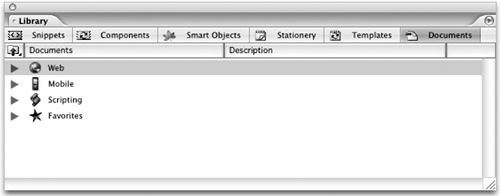
Across the top of the Library palette are six buttons : Snippets, Components, Smart Objects, Stationery, Templates, and Documents. To see what's in the Snippets area, click the Snippets button, and so on ( Figure 129a ).

Figure 129a. The Library palette.


In the area below the buttons is a folder called Application-wide along with folders representing any sites you have open. These folders work like the folders in the Files tab of the Site window. They can be toggled open or closed by clicking the gray arrow to the left of the folder name (click the plus (+) sign in Windows), or you can drill down into a folder by double-clicking it. Use the up arrow in the upper left corner to move back up a level.

Storing and Using

You can drag items into the folders in the Library palette to store them and drag them from the folders onto pages or into the Site window to use them.


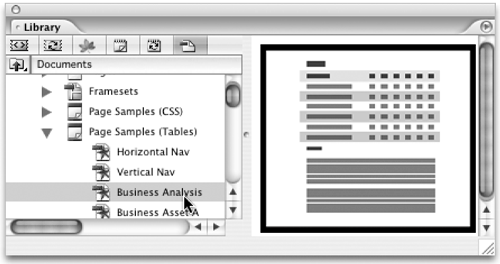
In the Library palette's flyout menu are options to turn preview on and off and to have the preview appear at the right instead of the bottom. This choice comes in handy when previewing a template or component ( Figure 129b ).

Figure 129b. Viewing one of the included page templates in the Library palette with preview enabled and on the right.


TIP 130: Using Snippets

Snippets are, very simply, pieces of a page that you can use over and over again. A few examples would be an address, a table of data, or a piece of JavaScript. If you find that you are using one element on lots of pages, turn it into a snippet for drag and drop ease of use:

1.

Choose File > New, click Web, then choose Pages in the center pane and HTML in the right pane to start with a new, blank page.

2.

Type your name and address onto the page.

3.

Select everything you typed and drag it into the Application-wide folder in the Snippets area of the Library palette.

Try the Samples

There are some very handy samples included in the Snippets area of the Library palette. Go through and drag some of them onto a page to see what's there. Note that some of the included snippets are for use in the body of a page, whereas others, such as the meta snippets, are for the head portion of the page. Likewise, some snippets are easily used in the Source Editor, and others are perfect for the Layout Editor. Play around, and you'll see how flexible snippets can be.


The folder will automatically pop open , and you'll see a new file there called snippet.agls. If the filename isn't highlighted for renaming, press Return/Enter. Call it address.agls ( Figure 130 ).

Figure 130. When you create a new snippet, give it a descriptive name.


Now follow these steps to complete the process:

1.

Choose File > New Page to get another new blank page.

2.

Drag the snippet you named address.agls onto the new page.

Tada! You have successfully created and used a snippet. You can create a snippet out of grids, tables, text, images, and more. If you have a styled table with an image and text, surrounded by additional text, grab the whole kaboodle and save it as one snippet.

To modify a snippet, double-click the file in the Library palette, make the changes, and then save the document. The changes will affect only the snippet you've edited, not the pages on which the snippet was already used.