| The menu hierarchy for Networking and Communications is shown in Figures 11-36 through 11-38. This area contains many advanced networking features. Because there are so many networking areas to cover in SAM, I'll go over just a few so you can get a feel for working in this area. The bubble diagram shows the many areas related to networking configuration for which you can use SAM, so you can refer back to it if you have a question about whether or not some specific networking can be configured using SAM. Figure 11-36. Networking and Communications Menu Structure 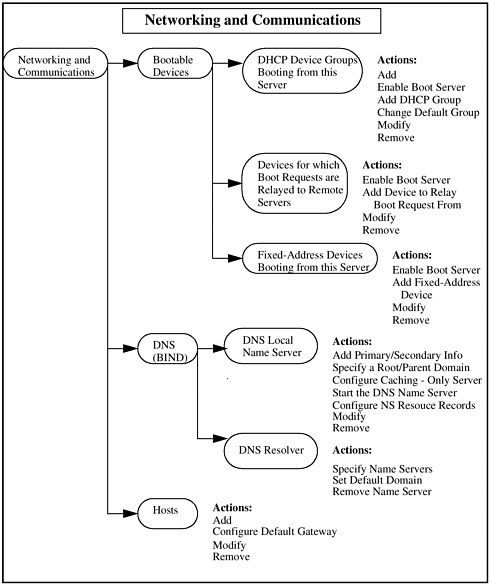 Figure 11-37. Networking and Communications Menu Structure (cont) 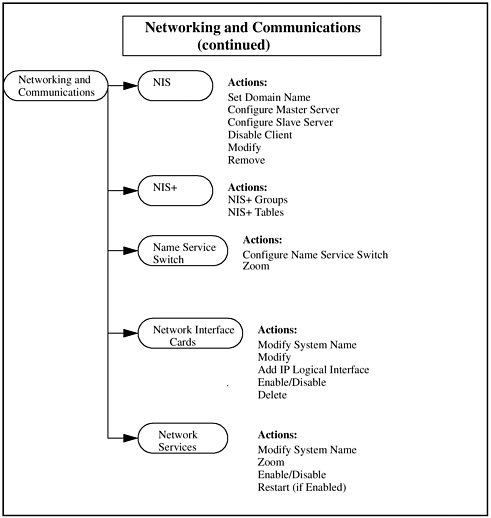 Figure 11-38. Networking and Communications Menu Structure (cont) 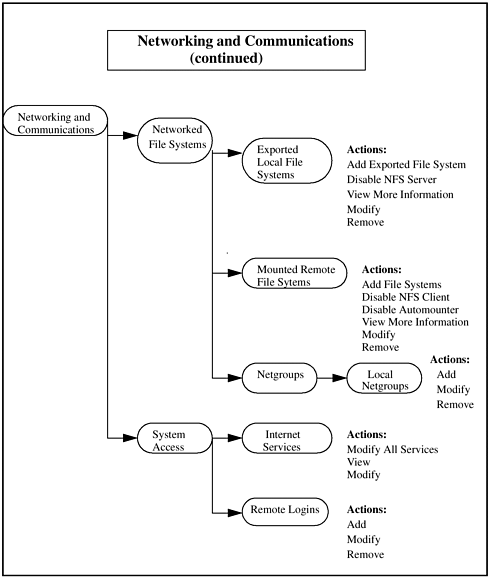 Bootable Devices The Bootable Devices area is further subdivided into three subareas: DHCP Device Groups Booting from this Server, Devices for which Boot Requests are Relayed to Remote Servers, and Fixed-Address Devices Booting from this Server. I will briefly describe each subarea and its use. DHCP (Dynamic Host Configuration Protocol) is now available on HP-UX and is used by many services. The DHCP Device Groups Booting from this Server subarea is where the device groups can be configured. Each group would contain a set of IP addresses for use by that device group. Devices could be such things as specific types of printers or specific types of terminals. In the Devices for which Boot Requests are Relayed to Remote Servers subarea, you can view information about Bootstrap Protocol (Bootp) client devices that get their booting information from remote Bootp or DHCP servers. Information is displayed on the client or client groups, including the IP addresses of the remove servers and the maximum number of hops a boot request from a client or client group can be relayed. In the Fixed-Address Devices Booting from this Server subarea, you can specify systems that will boot from your system using Bootstrap Protocol (Bootp) or DHCP. Bootp is a means by which a system can discover network information and boot automatically. The Bootp software must be loaded on your system in order for other devices to use it as a boot source (see the swlist command in Chapter 2 regarding how to list software installed on your system). In this subarea, you can add, modify, or remove a Bootp device. In addition, you can enable or disable the Bootp Server. Similarly, DHCP allows the client to use one of a pool of IP addresses in order to boot automatically. Applications such as Ignite-UX can be configured to use this protocol. When you enter the Fixed-Address Devices Booting from this Server subarea, you immediately receive a list of devices that can boot off your system. You can choose Add from the Actions menu and you'll be asked to enter the following information about the device you are adding: Host Name Internet Address Subnet Mask (this is optional) Station Address in hex or client ID (this is optional) Boot File Name Whether you'll be using Ethernet or IEEE 802.3 for booting Whether to send the hostname to the client or device
You can select Enable Protocol Server or Disable Protocol Server from the Actions menu, depending on whether your system is currently disabled or enabled to support this functionality. When you Enable Protocol Server, you also enable Trivial File Transfer Protocol (TFTP), which boot devices use to get boot files. When you enable or disable this, the /etc/ inetd.conf is edited. This file contains configuration information about the networking services running on your system. If a line in /etc/inetd.conf is preceded by a "#", then it is viewed as a comment. The daemon that reads the entries in this file is /usr/sbin/inetd. Before enabling or disabling Bootp, you may want to view the /etc/inetd.conf file and see what services are enabled. After you make your change through SAM, you can again view /etc/inetd.conf to see what has been modified. See System Access for security related to /etc/inetd.conf. The following is the beginning of the /etc/ inetd.conf file from a system showing Bootp and TFTP enabled. Also, a brief explanation of the fields in this file appears at the beginning of the file: ## Configured using SAM by root ## # # Inetd reads its configuration information from this file upon ex- # ecution and at some later time if it is reconfigured. # # A line in the configuration file has the following fields separated # by tabs and/or spaces: # # service name as in /etc/services # socket type either "stream" or "dgram" # protocol as in /etc/protocols # wait/nowait only applies to datagram sockets, stream # sockets should specify nowait # user name of user as whom the server should run # server program absolute pathname for the server inetd # will execute # server program args. arguments server program uses as they # normally are starting with argv[0] which # is the name of the server. # # See the inetd.conf(4) manual page for more information. ## ## # # ARPA/Berkeley services # ## ftp stream tcp nowait root /usr/lbin/ftpd ftpd -l telnet stream tcp nowait root /usr/lbin/telnetd telnetd # Before uncommenting the "tftp" entry below, please make sure # that you have a "tftp" user in /etc/passwd. If you don't # have one, please consult the tftpd(1M) manual entry for # information about setting up this service. tftp dgram udp wait root /usr/lbin/tftpd tftpd bootps dgram udp wait root /usr/lbin/bootpd bootpd #finger stream tcp nowait bin /usr/lbing/fingerd fingerd login stream tcp nowait bin /usr/lbin/rlogind rlogind shell stream tcp nowait bin /usr/lbin/remshd remshd exec stream tcp nowait root /usr/lbin/rexecd rexecd #uucp stream tcp nowait bin /usr/sbin/uucpd uucpd . . . If you select Fixed-Address Device Client Names, you can then select Modify or Remove from the Actions menu and either change one of the parameters related to the client, such as its address or subnet mask, or completely remove the client. DNS (BIND) Domain Name Service (DNS) is a name server used to resolve hostname-to-IP addressing. HP-UX uses BIND, Berkeley InterNetworking Domain, one of the name services that can be used to implement DNS. A DNS server is responsible for the resolution of all hostnames on a network or subnet. Each DNS client would rely on the server to resolve all IP address-to-hostname issues on the client's behalf. A boot file is used by the server to locate database files. The database files map hostnames to IP addresses and IP addresses to hostnames. Through SAM, a DNS server can be easily set up. Information about DNS and its setup and administration is described in the HP-UX manual Installing and Administering Internet Services. Hosts The Hosts subarea is for maintaining the default gateway and remote hosts on your system. When you enter this subarea, you receive a list of hosts specified on your system. This information is retrieved from the /etc/ hosts file on your system. You can then Add a new host, Specify Default Gateway, Modify one of the hosts, or Remove one of the hosts, all from the Actions menu. When adding a host, you'll be asked for information pertaining to the host, including its Internet Address, system name, aliases for the system, and comments. NIS Network Information Service (NIS) is a database system used to propagate common configuration files across a network of systems. Managed on a master server are such files as /etc/passwd, /etc/hosts, and /etc/auto*, files used by automounter. Formerly called "yellow pages," NIS converts these files to its own database files, called maps, for use by clients in the NIS domain. When a client requests information, such as when a user logs in and enters their password, the information is retrieved from the server rather than from the client's system. Thus, this information only needs to be maintained only on the server. Through SAM, the NIS master server, slave servers, and clients can be configured, enabled, disabled, and removed. Once the master, slaves, and clients are established, you can easily build, modify, and push the various maps to the slaves. NIS is not available on trusted systems. NIS+ HP-UX 11i supports NIS+. This is not an enhancement of NIS, but rather, a new service that includes standard and trusted systems and non-HP-UX sys-tems. If you already use NIS, a compatibility mode version of NIS+ allows servers to answer requests from both NIS and NIS+ clients. When NIS+ is configured on a trusted system, in the Auditing and Security area of SAM, a new subarea, Audited NIS+ Users, is displayed. Name Service Switch The Name Service Switch file, /etc/nsswitch.conf, can now be configured through SAM. This service allows you to prioritize which name service (FILES, NIS, NIS+, DNS, or COMPAT) to use to look up information. Unless you specifically use one of these services, the default of FILES should be used. The FILES designation supports the use of the local /etc directory for such administrative files as /etc/passwd, /etc/hosts, and /etc/ services. (COMPAT is used with the compatibility mode of NIS+.) More information about the Name Service Switch file and its setup is described in the HP-UX manual Installing and Administering NFS Services. Network Interface Cards This subarea is used for configuring any networking cards in your system. You can Enable, Disable, and Modify networking cards as well as Modify System Name, all from the Actions menu. Under Add IP Logical Interface, you can add additional logical IP addresses to an existing network card. The Network Interface Cards screen lists the network cards installed on your system, including the information listed below. You may have to expand the window or scroll over to see all this information. Card Type, such as Ethernet, IEEE 802.3, Token Ring, FDDI, etc. Card Name Hardware Path Status, such as whether or not the card is enabled Internet Address Subnet Mask Station Address in hex
Included under Configure for Ethernet cards is Advanced Options, which will modify the Maximum Transfer Unit (MTU) for this card. Other cards included in your system can also be configured here, such as ISDN, X.25, ATM, and so on. Network Services This subarea is used to enable or disable some of the network services on your system. You will recognize some of the network services in Figure 11-39 from the /etc/inetd.conf file shown earlier. This screen has three columns, which are the Name, Status, and Description of the network services. Figure 11-39 from the Network Services subarea shows some of the network services that can be managed: Figure 11-39. Network Services Window 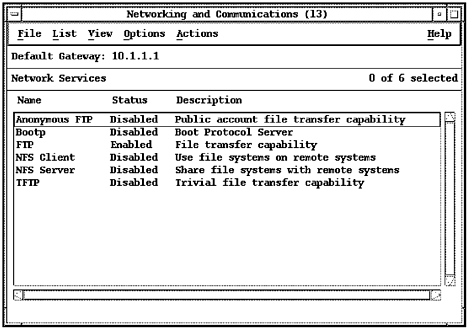 After selecting one of the network services shown, you can Enable or Disable the service, depending on its current status, Restart the service if it is currently enabled, get more information about the service with Zoom, or Modify System Name, all from the Actions menu. Network File Systems This subarea is broken down into Exported Local File Systems, Mounted Remote File Systems, and Netgroups. NFS is broken down into these first two areas because you can export a local file system without mounting a remote file system, and vice versa. This means that you can manage these independently of one another. You may have an NFS server in your environment that won't mount remote file systems, and you may have an NFS client that will mount only remote file systems and never export its local file system. Entropies, a part of NIS, allows you to group a set of systems or users to be used together. Among other things, netgroup designations can be used to export file systems to. Under Exported Local File Systems, you can select the file systems you want to export. The first time you enter this screen you have no exported file systems listed. When you select Add Exported File System from the Actions menu, you enter such information as: After this exported file system has been added, you can select it and choose from a number of Actions, including Modify and Remove. Under Mounted Remote File Systems, you have listed for you all of the directories and files that are mounted using NFS. These can be either mounted or unmounted on demand with automounter. After selecting one of the mounted file systems, you can perform various Actions. For every remote file system mounted, you have the following columns: Mount Directory, which displays the name of the local directory name used to mount the remote directory. Type, which is either NFS for standard NFS or Auto for automounter (see the paragraph below). Remote Server, which displays the name of the remote system where the file or directory is mounted. Remote Directory, which is the name of the directory under which the directory is remotely mounted.
You should think about whether or not you want to use the NFS automounter. With automounter, you mount a remote file or directory on demand, that is, when you need it. Using a master map, you can specify which files and directories will be mounted when needed. The files and directories are not continuously mounted with automounter, resulting in more efficiency as far as how system resources are being used. There is, however, some overhead time associated with mounting a file or directory on-demand, as opposed to having it continuously mounted. From a user standpoint, this may be slightly more undesirable, but from an administration standpoint, using the automounter offers advantages. Since the automounter is managed through SAM, there is very little additional work you need to perform to enable it. System Access This subarea is broken down into Internet Services and Remote Logins. When you select Internet Services, the screen lists the networking services that are started by the Internet daemon /usr/sbin/inetd. I earlier covered /etc/inetd.conf, which is a configuration file that lists all of the network services supported by a system that is read by inetd. There is also a security file, /var/adm/inetd.sec, that serves as a security check for inetd. Although many other components are involved, you can view inetd, /etc/inetd.conf, and /var/adm/inetd.sec as working together to determine what network services are supported and the security level of each. Listed for you in the System Access subarea are Service Name, Description, Type, and System Permission. Figure 11-40 shows the defaults for my system: Figure 11-40. System Access - Internet Services Window 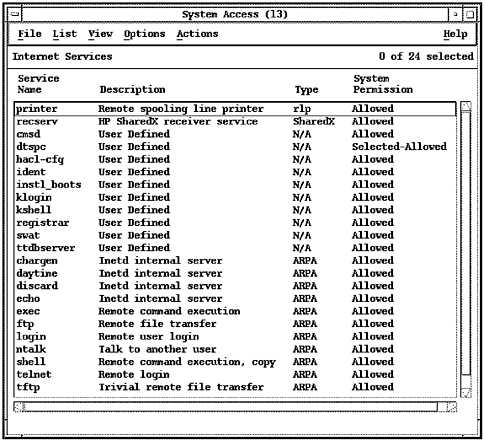 You could change the permission for any of these entries by selecting them, using the Modify command from the Actions menu, and selecting the desired permissions. Remote Logins is used to manage security restrictions for remote users who will access the local system. Two HP-UX files are used to manage users. The file /etc/hosts.equiv handles users, and /.rhosts handles superus-ers (root). When you enter this subarea, you get a list of users and the restrictions on each. You can then Add, Remove, or Modify login security. |

