Working with the Document Grid
If support for Chinese, Japanese, or Korean is enabled through the 2007 Microsoft Office system language settings, you can use the document grid to help control line and character placement in your documents. To choose grid settings, use the Document Grid tab in the Page Setup dialog box, as shown in Figure 8–9.
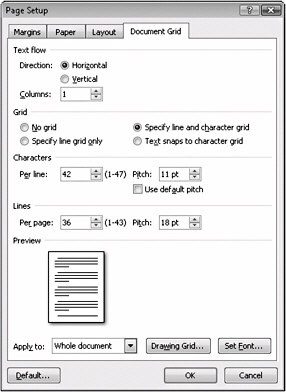
Figure 8–9: The document grid enables you to precisely control line and character spacing in documents that contain East Asian text.
Specifying Document Grid Settings
Using the Document Grid tab, you can control the text flow, number of columns, number of characters per line, character pitch (spacing between characters), number of lines per page, and line pitch. To use these features, follow these steps.
-
Click the Page Setup Dialog Box Launcher on the Page Layout tab to open the Page Setup dialog box. Then click the Document Grid tab.
-
If you want text to be displayed vertically, flowing from top to bottom as you type, click Vertical in the Text Flow section. Otherwise, for right-to-left text display, leave Horizontal selected. If you want, specify a number of columns in the Columns box. Notice that the Preview image adjusts to display your page setup settings while you work.
-
To enable the grid feature, select one of the following options.
-
Specify Line Grid Only Makes only the settings in the Lines area of the Document Grid tab available. You can choose the amount of space between lines (by selecting the number of lines you want to appear per page) and the pitch, or spacing, between lines.
-
Specify Line And Character Grid Makes all settings in both Character and Lines areas available. This setting enables you to choose both the number of characters per line and the number of lines per page. You can also choose the pitch of both characters and lines.
-
Text Snaps To Character Grid Disables the pitch settings, and lets you choose the number of characters per line and the lines per page.
-
-
Click the Apply To arrow, choose the option that specifies the portion of the document to which you want to apply the grid settings, and then click OK.
If you changed the text direction on the Document Grid tab for the whole document, Word automatically updates any existing content after you click OK. If you retained the original text direction for pages ahead of the insertion point and applied the This Point Forward setting, Word applies the grid effects for existing and new content after the insertion point. If necessary, Word begins a new page to separate content with different formats.
Displaying the Drawing Grid
You can display the drawing grid on your page to help you align objects and text, regardless of your language settings. To toggle the display of gridlines, click the View tab and then click Gridlines in the Show/Hide group.
If your setup supports East Asian languages, you can click the Drawing Grid button on the Document Grid tab in the Page Setup dialog box to access drawing grid settings. Figure 8–10 shows the Drawing Grid dialog box.
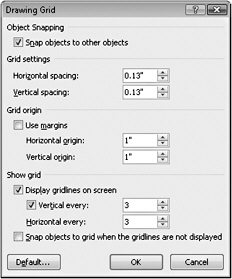
Figure 8–10: You can customize the display of the drawing grid by modifying settings in the Drawing Grid dialog box.
You can see the drawing grid only when you’re working in Print Layout view.

EAN: 2147483647
Pages: 299