2007 Microsoft Office System Inside Out
Authors: Pierce J. Dodge M. Millhollon M
Published year: 2007
Pages: 134-136/299
Buy this book on amazon.com >>

Grouping and Ungrouping Data

PivotTables group inner field items under each outer field heading and, if requested , create subtotals for each group of inner field items. You might find it convenient to group items in additional ways-for example, to collect monthly items into quarterly groups or sets of numbers into larger numeric categories. Excel provides several options for grouping items.

Creating Ad Hoc Item Groupings

Suppose that after looking at Figure 15–3 you decide you’d like to see the domestic and international sales figures grouped into a category called Retail. To create this group, select the Domestic and International items anywhere in the table. Then click the Options tab under PivotTable Tools, and click Group Selection in the Group group. Excel creates a new heading called Group1:
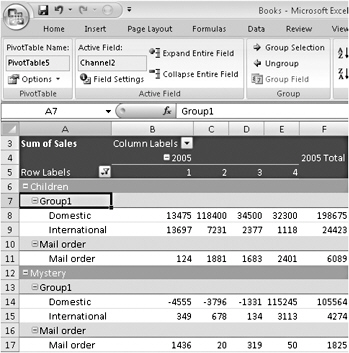
image from book

Now you can rename Group1 by simply typing over any instance of it.

Grouping Items in Date or Time Ranges

Figure 15–22 shows a PivotTable that summarizes daily transactions by payee. As you can see, the data in this table is extremely sparse. Most intersections between a day item and a payee item are blank.
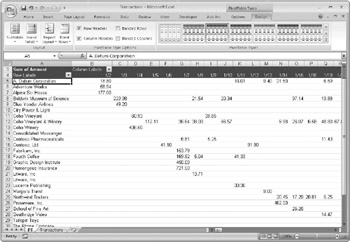
image from book
Figure 15–22: To make the data in this table more meaningful, you can group the date field.

image from book You’ll find the image from book  Transactions.xlsx file in the Sample Files section of the companion CD.

To make this kind of table more meaningful, you can group the date field. To do this, select an item in the field. Then click the Options tab under PivotTable Tools, and click Group Field. Excel responds by displaying the Grouping dialog box, shown in Figure 15–23.
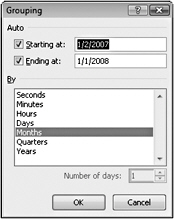
image from book
Figure 15–23: Excel gives you lots of ways to group by date.

Excel gives you a great deal of flexibility in the way your date and time fields are grouped. In the By list, you can choose any common time interval, from seconds to years , and if the standard intervals don’t meet your needs, you can select an arbitrary number of days. You can also create two or more groupings at the same time (hold down Ctrl while you select); the results of grouping by both Quarter and Month are shown in Figure 15–24.
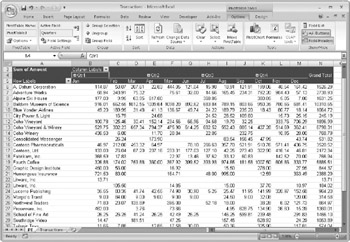
image from book
Figure 15–24: In this table, daily data is grouped by months and then by quarters .


Displaying the Details Behind a Data Value

If you double-click any PivotTable value that represents a summary calculation, Excel displays the details behind that calculation on a new worksheet. For example, in Figure 15–24, cell B13 informs us that we spent 9.75 at Coho Vineyard & Winery during the month of January. Double-clicking B13 reveals the details, as shown on the next page.

image from book


Creating PivotCharts

PivotCharts, like PivotTables, summarize tabular information and allow for easy transposition of fields and axes. They’re a great way to study or present elements of your data set.

You can create a PivotChart directly from your source data by selecting a cell in the original data range, clicking the Insert tab, clicking the arrow beneath PivotTable in the Tables group , and then clicking PivotChart. After you specify or confirm your data source and indicate where you want the new PivotChart to reside (in a location either on the existing worksheet or on a new worksheet), Excel presents both a PivotTable layout and a blank chart canvas, along with a PivotChart Filter Pane (see Figure 15–25). Excel creates a PivotTable at the same time it creates a PivotChart-and hence you see a blank table layout. The PivotChart Filter Pane doesn’t really add any capability that isn’t available via the PivotTable Field List window, so you might want to close one or the other to make more room on the worksheet.

image from book
Figure 15–25: When you create a new PivotChart, Excel draws a blank chart canvas as well as a blank table layout. The program creates a PivotTable at the same time it creates the PivotChart.

Figure 15–26 shows a simple PivotChart created from this chapter’s Books table. Because charts are generally most effective when applied to a modest amount of data, we’ve used the Report Filter box to restrict the presentation to a single category (Children), and we’ve filtered the Channel field to show international and mail order sales only. We’ve also tidied up a bit by closing the PivotTable Field List window and dragging the PivotChart Filter Pane to a less obtrusive position.

image from book
Figure 15–26: We’ve used a PivotChart to plot two distribution channels for one book category.

As you can see, when you select a PivotChart, Excel adds a new set of tabs on the Ribbon, under PivotChart Tools. With these tabs, you can manipulate and format your PivotChart the same way you would an ordinary chart.

A PivotChart and its associated PivotTable are inextricably linked. You can manipulate fields and axes in either, and the other stays in step.

In Figures 15–25 and 15–26, we created a PivotChart directly from the source data. You can also create one from an existing PivotTable. Select any cell in the PivotTable, click the Options tab under PivotTable Tools, and then click PivotChart in the Tools group.


2007 Microsoft Office System Inside Out
Authors: Pierce J. Dodge M. Millhollon M
Published year: 2007
Pages: 134-136/299
Buy this book on amazon.com >>

Similar books on Amazon