Red Hat(c) The Complete Reference
Authors: Petersen R.L.
Published year: 2004
Pages: 282-283/328
Buy this book on amazon.com >>
 < Day Day Up > 


Configuring the Samba with redhat-config-samba

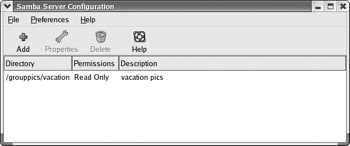
Red Hat now provides a simple configuration tool for providing basic information about your Samba server, as well as adding Samba users and specifying Samba shares (see Figure 37-1). You can start redhat-config-samba from the Samba entry in the Server Settings menu, accessible from the System Setting menu (or from the Server Settings window in the Start Here window's System Settings window). The redhat-config-samba tool will list all the shares for your server. You can use buttons at the top to manage your shares, adding new ones or deleting current ones. If you delete them, the actual directories are not removed; they just lose their status as shared directories. In Figure 37-1, a shared directory called /grouppic/vacation has been set up with read-only access.
click to expand
Figure 37-1: redhat-config-samba

Server Configuration with redhat-config-samba

To configure your Samba server, select Server Settings from the Preferences menu. This opens a window with two panels, Basic and Security. On the Basic panel, you enter the Samba server workgroup name. On the Security panel, you specify the authentication mode, password encryption option, and the name of the guest account, along with the authentication server.

  • As explained in detail later, the authentication mode specifies the access level, which can be user, share, server, or domain. User-level access restricts access by user password, whereas share access opens access to any guest.

  • Normally, you would elect to encrypt passwords, rather than have them passed over your network in plain text.

  • The Guest user is the name of the account used to allow access to shares or printers that you want open to any user, without having to provide a password. The pop-up menu will list all your current users, with nobody as the selected default.

Adding Samba Users with redhat-config-samba

With redhat-config-samba, you can add users and shares easily. User-level access restricts users to those that also have accounts on the Samba server. Samba maintains its own password listing for users. To provide a user Samba access, you need to register the user as a Samba user. Select Samba Users from the Preferences menu to open the Samba Users window, clicking the Add User button. Here you enter the Unix Username, the Windows Username, and the Samba Password. There is an additional box for confirming the Samba password. The Unix Username is a pop-up window listing all the users on your Samba server.

Specifying Samba Shares with redhat-config-samba

Click Add to add a share, or select Add Share from the File menu. On the Basic panel, you can then enter the directory on the Samba server that you want to share, specifying the full pathname. The Browse button lets you search and select a directory. You can also set permissions to either read-only or read/write. On the Access panel, you can restrict access to certain users or allow access to all users. All Samba users on your system will be listed with check boxes where you can select those you want to give access.


 < Day Day Up > 
 < Day Day Up > 


The Samba smb.conf Configuration File

You configure the Samba daemon using the smb.conf file located in the /etc/samba directory. The file is separated into two basic parts : one for global options and the other for shared services. A shared service, also known as shares, can either be filespace services (used by clients as an extension of their native file systems) or printable services (used by clients to access print services on the host running the server). The filespace service is a directory to which clients are given access; they can use the space in it as an extension of their local file system. A printable service provides access by clients to print services, such as printers managed by the Samba server.

The /etc/samba/smb.conf file holds the configuration for the various shared resources, as well as global options that apply to all resources. Linux installs an smb.conf file in your /etc/samba directory. The file contains default settings used for your distribution. You can edit the file to customize your configuration to your own needs. Many entries are commented with either a semicolon or a # sign, and you can remove the initial comment symbol to make them effective. Instead of editing the file directly, you may want to use the SWAT configuration utility, which provides an easy-to-use, full-screen Web page interface for entering configurations for shared resources. The SWAT configuration utility also provides extensive help features and documentation. For a complete listing of the Samba configuration parameters, check the Man page for smb.conf . An extensive set of sample smb.conf files is located in the /usr/share/doc/samba* directory in the examples subdirectory.

In the smb.conf file, global options are set first, followed by each shared resource's configuration. The basic organizing component of the smb.conf file is a section. Each resource has its own section that holds its service name and definitions of its attributes. Even global options are placed in a section of their own, labeled global . For example, each section for a filespace share consists of the directory and the access rights allowed to users of the filespace. The section of each share is labeled with the name of the shared resource. Special sections, called printers and homes , provide default descriptions for user directories and printers accessible on the Samba server. Following the special sections, sections are entered for specific services, namely access to specific directories or printers.

A section begins with a section label consisting of the name of the shared resource encased in brackets. Other than the special sections, the section label can be any name you want to give it. Following the section label, on separate lines, different parameters for this service are entered. The parameters define the access rights to be granted to the user of the service. For example, for a directory, you may want it to be browsable , but read-only, and to use a certain printer. Parameters are entered in the format parameter name = value. You can enter a comment by placing a semicolon at the beginning of the comment line.

A simple example of a section configuration follows . The section label is encased in brackets and followed by two parameter entries. The path parameter specifies the directory to which access is allowed. The writeable parameter specifies whether the user has write access to this directory and its filespace.

[mysection] path = /home/chris writeable = true

A printer service has the same format but requires certain other parameters. The path parameters specify the location of the printer spool directory. The read-only and printable parameters are set to true , indicating the service is read-only and printable. public indicates anyone can access it.

[myprinter] path = /var/spool/samba read only = true printable = true public = true

Parameter entries are often synonymous but different entries that have the same meaning. For example, read only = no , writeable = yes , and write ok = yes all mean the same thing, providing write access to the user. The public parameter is a synonym for guest ok . SWAT will use guest ok instead of public , and read only in place of writeable .


 < Day Day Up > 
Red Hat(c) The Complete Reference
Authors: Petersen R.L.
Published year: 2004
Pages: 282-283/328
Buy this book on amazon.com >>