16.5. Master and Content Pages
| < Day Day Up > |
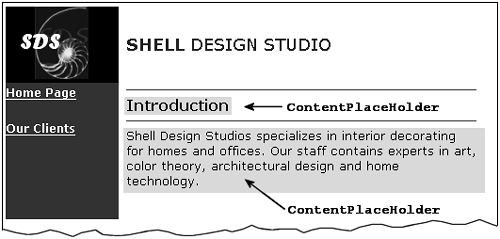
| A principal design objective when creating a multi-page Web site is visual and functional consistency. Headers and footers should look the same, and the layout and use of controls should be similar from page to page. One way to achieve this is to drag and drop common controls on to each new Web page; but in many cases, a better approach is to create a template from which new pages can be derived. In Windows Forms programming, a form can be filled with controls and used as a base class to create other interfaces. ASP.NET has a similar feature known as master pages. The idea is to create a template, or master page, containing visual elements that will be common to other pages, as well as placeholders that will be filled in with the unique content from other pages. Pages that provide content for the master page are referred to as content pages. The major advantages to this approach are that any changes made to a master page are automatically reflected in the content pages and that the act of creating content pages is limited to providing statements that specify the content to be associated with the placeholders in the master page. To illustrate the fundamentals of using master pages, we'll create a master page that defines the layout for the Web page shown in Figure 16-15. In addition, we'll create two content pages that correspond to the menu items shown on the left side of the page. Figure 16-15. Web page derived from a master page
Creating a Master PageMaster pages are so similar to regular .aspx pages that converting an .aspx page to a master page requires only three changes: the file must have the .master extension; the @Page directive is replaced with the @Master directive; and one or more ContentPlaceHolder controls are added to serve as containers that will be filled at runtime with content from content pages. Listing 16-9 shows the master page used by content pages to create the Web page in Figure 16-15. The two menu items are implemented as HyperLink controls that reference the two content pages. Two ContentPlaceHolder server controls designate the area in the page where a content page's title and main body are placed. Listing 16-9. Master Page Definition shell.master<%@ Master %> <html> <head> <title>Master Page for Shell Design Studio</title> </head> <body bgcolor=#ffffff link=#ffffff alink=#ffffff vlink=#ffffff> <FORM runat="server"> <table width="500" cellpadding="0" cellspacing="0"> <tr><td bgcolor=black align=center> <img src=./images/sdslogo.gif> </td><td> </td><td> <font size=4 face=Verdana> <b>SHELL</b> DESIGN STUDIO </td></tr> <tr> <td width=120 height=300 bgcolor=red valign=top> <asp:HyperLink NavigateUrl="home.aspx" Text="Home Page" Font-Bold="true" Font-Size=9pt Font-Names="Verdana" runat=server /> <br><br> <asp:HyperLink NavigateUrl="clients.aspx" Text="Our Clients" Font-Bold="true" Font-Size=9pt Font-Names="Verdana" runat=server /> </td> <td> </td> <td valign=top> <hr size=1 color=red> <asp:contentplaceholder runat="Server"> <b>Introduction</b> </asp:contentplaceholder> <hr size=1 color=red> <asp:contentplaceholder runat="Server"> This is Default Content to be overridden by content pages </asp:contentplaceholder> </td></tr> </table> </FORM> </body> </html> Creating a Content PageA content page is an .aspx file containing <asp:Content> tags (instances of Content controls) that override corresponding <asp:contentplaceholder> tags in the master page. The ContentPlaceHolderID property of the content tag matches the ID of the placeholder where the content is to be inserted. The home.aspx content page in our example illustrates this. It contains two content tags that define the content for the Header and PageBody placeholders, respectively. The masterpagefile attribute specifies the master page from which this page inherits. [home.aspx] <%@ Page language="C#" masterpagefile=~/shell.master %> <asp:content runat="server" contentplaceholderdocEmphStrong">Header"> <font size=3 face=Verdana> <b>Introduction </b> </asp:content> <asp:content runat="server" contentplaceholderdocEmphStrong">PageBody"> <font face=Verdana size=2> Shell Design Studios specializes in interior decorating for homes and offices. Our staff contains experts in art, color theory, architectural design and home technology. </asp:content> The content may consist of any combination of standard HTML markup code, images, managed code, and server controls. In this example, the MainBody placeholder is replaced with literal text for the home.aspx page and a list of clients using the <UL> tag for the clients.aspx content page. [clients.aspx] <%@ Page language="C#" masterpagefile=~/shell.master %> <asp:content runat="server" contentplaceholder> <font size=3 face=Verdana> <b>Our Clients </b> </asp:content> <asp:content runat="server" contentplaceholder> <font face=Verdana size=2> <ul> <li>Swanburg Medical </li> <li>Lombard & Gable Law </li> <li>Coble Architectural Design</li> </ul> </asp:content> There are only a few commonsense rules to keep in mind when using master/content pages:
Accessing the Master Page from a Content PageRecall that .aspx files are compiled at runtime into (System.UI.Web) Page objects. The Page object serves as the naming container for all objects on the page. When a master page is involved, one of the objects included is a MasterPage object that, in turn, serves as a container for the ContentPlaceHolder and Content objects. This hierarchy of objects comprises the Web page that is rendered to the client. To support master pages, the Page object includes a Master property that can be used to reference objects in a master page's control collection. Content pages have access to this property and can thus alter the appearance of the master page template when they are loaded. As an example of how this can be used, consider the menu on our sample Web page (see Figure 16-15). The items have the same appearance no matter which page is loaded. As a rule, Web pages should distinguish the menu item for the currently loaded page from the other items. One popular technique is to highlight it. This requires adding only a few lines of code to our content files: <%@ Import namespace=System.Drawing %> <script runat="Server"> // Highlight link for home.aspx page void Page_Load(object sender, EventArgs e) { // Change color of link to indicate current page HyperLink h = (HyperLink)Master.FindControl("homepage"); h.BackColor=Color.Goldenrod; // highlight menu item } </script> The Master.FindControl method is used to reference the link pointing to the current page. In this case, the returned object's BackColor property is set to highlight the link. |
| < Day Day Up > |
