Displaying Detailed Customer Information
| When entering into a transaction with a customer, you might want to see detailed information about that customer, such as the amount the customer owes you, jobs in progress, informational notes, and pending estimates. This information is readily available and can be accessed while you fill out a customer's form.
|
 such as an invoice (press Ctrl+I).
 Click in the Customer:Job field.
 With your cursor in the Customer:Job field, press Ctrl+L to display your complete Customer:Job list.
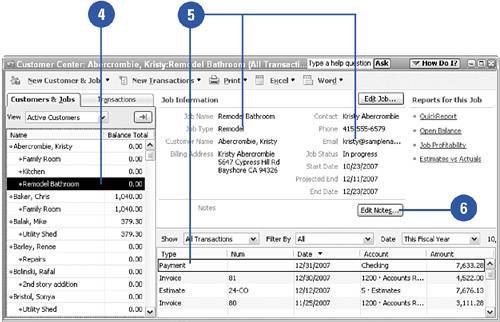
 Arrow or scroll down to the particular customer whose information you want to view.
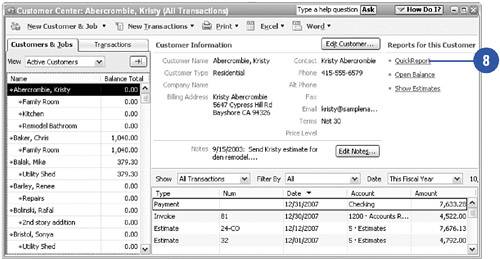
 View the job information, contact information, and transaction history for the customer or job selected.
 Click the Edit Notes button icon to retrieve or enter informational notes about this customer or related jobs.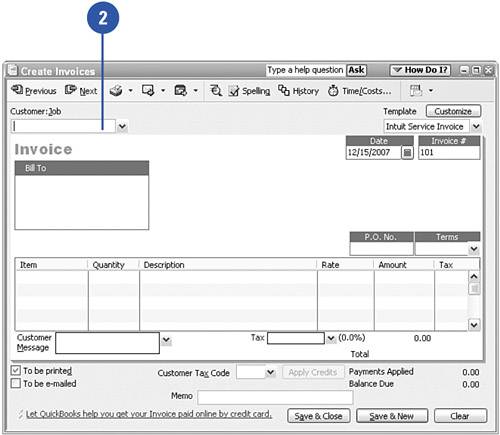
 Click OK (or press Esc) to close the Notepad window.
 Click the customer name and then click the QuickReport button to view the details of transactions relating to this customer.
 Press Esc to close the QuickReport.
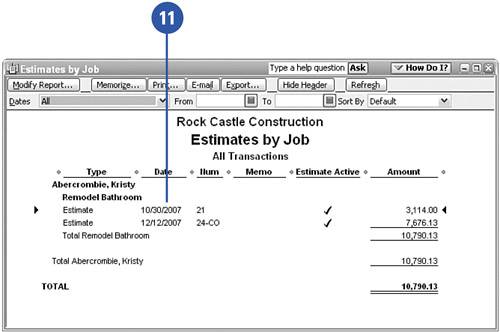
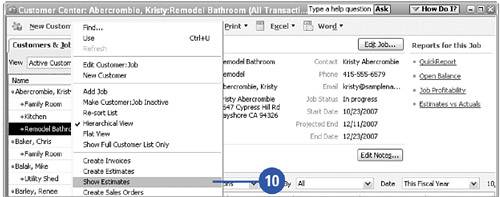
 Right-click one of the jobs for this customer and select Show Estimates to see a report of the estimates for that particular job.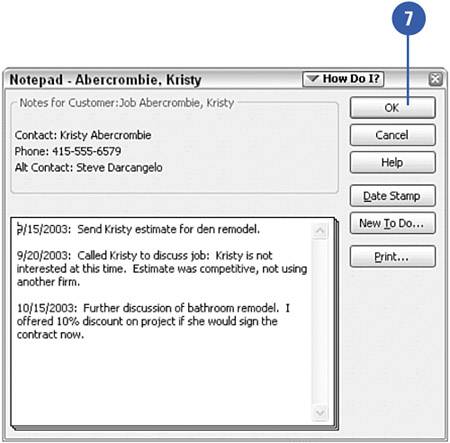
 Double-click any estimate to see the actual estimate form.
 Press Esc to close each of the windows you displayed.
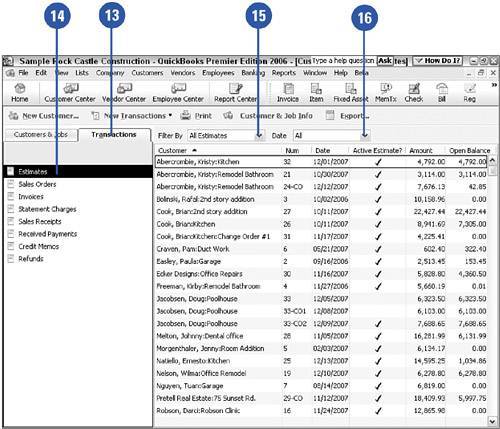
 Click the Transactions tab in the Customer Center to view a list of transactions for all customers.
 Choose the type of transaction you want to view.
 Click the drop-down arrow to choose whether you want to see all of the transactions for the type you chose, or particular transactions. For example, you can choose to see All Estimates or Open Estimates.
 Click the drop-down arrow to select a date range for the transactions that appear on the list.