Flylib.com

Books Software


Setting Up Reminders to Replenish Your Inventory


Setting Up Reminders to Replenish Your Inventory

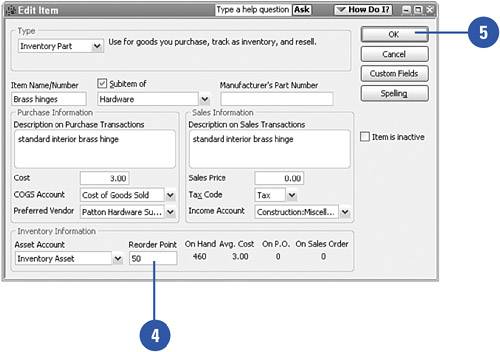
If you didn't designate a reorder point when you set up your inventory items, now's the time to do so. Edit your inventory items and enter how many of each item you want to keep in stock. Then use the reminders list to send yourself messages to reorder. Every time the level of an inventory item in stock drops below the reorder point, a reminder to reorder is added to your reminders list.

Create a Reminder to Replenish Inventory

Select Item List from the Lists menu.

Click the item for which you want to establish a reorder point.

Press Ctrl+E.

Enter the reorder point.

Click OK.

View Reminders

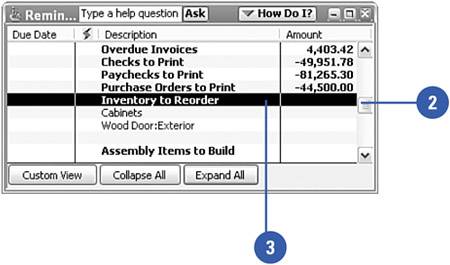
Select Reminders from the Company menu.

Scroll down if necessary until you find the Inventory To Reorder reminder.

Double-click Inventory to Reorder. All items that have passed their reorder point now appear.


Preparing Inventory Reports

You can produce several standard inventory reports in QuickBooks. You can then use these reports to keep track of how many items are on hand, the value of your inventory, and pricing information. A detailed description of each type of inventory report is included. Remember that you can customize these reports to fit your needs, and you can export reports to Microsoft Excel if you need to present reports in a format not supported by QuickBooks.

Select Inventory from the Reports menu, or view the inventory report selections in the Report Center; then open one of the following inventory reports:

  • Inventory Valuation Summary

  • Inventory Valuation Detail

  • Inventory Stock Status by Item

  • Inventory Stock Status by Vendor

  • Physical Inventory Worksheet

  • Pending Builds

See the next page for a description of each of these reports.


A Variety of Inventory Reports

The Inventory Valuation Summary report shows the worth of each item in your inventory based on the average cost method. The report also shows what percentage of the total inventory each item accounts for, what the items retail for, and what percentage of the total retail value each item accounts for.

The Inventory Valuation Detail report takes the Inventory Valuation Summary one step further and shows you the complete details of every inventory transaction (each purchase and sale) for the requested period of time.

The Inventory Stock Status by Item report lists each item in inventory and tells you how many are currently in stock, how many are on order, and when you can expect to receive the orders. The report also calculates the average sales of each item on a per-week basis.

The Inventory Stock Status by Vendor report displays the same information as the Stock Status by Item report, but the items are grouped by vendor so you can quickly find out how many items are on order from a particular vendor and which inventory items are ordered from each vendor.

The Physical Inventory Worksheet report lists all the inventory items you have set up for your company, along with the preferred vendor for each item, the quantity of each item that QuickBooks shows you have on hand, and a place where you can enter the quantity you actually have in stock.

The Pending Builds report, ideal for manufacturing companies, shows all transactions recorded as pending builds of assembly items. To take advantage of the pending builds feature, you must have QuickBooks Premier or QuickBooks Enterprise Solutions.

See Also

See "Customizing Reports" on page 383 for information on manipulating QuickBooks reports so they display the information you want to see in the manner in which you want to see it.