Dates, Numbers, Strings
Dates, Numbers , Strings
Not all techniques neatly fit under one header. This one covers a whole bundle of tricks, from the intelligent way to identify a date to an algorithm generating memorable passwords, from encryption in a mere twelve lines of code to random numbers that actually work. And then some. Just read on!
Is That a Whole Number, or Not?
It s sometimes useful to check whether the user has entered a whole number, such as 5, or perhaps a decimal, such as 3.142.
No problem: the following little function will check for you. Simply pass in your number to IsWholeNumber . It checks whether the item passed is numeric, then verifies that it s a whole number. If so, it returns True ; anything else and it passes back False .
Here s the code:
Public Function IsWholeNumber(ByVal Number As Object) As Boolean ' Returns true if the passed item is a whole number If IsNumeric(Number) Then If CInt(Number) = Number Then Return True End If End Function
And, finally, here s how you might use it:
Dim blnIsWhole As Boolean blnIsWhole = IsWholeNumber(5) blnIsWhole = IsWholeNumber(3.142)
Checking for a Date the Intelligent .NET Way
Download supporting files at www.apress.com .
The files for this tip are in the Ch7 ”IsDate folder.
Back in good ol Visual Basic 6, we had one function dedicated to letting us know whether something was a date or not. It was called, appropriately enough, IsDate . With .NET, however, that function has been reserved for the Microsoft.VisualBasic namespace ”and, if you use that, you re deemed one of the old crowd .
A much better way of checking for a date is to write an equivalent .NET function for the job. Or rather, just copy mine.
The following replacement function is also called IsDate , however is much smarter than its VB6 equivalent. For example, not only is 01/01/2004 interpreted as a date, but so are Jan 1, 2004 and 28 February 1975 ”which is something the old IsDate couldn t even imagine.
Ready? Here s the code you ll need. Just pass in a string and it ll return a Boolean result, depending on whether the passed item is in a recognized date format:
Public Function IsDate(ByVal DateIn As String) As Boolean Dim datDateTime As DateTime Dim blnIsDate As Boolean = True Try ' Attempt to parse date datDateTime = DateTime.Parse(DateIn) Catch e As FormatException ' Error parsing, return False blnIsDate = False End Try Return blnIsDate End Function
And here s how you might call the function:
If IsDate("Jan 1, 2004") Then MessageBox.Show("This is a date!") Else MessageBox.Show("This is NOT a date!") End If But what if you do get someone passing in something like January 1, 2004 and want to translate it into a DateTime ( Date equivalent) data type ”ready for, say, storing in a database? Simply use the sixth line of code from our function to change your text into the required data type. Easy!
1st, 2nd, 3rd: Using Ordinal Numbers in Your App
Download supporting files at www.apress.com .
The files for this tip are in the Ch7 ”Ordinal Numbers folder.
As a human being, I like to read my dates properly. That means December 1st 2002 , rather than December 1 2002 . But computers don t have much of a clue when it comes to such quirks of the English language. They simply care for numbers ”not ordinals, like 2nd or 43rd .
Something like that requires intelligence. And that s exactly what the following neat function builds into your application. Pass it a number and it ll look up the appropriate suffix through a series of Select routines, and then return the ordinal value.
Here s the code:
Public Function GetOrdinal(ByVal Number As Integer) As String ' Accepts an integer, returns the ordinal suffix ' Handles special case three digit numbers ending ' with 11, 12 or 13 - ie, 111th, 112 th, 113th, 2 11th, et al If CType(Number, String).Length > 2 Then Dim intEndNum As Integer = CType(CType(Number, String). _ Substring(CType(Number, String).Length - 2, 2), Integer) If intEndNum >= 11 And intEndNum <= 13 Then Select Case intEndNum Case 11, 12, 13 Return "th" End Select End If End If If Number >= 21 Then ' Handles 21st, 22nd, 23rd, et al Select Case CType(Number.ToString.Substring( _ Number.ToString.Length - 1, 1), Integer) Case 1 Return "st" Case 2 Return "nd" Case 3 Return "rd" Case 0, 4 To 9 Return "th" End Select Else ' Handles 1st to 20th Select Case Number Case 1 Return "st" Case 2 Return "nd" Case 3
Return "rd" Case 4 To 20 Return "th" End Select End If End Function
Here s how you may use this GetOrdinal function in code. (See Figure 7-5 for my sample application.) Enjoy:
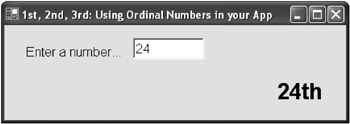
Figure 7-5: Enter a number and get its suffix with this sample application.
Dim strNumber As String strNumber = "38" & GetOrdinal(38) MessageBox.Show(strNumber)
Random Numbers That Work!
Download supporting files at www.apress.com .
The files for this tip are in the Ch7 ”Random Numbers folder.
After reading at least a dozen articles on how to generate random numbers, I m sorry to say that technical writers are still getting it wrong.
Don t misunderstand me: generating random numbers is actually very easy. You simply create a new instance of the System.Random class, passing in a seed value. Then you use the object . Next method to return a fresh value. The problem is that most developers place the new instance of the Random class inside the function that generates the number itself.
This means that, if the function is run a number of times at speed, the seed (typically a value based on the number of ticks for the current date and time) given to the Random class may be the same each time. Now, the Random class is never truly random and simply runs a formula to randomize the next number. Because most developers are declaring a new instance of the class inside the function, it gets created afresh with every single call, follows its same formula with the same seed to generate a random number ”and creates one exactly the same as the last! (Until, at least, the tick seed value alters.)
The trick is to declare the new Random class outside of the function that retrieves the next random number. This way you generate the seed only once and are getting the randomizer formula to cycle through its formula and ensure the next chosen number is truly random.
Here s my code. Note that you no longer have to declare new objects (such as objRandom , here) at the top of your class or module; you can do it just above the function, to aid clarity of code:
Dim objRandom As New System.Random( _ CType(System.DateTime.Now.Ticks Mod System.Int32 .MaxValue, Integer)) Public Function GetRandomNumber( _ Optional ByVal Low As Integer = 1, _ Optional ByVal High As Integer = 100) As Integer ' Returns a random number, ' between the optional Low and High parameters Return objRandom.Next(Low, High + 1) End Function
And here s how you may use this function in code:
Dim intDiceRoll As Integer intDiceRoll = GetRandomNumber(1, 6) MessageBox.Show("You rolled a " & intDiceRoll.ToString) Finding the Number of Days in a Month
If you knew how many complicated VB6 algorithms I ve written to calculate the number of days in a month, you d think me a crazed developer. I ve written code that accepts a month and year, then formats the month so it s the start of the next month, then takes away one day, then retrieves the actual day part of the date and so on, et cetera.
When I first visited .NET, I continued writing these complicated functions. Until, that is, I discovered some of the delights of System.DateTime .
This structure includes a shared DaysInMonth function. Just pass it the year and month and it ll return an integer containing the number of days in that month, useful for business applications and calendar-based programs.
Here s a little sample code demonstrating the function in use:
Dim shtDayCount As Short shtDayCount = System.DateTime.DaysInMonth("2003", "2") MessageBox.Show("There are " & shtDayCount.ToString & _ " days in that month") Easy when you know how, isn t it?
Adding and Subtracting Days, Months, Years
Many tips never made it to this book, simply because I deemed them must knows that any Visual Studio .NET programmer would easily grasp on their own, without some strange author regurgitating the obvious. The Replace function of the String class, for example.
That was almost the case with this tip, but, over the past three months, I ve seen five different printed code snippets demonstrating how to add days, months, and years to a date. And they all looked extremely confusing.
The truth is, adding or subtracting days, months, and years is easy!
Like the String class, the DateTime class includes its own shared supporting methods and functions ”including AddDays , AddMinutes , AddHours , AddYears , and AddMonths . Simply call them, passing in a number (positive or negative), and it ll change your variable value.
For example:
Dim MyDate As DateTime MyDate = Now MyDate.AddDays(7) ' Change date to one week from now MessageBox.Show(MyDate)
Simple, isn t it?
Calculating the Next Working Day
Download supporting files at www.apress.com .
The files for this tip are in the Ch7 ”Next Working Day folder.
Sometimes you don t just want to add a certain number of days to a date, you want to take working days into account: five working days until delivery, or two working days in which the customer needs a response.
Difficult? Not at all. The following nifty AddWorkingDays function does it all for you. Simply pass in a date, alongside the number of working days you want to shift the date by. For example, pass in a 5 to get the fifth working day after your date, or -1 to return the last working day.
Here s the code you ll need:
Public Function AddWorkingDays(ByVal DateIn As DateTime, _ ByVal ShiftDate As Integer) As DateTime ' Adds the [ShiftDate] number of working days to DateIn Dim datDate As DateTime = DateIn.AddDays(ShiftDate) ' Loop around until we get the need non-weekend day While Weekday(datDate) = 1 Or Weekday(datDate) = 7 datDate = datDate.AddDays(IIf(ShiftDate < 0, -1, 1)) End While Return datDate End Function
And here s how you might call it in your application:
Dim datNewDate As DateTime = AddWorkingDays(Today, -1) MessageBox.Show("The last working day was " & datNewDate) Easy Check for a Leap Year
Checking for a leap year used to be a sticky task. But, after reading the Finding the Number of Days in a Month snippet, you might think it s as simple as checking the number of days in February. You re wrong: it s even easier.
The System.DateTime class includes a neat little shared IsLeapYear function. It accepts a year and returns a True or False as appropriate. Here s a little sample code showing it in action:
Dim blnIsLeapYear As Boolean blnIsLeapYear = System.DateTime.IsLeapYear( _ DateTime.Now.Year) MessageBox.Show("This " & _ IIf(blnIsLeapYear, "is", "is not") & " a leap year") This code takes the current year and passes it to the IsLeapYear function. It then displays a message, confirming whether this is a leap year or not. Easy!
Figuring Out Quarters
Download supporting files at www.apress.com .
The files for this tip are in the Ch7 ”Quarters folder.
Business applications often need to figure out quarters, which are the four three-month periods in any year, beginning at the start of January and going through to the end of March, then April to June, July to September, and finally, October to December.
Calculating the opening and closing quarter dates for a particular date is a common task for programmers. So, to save you from figuring out how to write that code, the following ready-to-run functions do it all for you:
Public Function FirstDayOfQuarter(ByVal DateIn As DateTime) As DateTime ' Calculate first day of DateIn quarter, ' with quarters starting at the beginning of Jan/Apr/Jul/Oct Dim intQuarterNum As Integer = (Month(DateIn) - 1) \ 3 + 1 Return DateSerial(Year(DateIn), 3 * intQuarterNum - 2 , 1) End Function Public Function LastDayOfQuarter(ByVal DateIn As DateTime) As DateTime ' Calculate last day of DateIn quarter, ' with quarters ending at the end of Mar/Jun/Sep/Dec Dim intQuarterNum As Integer = (Month(DateIn) - 1) \ 3 + 1 Return DateSerial(Year(DateIn), 3 * intQuarterNum + 1, 0) End Function
To use either of these functions, simply pass in the date you wish to retrieve the quarter for, and it ll return the appropriate beginning/end date as a DateTime data type (an exact equivalent of the Date data type).
And here s an example of how you might call these functions. (See Figure 7-6 for my sample application.)
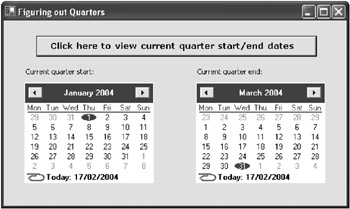
Figure 7-6: Using the MonthCalendar control to display the current quarter start and end dates
Dim CurrentQuarterStart As DateTime = FirstDayOfQuarter(Now) Dim CurrentQuarterEnd As DateTime = LastDayOfQuarter(Now) MessageBox.Show("Current quarter start: " & CurrentQuarterStart & _ Chr(10) & Chr(13) & "Current quarter end: " & CurrentQuarterEnd) Calculating the Years Between Two Dates
Download supporting files at www.apress.com .
The files for this tip are in the Ch7 ”Years Between Dates folder.
Business applications often find it useful to calculate the number of years between two particular dates, such as the date a customer first ordered and the present date, perhaps to see whether they apply for a loyalty discount or a free gift.
Don t scramble in the code window. Just use my next little snippet. Simply call YearsBetweenDates , passing in a start date and end date. It ll return an Integer containing the number of full years between the specified dates:
Public Function YearsBetweenDates(ByVal StartDate As DateTime, _ ByVal EndDate As DateTime) As Integer ' Returns the number of years between the passed dates If Month(EndDate) < Month(StartDate) Or _ (Month(EndDate) = Month(StartDate) And _ (EndDate.Day) < (StartDate.Day)) Then Return Year(EndDate) - Year(StartDate) - 1 Else Return Year(EndDate) - Year(StartDate) End If End Function
Converting a String to Proper Case
Download supporting files at www.apress.com .
The files for this tip are in the Ch7 ”Proper Case folder.
Initiating someone into the use of the StrConv function to generate proper case text was always exciting for me. This was built-in intelligence, and I used to use it to excite every new Visual Basic 6 programmer I taught.
You can still access the StrConv function to capitalize the first letter of every word and lowercase the rest, like this:
Dim strSentence As String = "MaRlenA on THE WAll" strSentence = Microsoft.VisualBasic.StrConv(strSentence, _ VbStrConv.ProperCase) ' Returns: Marlena On The Wall
However, this is using the Microsoft.VisualBasic namespace, which was included to help VB6 programmers shift to .NET. What we really need is a pure .NET Framework method of converting to title case. And that s just what I have here, in this nifty little function:
Public Function ProperCase(ByVal Text As String) As String ' Converts the passed chunk of text to "Proper Case" Dim objCulture As New System.Globalization. _ CultureInfo("en-US") Return objCulture.TextInfo.ToTitleCase(Text.ToLower) End Function Here, we create a new CultureInfo class, passing in the culture code for America ( en-US , or en-GB for Great Britain ”however, this really makes no difference to this snippet). We then use the TextInfo object within that class, passing a lowercased version of our text to the ToTitleCase function. We convert to lowercase first because fully capitalized words are not automatically converted to title case in this culture. We then return our result.
And that s it: a true .NET technique for implementing proper case. (See Figure 7-7 for my sample application.)
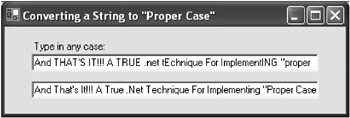
Figure 7-7: My sample proper case application
Storing Text Snippets on the Clipboard
We ve all worked with the Windows clipboard before, whether to copy a picture from Adobe PhotoShop over to PowerPoint, or simply cut and paste a bundle of text in Microsoft Word.
And adding clipboard integration to your own application isn t as difficult as it sounds. You simply need to use the Clipboard object. To set data to the clipboard, simply pass it as a parameter to the SetDataObject method, as so:
Clipboard.SetDataObject(TextBox1.Text)
You can also retrieve data from the clipboard, using the GetDataObject.GetData function. Here, we re retrieving simple text from the clipboard, but you could use the GetDataObject.GetDataPresent function to find out what s on the clipboard, then retrieve and manipulate anything from sound files to bitmaps:
TextBox1.Text = Clipboard.GetDataObject.GetData(DataFormats.Text)
Generating Memorable Passwords, Automatically
Download supporting files at www.apress.com .
The files for this tip are in the Ch7 ”Memorable Passwords folder.
Generating automatic passwords for your users is a common programming scenario. However, due to the techniques typically employed, most autogenerated passwords end up looking like YPSWW9441 ”which, although highly secure, also end up completely unmemorable.
The following function generates a password using alternating friendly consonants and vowels , making for much more memorable passwords. Asking the function to generate a five-character password, for example, may result in BONES or LAMOT .
To use this function, call GeneratePassword , passing in the length of your desired password. The final password will be returned as a string:
Public Function GeneratePassword(ByVal Length As Integer) As String ' Creates a memorable password of the specified Length Dim blnOnVowel As Boolean Dim strTempLetter As String Dim strPassword As String Dim intCount As Integer For intCount = 1 To Length If blnOnVowel = False Then ' Choose a nice consonant - no C, X, Z, or Q strTempLetter = CType(Choose(CType(GetRandomNumber(1, 17), Double), _ "B", "D", "F", "G", "H", "J", "K", "L", "M", _ "N", "P", "R", "S", "T", "V", "W", "Y"), String) ' Append it to the password string strPassword += strTempLetter ' Swich to vowel mode blnOnVowel = True Else ' Choose a vowel strTempLetter = CType(Choose(CType(GetRandomNumber(1, 5), Double), _ "A", "E", "I", "O", "U"), String) ' Append it to the password string strPassword += strTempLetter ' Switch back again, ready for next loop round blnOnVowel = False End If Next Return strPassword End Function Dim objRandom As New System.Random(CType((System.DateTime.Now.Ticks _ Mod System.Int32.MaxValue), Integer)) Public Function GetRandomNumber(Optional ByVal Low As Integer = 1, _ Optional ByVal High As Integer = 100) As Integer ' Returns a random number, ' between the optional Low and High parameters Return objRandom.Next(Low, High + 1) End Function
You could use the GeneratePassword function as so (see Figure 7-8 for my sample application):
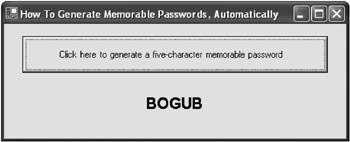
Figure 7-8: Generating a memorable five-character password in just one click
Dim MyPassword As String MyPassword = GeneratePassword(5) MessageBox.Show(MyPassword)
Encryption in Just Twelve Lines of Code!
Download supporting files at www.apress.com .
The files for this tip are in the Ch7 ”Simple Encryption folder.
At times, you may want to very simply encrypt a small piece of text to store in the registry, a database, or file, but you don t want the overhead or complexity of a government-standard encryption technique.
A much simpler encryption method is required, and the following function provides just that. It s called Crypt : pass it your plain text and it ll encrypt it; pass it your encrypted text and it ll decrypt it. It s simple and all in fewer than fifteen lines of code:
Public Function SimpleCrypt(ByVal Text As String) As String ' Encrypts/decrypts the passed string using a ' simple ASCII value-swapping algorithm Dim strTempChar As String, i As Integer For i = 1 To Len(Text) If Asc(Mid$(Text, i, 1)) < 128 Then strTempChar = CType(Asc(Mid$(Text, i, 1)) + 128, String) ElseIf Asc(Mid$(Text, i, 1)) > 128 Then strTempChar = CType(Asc(Mid$(Text, i, 1)) - 128, String) End If Mid$(Text, i, 1) = Chr(CType(strTempChar, Integer)) Next i Return Text End Function
It s not recommended for highly confidential information (as anyone with this script could also decrypt your data), but it s nonetheless highly useful. Here s how you might use this function (see my sample application in Figure 7-9):
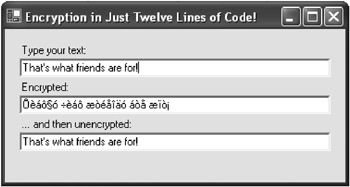
Figure 7-9: An example that uses our simple Crypt function to both encrypt and decrypt at once
Dim MyText As String ' Encrypt MyText = "Karl Moore" MyText = Crypt(MyText) MessageBox.Show(MyText) ' Decrypt MyText = Crypt(MyText) MessageBox.Show(MyText)
Implementing Powerful MD5 Encryption
Download supporting files at www.apress.com .
The files for this tip are in the Ch7 ”MD5 folder.
So, simple encryption just isn t good enough for you, huh? Well, you may as well rocket straight to the top and check out the power of MD5 (Message Digest 5) encryption, a powerful data security algorithm used by many large organizations throughout the globe.
Pass data to the MD5 algorithm and it ll return a small fingerprint of the data. If the data changes, no matter how small the alteration, the fingerprint changes. This is one-way encryption: the fingerprint can t be turned back into the original data. You can only compare the fingerprint with the source data and see if they match.
For example, you may store password fingerprints ( message digests ) in a database password field. When the user logs on, you simply compare his or her typed password with the fingerprint using MD5: if they match, you grant the user access.
It s all ultra -secure: you aren t storing the actual password anywhere , only the fingerprint.
Sound powerful? The .NET Framework includes cryptography classes directly supporting the MD5 standard, and I ve created two functions to perform its two most common operations.
The first, GetMD5Hash , accepts your data as a simple string. It then calculates and passes back the MD5 fingerprint ”the message digest , the hash ”as an array of bytes ready for you to perhaps store in your database. Don t forget, this is one-way. Once something is encrypted, you can t decrypt it.
The second, CheckMD5Hash , accepts an array of bytes (your hash) and a string, such as the byte array from your database password field and the password that your user has entered. The string is then converted into a hash itself and the individual bytes compared, bit by bit. If it all matches, you ve got a winner ”and a True is returned.
Here s the code:
Public Function GetMD5Hash(ByVal Text As String) As Byte() ' Generates an MD5 hash for the specified Text On Error Resume Next Dim objAscii As New System.Text.ASCIIEncoding() Dim bytHash As Byte() = _ New System.Security.Cryptography.MD5CryptoServiceProvider(). _ ComputeHash(objAscii.GetBytes(Text)) Return bytHash End Function Public Function CheckMD5Hash(ByVal OriginalHash As Byte(), _ ByVal Text As String) As Boolean ' Checks an MD5 hash against the specified Text ' Returns True if we have a match On Error Resume Next Dim objAscii As New System.Text.ASCIIEncoding() Dim intCount As Integer, blnMismatch As Boolean Dim bytHashToCompare As Byte() = GetMD5Hash(Text) If OriginalHash.Length <> bytHashToCompare.Length Then Return False Else For intCount = 0 To OriginalHash.Length If OriginalHash(intCount) <> bytHashToCompare(intCount) Then Return False End If Next Return True End If End Function
Here s a simple example using the two preceding functions. The first line generates an MD5 hash, and the second checks it against our password:
Dim bytHash() As Byte = GetMD5Hash("password") Dim blnMatch As Boolean = CheckMD5Hash(bytHash, "password") Remember that this is highly powerful, currently unbreakable encryption. And all in just a few lines of cool .NET code. Exciting stuff.
Converting a String into the Color Type
It s often useful to be able to convert from a string into an actual type, and vice versa ”a technique that may seem especially difficult when it comes to colors. Imagine, for example, that your program allows users to customize their application colors. You need a method of storing the settings, probably as strings in the registry. Maybe your program actually prompts the user to type in a color. They may request green, or aqua, or just plain old gray, but you need a method of converting this value into an actual Color type.
Thankfully, the .NET Framework team figured you might want to do that, and include a neat ColorConverter class to help you.
Here s an example designed for a Windows application. The first chunk takes the string Green and changes it into a Color type, finally setting it as the BackColor of your form ( Me ). The second takes a Color type and displays a matching color string:
' Instantiate ColorConverter class Dim objCConv As New System.Drawing.ColorConverter() ' Retrieve a Color object from a string Dim objColor As System.Drawing.Color = _ CType(objCConv.ConvertFromString("Green"), Color) Me.BackColor = objColor ' Retrieve a string from a Color object Dim strColor As String = _ objCConv.ConvertToString(Me.BackColor) MessageBox.Show(strColor) That s it! Don t forget: Windows applications also have access to the ColorDialog control, which allows the user to select a color and returns a Color type. You may wish to integrate this into applications that use such color conversion code. Good luck!
Binding a Combo Box to Enumeration Values
Download supporting files at www.apress.com .
The files for this tip are in the Ch7 ”Enum Binding folder.
By their very nature, enumerations lend themselves easily to being displayed in list controls, such as the combo box. You want to take their text entries and display them to the user, with the related values being stored alongside each item.
This was impossible in previous versions of Visual Basic, but it s easily done with .NET.
Firstly, let s look at a Web example. Here, we have a custom function that accepts a System.Type object, along with the actual list control you want populated . It then clears the box and adds all items from the enumeration, along with their related item values. You can then use and reference the items (and values) in the box as you would normally.
Here s the code:
Public Sub AddEnumToList(ByVal GetSystemType As System.Type, _ ByVal List As System.Web.UI.WebControls.ListControl) ' Populates the specified list with the ' names and values of the passed system type Dim strNames As String(), arrValues As System.Array Dim intCount As Integer strNames = [Enum].GetNames(GetSystemType) arrValues = [Enum].GetValues(GetSystemType) List.Items.Clear() For intCount = LBound(strNames) To UBound(strNames) List.Items.Add(New _ System.Web.UI.WebControls.ListItem(strNames(intCount), _ arrValues.GetValue(intCount))) Next End Sub
And here s an example of how you could use this function. Note the use of GetType surrounding the name of your enumeration:
AddEnumToList(GetType(NameOfEnum), DropDownList1)
With Windows forms, it works a little differently. The provided list controls do not inherently support individual item values, unless you re performing a more complex binding operation; therefore, the simplest method is to list the text items from the enumeration, then figure out the related values later (if required at all).
So, to get the list of items, set the DataSource equal to a string array containing the items from your enumeration. You can obtain this through the System.Enum.GetNames function. Here s a code sample demonstrating how to do this:
ComboBox1.DataSource = System.Enum.GetNames(GetType(NameOfEnum))
This takes the individual text items from your enumeration and adds them to your list-based control in the order of their related values, from lowest to highest (and not in the order in which you declared them). Then, when you need to figure out the underlying value of the selected item, you ll need to run code a little like this:
Dim strNames As Array = _ System.Enum.GetValues(GetType(NameOfEnum)) Dim strValue As String = _ strNames(ComboBox1.SelectedIndex)
And that s how to bind a list control to an enumeration. It sounds difficult, but once you know how .

EAN: 2147483647
Pages: 76