| You may have already found a way to debug your applications through clever use of comments and Response.Write. If you suspect that a piece of code is causing errors, you can comment it out and use well-placed Response.Write methods to see if your guess was correct. For example, take a look at Listing 20.6. Listing 20.6 Testing Portions of Code 1: <%@ Page Language="VB" %> 2: <%@ Import Namespace="System.Data" %> 3: <%@ Import Namespace="System.Data.OleDb" %> 4: 5: <script runat="server"> 6: sub Submit(Sender as Object, e as EventArgs) 7: dim strSQL as string = _ 8: "SELECT UserID FROM tblUsers WHERE " & _ 9: "UserName = '" & tbUserName.Text & "' AND " & _ 10: "Password = '" & tbPassword.Text & "'" 11: 12: 'do database stuff here 13: end sub 14: </script> 15: 16: <html><body> 17: <form runat="server"> 18: <asp:Label runat="server" /> 19: Username: 20: <asp:Textbox runat="server" /><p> 21: Password: 22: <asp:Textbox runat="server" 23: TextMode="password" /><p> 24: <ASP:Button runat="server" 25: OnClick="Submit" 26: Text="Submit" /> 27: </form> 28: </body></html>  | This form accepts a username and password to query a database. Although this is a very simple example, suppose that you're receiving errors perhaps the correct information isn't being returned from the database. In a situation like this, it's common to verify that the SQL statement is correct. |
You can add the following line after line 10 to verify that your SQL statement is in the correct format: Response.Write(strSQL) Then comment out any lines that are suspect to prevent the error from happening again. Figure 20.10 shows the output. Figure 20.10. Response.Write allows you to test the value of variables.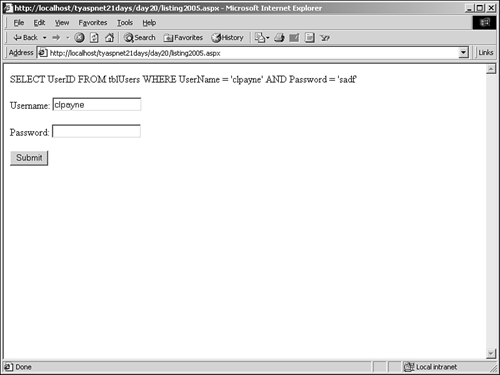
Response.Write is a very helpful tool for following variables and checking their values. Unfortunately, this method doesn't offer much information other than a value, and it can be a pain to keep adding and removing these statements in different places. ASP.NET tracing solves this problem, allowing you to output debugging statements and follow the execution of your code. Tracing tells you which methods have been executed, how much time each method took to execute, what the values of variables are, and so on, all in an easy-to-read format. Also, you don't have to remove any trace debugging statements when you're through debugging. You can disable all of them with one command. Tracing can be enabled for a single page or for all pages across an application. Either way, these debugging statements don't affect your application at all when they're disabled, nor do they send any output to the client. There are two levels of tracing in ASP.NET: page level and application level. Let's cover page-level tracing first because application-level tracing is simply an extension of it. Page-Level Tracing You can see tracing in action easily. Add the Trace="True" directive to line 1 in Listing 20.6, like so: <%@ Page Language="VB" Trace="true" %> This turns tracing on for that page. Figures 20.11 and 20.12 show what the page should look like on your browser. Figure 20.11. Tracing provides a great deal of debugging information.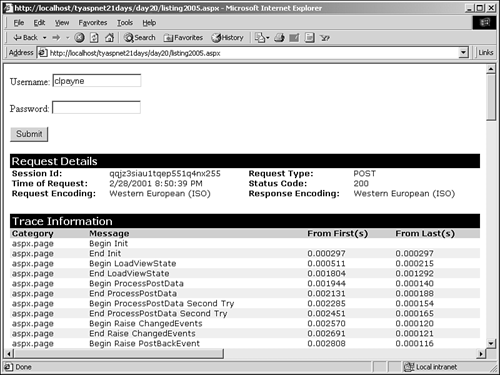
Figure 20.12. Further down the tracing output.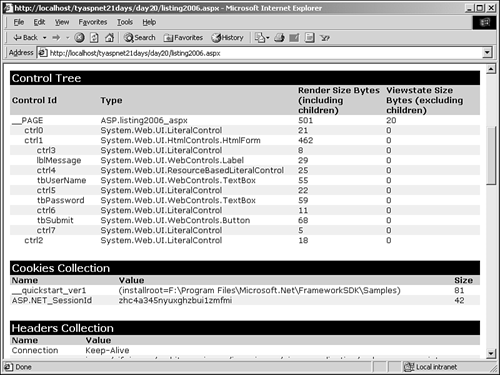
Whoa, what happened? All of a sudden, your page is filled with new information. Scroll through the output and examine each item. This trace information provides just about all the information there is on your page! Let's look at each section, one at a time. At the top of the page, you still see your page from Listing 20.6. You can interact with it as though none of the information below it were there. ASP.NET adds these tables of information to your pages automatically when you enable tracing. They're simply for debugging and performance information. Obviously, you wouldn't want to let an end user see this information. The next section, Request Details, tells how the client requested the page. It contains the unique session ID for the current user, the time of the request, the request verb (POST or GET, typically), the status code, and the encoding information. There's not much you can do with this information in this case, but it can be useful nonetheless. The Trace Information section shows the execution of your page. It lists each event that occurred on your page and the time it took to accomplish, both from the start of the request and the end of the last event. Some of the events in Figure 20.11 should look familiar, but there are a few that are new. The category shows where each trace occurred. In the next section, you'll learn how to add your own categories. The next section, Control Tree, shows all the server controls used in your page, in hierarchical order. Notice that it even shows LiteralControls (see Day 2, "Building ASP.NET Pages," for a description of these objects). This section displays the size (in bytes) of each control and the number of bytes required to maintain the viewstate information. Here you can clearly see how much memory is required to maintain state in your form and decide whether to disable viewstate maintenance. The Cookies Collection section shows any cookies in use and their values. This may or may not contain any information, depending on the nature of your application. Headers Collection shows the information stored in the HTTP header. This information includes the host server, browser version and type, referring URL, content type, and so on. The optional Form Collection section shows any data that was sent via a POST operation. If you just submitted the input form on this page, you should see the values you entered here, as well as the viewstate information. Finally, the Server Variables section displays information such as HTTP headers, the server name and port, the type of HTTP connection, and so on. This is the information used by the server to set up your application. You can also sort all the tracing information on this page by the times that the events occurred, or by the category they belong to in the TraceMode property. For example: <%@ Page Language="VB" Trace="true" TraceMode="SortByTime" %> This is the default sort order. SortByCategory organizes the output differently, but you won't see any difference yet because you only have one category in Figure 20.11. This page provides a lot of performance information for your application. You can see exactly how long each stage of processing takes and determine if adjustments need to be made. For example, note that the time between Begin Render and End Render that is, the time it takes to display the page in the browser consistently is one of the largest time values. You can use the Trace object to write custom debugging information to your ASP.NET page. This class has two methods of its own: Write and Warn. These methods are nearly identical. The first simply outputs debug information, whereas the second outputs the same information in red. Let's try an example. Add the following code to line 11 of Listing 20.6 (replacing Response.Write if you still have it there): Trace.Write("Custom category", strSQL) The first parameter is the category you want your output to belong to, and the second is the string to display. Submit the form and you should see what's shown in Figure 20.13. Figure 20.13. Adding custom debugging information.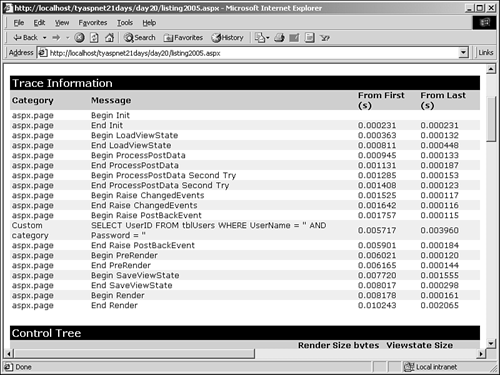
Notice the new category midway through the Trace Information section. This event occurred between the Begin Raise PostBack and End Raise PostBack events, which handle the form submission events. This new item contains the value in strSQL. Note that no new text appeared in the actual page because Trace.Write and Trace.Warn only write to the trace log, not to the client output. Let's examine a slightly more complex example. Listing 20.7 is similar to Exercise 1 from Day 14, "Using ASP.NET's Improved Caching Capabilities." You create a DataSet, store it in cache, and bind the data to a DataGrid. The data is retrieved from the cache instead of the database on subsequent requests, saving processing time. There's also a button that allows the user to render the cache invalid, causing the retrieval process to start over. Listing 20.7 Tracing with a More Complex Example 1: <%@ Page Language="VB" Trace="true" %> 2: <%@ Import Namespace="System.Data" %> 3: <%@ Import Namespace="System.Data.OleDb" %> 4: 5: <script language="VB" runat="server"> 6: sub Page_Load(Sender as Object, e as EventArgs) 7: Trace.Warn("Custom", "Page loading...") 8: if not Page.IsPostBack then 9: Trace.Warn("Custom", _ 10: "No post, calling CreateData...") 11: CreateData() 12: end if 13: end sub 14: 15: sub CreateData 16: dim source as DataView 17: source = Cache("DataView") 18: 19: if source is nothing then 20: dim strConnString as string = "Provider=" & _ 21: "Microsoft.Jet.OLEDB.4.0;" & _ 22: "Data Source=c:\ASPNET\data\banking.mdb" 23: 24: Trace.Warn("Custom", _ 25: "Creating OleDbDataAdapter...") 26: dim objCmd as OleDbDataAdapter = new _ 27: OleDbDataAdapter("select * from tblUsers", _ 28: strConnString) 29: Trace.Warn("Custom", "SQL value: " & _ 30: objCmd.SelectCommand.CommandText) 31: 32: dim ds as DataSet = new DataSet() 33: objCmd.Fill(ds, "tblUsers") 34: 35: source = new DataView(ds.Tables(0)) 36: Trace.Warn("Custom", "Inserting into cache...") 37: Cache.Insert("DataView", source) 38: 39: lblMessage.Text = "Data set created explicitly" 40: else 41: lblMessage.Text = "Data set retrieved from " & _ 42: "cache<br>" 43: end if 44: 45: Trace.Warn("Custom", "Binding data...") 46: dgData.DataSource = source 47: dgData.DataBind() 48: end sub 49: 50: sub ExpireCache(Sender as Object, e as EventArgs) 51: Trace.Warn("Custom", _ 52: "Removing from cache, call CreateData") 53: dim dv as dataview = Cache.Remove("DataView") 54: CreateData() 55: end sub 56: </script> 57: 58: <html><body> 59: <form runat="server"> 60: <asp:Label runat="server" 61: maintainState=false/><p> 62: <asp:Button runat="server" 63: text="Expire Cache" 64: OnClick="ExpireCache"/><p> 65: <asp:DataGrid runat="server" 66: BorderColor="black" GridLines="Vertical" 67: cellpadding="4" cellspacing="0" 68: width="450" Font-Name="Arial" 69: Font-Size="8pt" 70: HeaderStyle-BackColor="#cccc99" 71: ItemStyle-BackColor="#ffffff" 72: AlternatingItemStyle-Backcolor="#cccccc" /> 73: </form> 74: </body></html> | First, notice that you've enabled tracing on line 1 with the Trace="true" directive. Your page will now display tracing information, and all the Trace.Write and Trace.Warn statements in your code will print debug information. |
You've strategically placed Trace.Warn statements on lines 7, 9, 24, 29, 36, 45, and 51 to tell you when specific events are occurring. After viewing this page once and clicking the Expire Cache button, you should see the trace information displayed in Figure 20.14. Figure 20.14. Viewing custom debug information.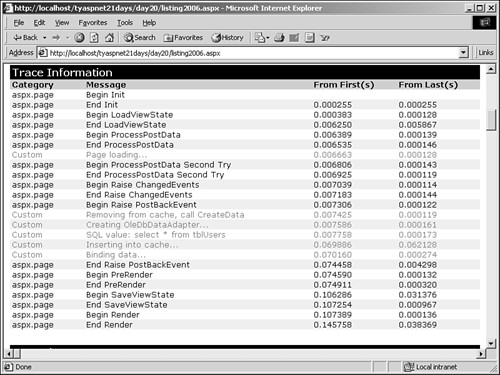
This page tells you quite a bit of information. First, you see the order of occurrence of events. Specifically, you see that the Page_Load event happens much earlier than any Web form event processing. Failing to take note of this while developing pages is a common mistake. Second, this page shows you the value of the SQL statement you're executing. The statement in this example is static, so this doesn't help you much. However, it's very useful when you have to assemble a SQL statement dynamically. Next, notice the time difference between the "Inserting into cache..." and "SQL Value: ..." events. This time span represents the time it takes to retrieve the information from the database. It's over 300 times greater than the time spans of any of the other custom events, and it's almost more than all the other events combined. Thus, you can see that the cost of retrieving information from a database is high. Refresh the page (without reposting the form data) and take a look at the trace information once again. Note that the total time is nearly cut in half. Finally, scroll down further to the Control Tree section and notice the amount of memory that is required to maintain the viewstate (see Day 2), as indicated by the Viewstate Size Bytes (excluding children) column. After summing the values in this column, you'll see that this page requires approximately 6KB, nearly 40% of the memory needed to render the page completely (shown by the Render Size Bytes column). If you don't need to maintain the viewstate, it will pay to disable it through the EnableViewState="false" page directive. Page-level tracing is a powerful tool for debugging and improving the performance of your pages. When you don't need to display this information any more, you can simply disable tracing with Trace="false" in the page directive and leave the Trace.Warn statements in. They don't alter execution in any way, nor do they affect performance. There may be times when you want to execute a portion of code only if tracing is enabled. For instance, you may want to display custom debugging information that you create yourself. In this case, you can simply check the Trace.IsEnabled property: 1: If Trace.IsEnabled then 2: For I = 0 to ds.Tables("tblUsers").Rows.Count 1 3: Trace.Write("User Info", ds.Tables("tblUsers"). _ 4: Rows(i)(0).ToString) 5: next 6: end if This code writes values from the returned data to the trace log, but only if the Trace directive is set equal to true. Thus, you can also use Trace to stop code from executing, which is another common necessity during debugging, and provides you more options than simply using Trace.Write and Trace.Warn. Application-Level Tracing Tracing is a very useful tool, but it can be a pain to go through every page on your site enabling and disabling it. Also, page-level tracing provides you with statistics only for the page in question it doesn't tell you about any other pages in your site. With application-level tracing, you can easily turn tracing on and off for every page, as well as view the trace output in one location. You can enable tracing for all pages across the site by adding a directive to your web.config file: 1: <configuration> 2: <system.web> 3: <trace enabled="true" /> 4: </system.web> 5: </configuration> The web.config file with this attribute must be at the root folder of your application for this to work. (In our case, it will be c:\inetpub\wwwroot, unless you explicitly changed it from IIS.) This turns on tracing for the entire site, which means that every page in your site (unless it explicitly turns tracing off) now outputs trace information. By default, application-level tracing doesn't display the tracing information on every page. Rather, you view the cumulative information via a special file on your server: trace.axd. (You don't have to create this file. ASP.NET handles it for you automatically; in fact, you won't even be able to see it through Windows Explorer or IIS ASP.NET creates it dynamically.) View this file from any directory in your site with the URL: http://localhost /trace.axd This page will show something similar to Figure 20.15, depending on what pages are being requested on your site. Figure 20.15. Application-level tracing via the trace.axd file.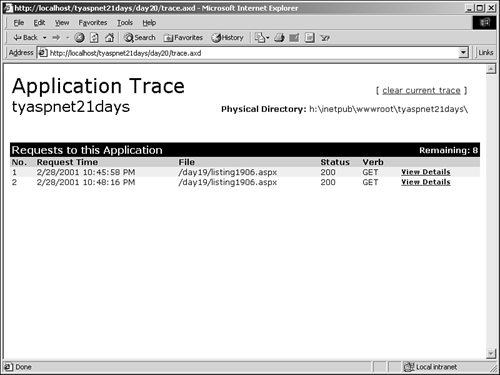
Note Make sure you add the <trace enabled="true"> line to your web.config file first or you won't see any information at trace.axd!
By default, this page shows the information for the last 10 requests to your site, including the time of the request, the particular file requested, how it was requested (the HTTP verb), and the status of the request. The view details link brings up a window similar to Figure 20.11 (but without the UI portion). The clear current trace link clears the application log of all the trace data. Since trace information uses up a lot of memory, clearing this data may increase performance slightly. (Just beware that the requests may add up again very quickly!) Open a new browser window, request any page in your application, and click Refresh a few times. Go back to trace.axd and click the Refresh button. You should see a few more requests here. Also note that Remaining decreases with each request. When you request more than the limit, the older requests are pushed off the stack. trace.axd is highly configurable. You can alter the number of requests to store, the method of trace display, and where to display the output. The complete syntax for the web.config section is as follows: <trace enabled="boolean" pageOutput="boolean" requestLimit="number" traceMode="mode" /> The traceMode attribute is exactly the same as it is for page-level tracing; it tells ASP.NET how tracing should behave. pageOutput specifies whether you want the trace information to be displayed on every page in addition to trace.axd; the default value is false. requestLimit specifies the number of requests to keep in memory; the default is 10. Note If you specify Trace="false" on a particular page, it overrides the application-level tracing for that page. This means that trace.axd won't display any information for that particular page.
Application-level tracing provides an easy way to view statistics on all pages on your site quickly. You can use this tool to detect any bottlenecks in your application when it's under stress from many Web visitors. | 
