Flylib.com

Books Software


Recipe 17.9. Sending Email Using SMTP


Recipe 17.9. Sending Email Using SMTP

Problem

You want to send an email automatically from your application without using an external application such as Outlook.

Solution

Sample code folder: Chapter 17\SendEmail

Use the System.Net. Mail.SmtpClient class in the .NET Framework, supplying the server name and details specific to the email.

Discussion

The System.Net.Mail.SmtpClient class encapsulates an email submission. All you need to do is fill in its properties and call the Send() method, and your mail is delivered to the target recipient.

To send email, you must have authorized access to an SMTP server.


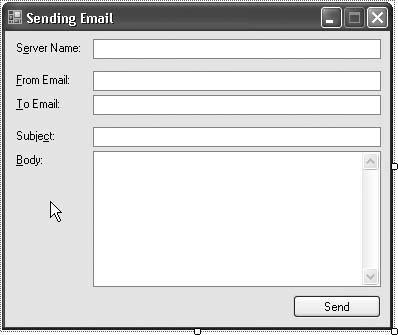
Create a new Windows Forms application, and add five TextBox controls named ServerHost, FromEmail, ToEmail, SubjectText , and BodyText . Set the BodyText control's Multiline property to true . Also add a Button control named ActSend , and set its Text property to Send . Add informational labels if desired. Your form should look something like Figure 17-11.

Figure 17-11. Controls for the email-sending sample
Now add the following code to the form's class template:

Imports System.Net.Mail

	Public Class Form1
	   Private Sub ActSend_Click(ByVal sender As System.Object, _
	         ByVal e As System.EventArgs) Handles ActSend.Click
	      ' ----- Send the requested email.
	      Dim  
emailSender As SmtpClient
	      Dim theMessage As MailMessage

	      ' ----- Connect to the server. A second optional
	      '       argument lets you alter the port number from
	      '       the default.
	      emailSender = New System.Net.Mail.SmtpClient( _
	         ServerHost.Text)

	      ' ----- Build the content details.
	      theMessage = New MailMessage
	      theMessage.From = New MailAddress(FromEmail.Text)
	      theMessage.To.Add(ToEmail.Text)
	      theMessage.Subject = SubjectText.Text
	      theMessage.Body = BodyText.Text

	      ' ----- Fill in the details and send.
	      emailSender.Send(theMessage)
	   End Sub
	End Class

The MailMessage object includes properties that let you add attachments and specify the properties of the email message. Its To property is a collection that lets you add an unlimited number of email recipients. It also includes parallel CC and Bcc collections.


Recipe 17.10. Getting POP3 Emails

Problem

You want to access emails from an application, perhaps just to get a quick count of available emails or to get the complete contents.

Solution

Sample code folder: Chapter 17\Pop3Email

Use the TcpClient class in the System.Net. Sockets namespace. The Pop3 class presented here wraps this class with supporting code to make it easier to access your emails.

Discussion

The following class code creates Pop3 objects to simplify accessing emails from a standard POP3 server. Note that some servers require SSL or other authentication, in which case this code will need modification. For standard POP3 servers, it works well as presented.

Create a new Windows Forms application, add a new class named Pop3.vb , and use this code for its definition:

Public Class Pop3
	   ' ----- The default TCP/IP port number for POP3 is 110.
	   Public Port As Integer = 110
	   Public Messages As Integer = 0

	   Private Const CommandFailure As String = "-ERR"

	   Private Pop3Server As TcpClient
	   Private CommandSender As NetworkStream
	   Private ContentReceiver As StreamReader

	   Public Sub Connect(ByVal serverName As String, _
	         ByVal userName As String, ByVal password As String)
	      ' ----- Initiate the connection to a POP3 server.
	      Dim commandData As String
	      Dim contentBuffer() As Byte
	      Dim responseString As String
	      Dim parts() As String

	      ' ----- Connect to the POP3 server.
	      Try
	         Pop3Server = New TcpClient(serverName, Port)
	         CommandSender = Pop3Server.GetStream()
	         ContentReceiver = New StreamReader(CommandSender)
	      Catch
	         Throw
	      End Try

	      If (userName <> "") Then
	         ' ----- Authenticate with the user ID.
	         commandData = "USER " & userName & vbCrLf
	         contentBuffer = _
	            System.Text.Encoding.ASCII.GetBytes( _
	            commandData.ToCharArray())
	         CommandSender.Write(contentBuffer, 0, _
	            contentBuffer.Length)
	         responseString = ContentReceiver.ReadLine()
	         If (Left(responseString, Len(CommandFailure)) = _
	               CommandFailure) Then
	            Throw New Exception("Invalid user name.")
	         End If

	         ' ----- Send the authenticating password.
	         commandData = "PASS " & password & vbCrLf
	         contentBuffer = _
	            System.Text.Encoding.ASCII.GetBytes( _
	            commandData.ToCharArray())
	         CommandSender.Write(contentBuffer, 0, _
	            contentBuffer.Length)
	         responseString = ContentReceiver.ReadLine()
	         If (Left(responseString, Len(CommandFailure)) = _
	               CommandFailure) Then
	            Throw New Exception("Invalid password.")
	         End If
	      End If

	      ' ----- Logged in. On some servers, the PASS command
	      '       is not enough to push the server into a
	      '       transaction state. Send a STAT command twice.
	      commandData = "STAT" + vbCrLf
	      contentBuffer = System.Text.Encoding.ASCII.GetBytes( _
	         commandData.ToCharArray())
	      CommandSender.Write(contentBuffer, 0, _
	         contentBuffer.Length)
	      responseString = ContentReceiver.ReadLine()

	      ' ----- Get a count of the messages.
	      commandData = "STAT" + vbCrLf
	      contentBuffer = System.Text.Encoding.ASCII.GetBytes( _
	         commandData.ToCharArray())
	      CommandSender.Write(contentBuffer, 0, _
	         contentBuffer.Length)
	      responseString = ContentReceiver.ReadLine()
	      If (Left(responseString, Len(CommandFailure)) = _
	            CommandFailure) Then
	         Throw New Exception( _
	            "Could not retrieve message count.")
	      End If

	      ' ----- The response includes two integers: a count
	      '       and a size, separated by a space. Skip over
	      '       the "+OK" part also.
	      parts = Split(responseString, " ")
	      Messages = Val(parts(1))
	   End Sub

	   Public Sub Disconnect()
	      ' ----- Disconnect from the  
POP3 server.
	      Dim commandData As String
	      Dim contentBuffer() As Byte
	      Dim responseString As String

	      ' ----- Tell the server we're through.
	      commandData = "QUIT" & vbCrLf
	      contentBuffer = System.Text.Encoding.ASCII.GetBytes( _
	         commandData.ToCharArray())
	      CommandSender.Write(contentBuffer, 0, _
	         contentBuffer.Length)
	      responseString = ContentReceiver.ReadLine()

	      ' ----- End the connection.
	      ContentReceiver.Close()
	      CommandSender.Close()
	       
Pop3Server.Close()
	   End Sub

	   Function GetMessage(ByVal whichMessage As Integer) _
	         As String
	      ' ----- Retrieve a single email message.
	      Dim commandData As String
	      Dim contentBuffer() As Byte
	      Dim responseString As String
	      Dim theMessage As New System.Text.StringBuilder
	      Dim oneLine As String

	      ' ----- Check for an invalid message.
	      If (whichMessage < 1) Or (whichMessage > Messages) Then
	         Throw New ArgumentOutOfRangeException(whichMessage, _
	            "Messages are numbered from 1 to the number " & _
	            "identified by the Messages property.")
	      End If

	      Try
	         ' ----- Request the message.
	         commandData = "RETR " & whichMessage & vbCrLf
	         contentBuffer = _
	            System.Text.Encoding.ASCII.GetBytes( _
	            commandData.ToCharArray())
	         CommandSender.Write(contentBuffer, 0, _
	            contentBuffer.Length)
	         responseString = ContentReceiver.ReadLine()
	         If (Left(responseString, Len(CommandFailure)) = _
	               CommandFailure) Then
	            Throw New Exception("Message retrieval failed.")
	         End If

	         ' ----- The message is all data until a line with
	         '       a single dot (.) appears.
	         Do While (ContentReceiver.EndOfStream = False)
	            oneLine = ContentReceiver.ReadLine()
	            If (oneLine = ".") Then Exit Do
	            theMessage.AppendLine(oneLine)
	         Loop
	      Catch ex As InvalidOperationException
	         MsgBox("Message retrieval failed: " & ex.Message)
	      End Try

	      ' ----- Return the constructed message.
	      Return theMessage.ToString()
	   End Function
	End Class

Return to Form1 , and add three TextBox controls named ServerName, UserName , and UserPassword . Set the UserPassword control's PasswordChar field to the asterisk character (*). Add a ListBox control named MessageList and two Button controls named ActGet and ActView . Set the Button controls' Text properties to Get Messages and View Message , respectively. Add informational labels if desired. The form should look like the one in Figure 17-12.

Figure 17-12. Controls for the POP3 sample

Now add the following code to Form1 's class template:

Private POP3Connection As Pop3 = Nothing

	Private Sub ActGet_Click(ByVal sender As System.Object, _
	      ByVal e As System.EventArgs) Handles ActGet.Click
	   ' ----- Initiate a POP3 connection.
	   Dim counter As Integer

	   ' ----- First, disconnect any previous connection.
	   If (POP3Connection IsNot Nothing) Then
	      Try
	         POP3Connection.Disconnect()
	      Catch ex As Exception
	         ' ----- Ignore.
	      End Try
	   End If
	   POP3Connection = Nothing

	   ' ----- Clear any previous messages.
	   MessageList.Items.Clear()

	   ' ----- Try the new connection.
	   Try
	       
POP3Connection = New Pop3
	      POP3Connection.Connect(ServerName.Text, _
	         UserName.Text, UserPassword.Text)
	   Catch ex As Exception
	      MsgBox("Connection failure: " & ex.Message)
	      POP3Connection = Nothing
	      Return
	   End Try

	   ' ----- How many messages?
	   If (POP3Connection.Messages = 0) Then
	      MsgBox("No messages found.")
	      POP3Connection.Disconnect()
	      POP3Connection = Nothing
	      Return
	   End If

	   ' ----- Show each message.
	   For counter = 1 To POP3Connection.Messages
	      MessageList.Items.Add("Message Number " & counter)
	   Next counter
	End Sub

	Private Sub ActView_Click(ByVal sender As System.Object, _
	      ByVal e As System.EventArgs) Handles ActView.Click
	   ' ----- Show a message.
	   Dim whichMessage As Integer
	   Dim parts As String()
	   Dim content As String

	   ' ----- Which message? Each item has the format:
	   '          Message Number x
	   If (MessageList.SelectedIndex = -1) Then Return
	   parts = Split(CStr(MessageList.SelectedItem), " ")
	   whichMessage = CInt(Val(parts(2)))

	   ' ----- Get the content.
	   content = POP3Connection.GetMessage(whichMessage)

	   ' ----- Show the content.
	   MsgBox(content)
	End Sub

	Private Sub MessageList_DoubleClick(ByVal sender As Object, _
	      ByVal e As System.EventArgs) _
	      Handles MessageList.DoubleClick
	   ' ----- Same as the View button.
	   ActView.PerformClick()
	End Sub

	Private Sub Form1_FormClosing(ByVal sender As Object, _
	      ByVal e As System.Windows.Forms.FormClosingEventArgs) _
	      Handles Me.FormClosing
	   ' ----- Disconnect before leaving.
	   On Error Resume Next

	   If ( 
POP3Connection IsNot Nothing) Then
	      POP3Connection.Disconnect()
	      POP3Connection = Nothing
	   End If
	End Sub

When you successfully connect to a POP3 server through the ActGet button, it displays a simple list of each message stored on the server. It's not as good as a real email program such as Microsoft Outlook because it hasn't yet read even the sender name or subject text, but it does add one entry for each available message. Clicking on the ActView button retrieves the content for one email message from the server through the Pop3 class's GetMessage() method. The connection to the email server is closed when the form closes .

Figure 17-13 shows the content from a test email retrieved from a POP3 server. This rather short sample email arrives with considerable overhead in the header details. The message body is near the end, and it shows the email was sent using HTML content.

Figure 17-13. An email retrieved from a POP3 server