Namespaces
| Classes, structures, modules, enumerations, interfaces, and delegatesthe major .NET typesdon't just float around in the code of your application. They must all be grouped and managed into namespaces. As described in Chapter 1, namespaces provide a hierarchy for your types, sort of a tree-shaped condominium where each type has a home. Some of those homes (or nodes), like System, get pretty crowded with all of those type families living there. Others, such as System.Timers, may have only a few types dwelling in its ample abode. But every type must live in the hierarchy; none of the types is adventurous enough to strike out on its own and build a ranch house. At the very root of the hierarchy is Global, not a node itself, but a Visual Basic keyword that indicates the root of all roots. You can include Global when referencing your namespaces, but its use is only required when leaving it out would cause confusion between two namespace branches. Directly under Global are the few top-level namespaces, including System and Microsoft. Each top-level namespace contains subordinate namespaces, and each of those can contain additional third-level namespaces, and so on. Namespaces nodes are referenced relative to each other using a "dot" notation. System.Windows.Forms This specifies the third-level Forms namespace. You could also have typed: Global.System.Windows.Forms which means the same thing. Relative namespaces are also supported. Forms However, to use relative namespaces, you must tell your Visual Basic code to expect them. There are so many namespaces out there, and there may be several Forms namespaces somewhere in the hierarchy. Referencing NamespacesBefore namespaces can be used in your code, they must be referenced and optionally imported. Referencing a namespace identifies the DLL file that contains that namespace's types. Perform both of these actions through the References tab of each project's Properties form (see Figure 2-3). Figure 2-3. References and imports for a project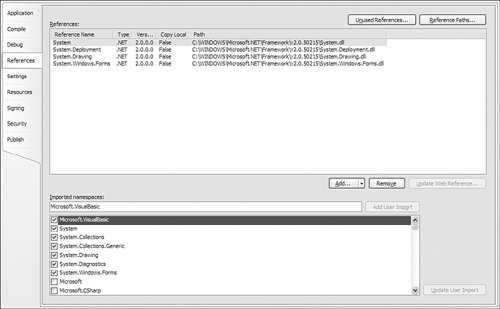 Actually, you are not referencing the namespaces in the DLL, but the types, all of which happen to live in specific namespaces. However, for the core type DLLs supplied with the .NET Framework, it feels like the same thing. In fact, Microsoft even named the DLLs to match the namespaces they contain. System.dll contains types within the System namespace. System.Windows.Forms.dll includes types specific to Windows Forms applications, and all of these types appear in the System.Windows.Forms namespace or one of its subordinates. If you don't reference a DLL in your project, none of its types will be available to you in your code. Visual Studio loads several references into your project automatically based on the type of project you create. Figure 2-3 shows the four default references included within a Windows Forms application: System, System.Deployment, System.Drawing, and System.Windows.Forms. Once you have referenced a library of classes in your code, access any of its classes by specifying the full namespace to that class. For instance, the class for an on-screen form is referenced by System.Windows.Forms. Form. That's three levels down into the hierarchy, and some classes are even deeper. I hope that your health insurance plan covers carpel tunnel syndrome. To avoiding typing all of those long namespaces over and over again, Visual Basic includes an imports feature. Imports are namespace-specific; once a namespace has been imported, you can access any of the types in that namespace without specifying the namespace name. If you import the System.Windows.Forms namespace, you only have to type "Form" to access the Form class. The bottom half of Figure 2-3 shows how to set these imports through the project's properties. The Imported namespaces list shows all available referenced namespaces. Simply check the ones you wish to import; System.Windows.Forms is already checked for you by default in Windows Forms applications. You can also import a namespace directly in your source code. Use the Imports statement at the very start of a source code file. Imports System.Windows.Forms The Imports statement supports namespace abbreviations, short names that represent the full namespace in your code. Using the statement: Imports Fred = System.Windows.Forms lets you reference the Form class as "Fred.Form." Unlike the imports list in the project's properties, which impacts the entire project, the Imports statement affects only a single source code file. Namespaces in Your ProjectBy default, all of the classes and types in your project appear in a top-level namespace that takes on the name of your project. For a Windows Forms application, this default namespace is called WindowsApplication1. To specify a different top-level namespace, modify it through the Application tab of the project's properties, in the Root namespace field. All of the types in your project appear in this namespace; if you specify an existing Microsoft-supplied namespace as your project's Root namespace, all of your types will appear in that specified namespace, mixed in with the preexisting types. For standalone applications, this mixture will only be visible from your code. From the root namespace, you can place types within subordinate namespaces by using the Namespace statement. Namespace is a block statement that ends with the End Namespace clause. Any types you create between the Namespace and End Namespace clauses will be contained in that subordinate namespace. For example, if your root namespace is WindowsApplication1, the following statements create a class whose full name is WindowsApplication1.WorkArea.BasicStuff.BusyData: Namespace WorkArea.BasicStuff Class BusyData ... End Class End Namespace You can include as many Namespace statements in your code as needed. Nesting of namespaces is also supported. Namespace WorkArea.BasicStuff Namespace BasicStuff Class BusyData ... End Class End Namespace End Namespace |

EAN: 2147483647
Pages: 247