General Tips on Storyboarding
Once you have a script in hand, the next step in the process is to craft your storyboard. The storyboard is the blueprint of your video. At a glance, you’ll be able to view both the visual details of each segment and the accompanying narration simultaneously.
Choose a Presentation Layout You’re Comfortable With
The key to making a useful storyboard is to lay out each scene in a separate box, with the visual cues on one side and the audio narration on the other. The storyboard is doing its job if you can glance down and instantly know what you’re doing in the next clip.
The layout will obviously vary according to personal taste, but if it will help you, I’m only too happy to share how I lay out my storyboards. Here goes:
The narration script provides a base. The first step is splitting up the individual pages and paragraphs into distinct shots, those points at which there is some major change to the visual elements on-screen.
I’m not a big fan of letting the audience view a single application window throughout the entire course of the video. I think it’s much better to mix things up a bit. Plan a wide variety of shots that will elicit the most clarity for the topic at hand. As your skills progress, you can do more advanced zooming and panning shots, both for the sake of homing in on a particular interface element and for artistic effect. To aid me in this endeavor when first starting out, I devoured a few introductory books on film directing, and I can’t tell you how much this exercise helped the preparation of my various shots. I encourage you to do the same.
Once you’ve separated your narration into corresponding shots, try placing them into individual boxes so that there is a distinct visual separation of elements. The Table feature of Microsoft Word works admirably in this regard. In my table, I include two columns. On the left is where I place my visual elements. I paste my narration on the right. I’ll also typically change the page’s orientation from portrait to landscape in order to get a bit more elbow room on the horizontal axis. To do this in Word, simply choose File > Page Setup…, and then click the Landscape button on the Paper Size tab.
Next, it’s time to fill out the column for our visual cues. It’s fairly quick and easy to simply type in a textual description of how you envision the scene playing out, making sure to include any planned on-screen text. This is what I do most of the time. For the visual think- ers out there, you may be more comfortable including a mocked-up screenshot, or even a link to a rough draft video clip. While the inclusion of actual visual images is certainly more work than typing out a quick description, for complicated scenes, it can save you time in the long run by allowing you to examine the picture for potential trouble spots, something most of us are unable to do in our mind’s eye. Additionally, an image can give you all the information you need at a glance when actually getting down to the business of starting a capture.
Now, keep in mind that you can also insert a hybrid visual, which is an image accompanied by explanatory text, usually detailing the action that a still image cannot capture. Observe:
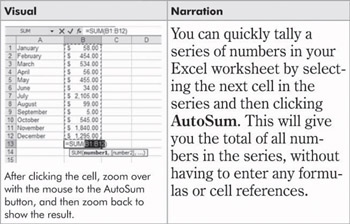
As you can see here, we’ve got a screenshot and some descriptive text that explains the animations. You can also see that I’ve intentionally blown up the size of the narration text. Since this is the script from which I’ll probably end up reading, I tend to ignore standard formatting conventions, and instead go with formatting that lends itself to script reading, such as enlarging the text. I also make sure to use a serif font (a font with little “feet” at the bottom of most letters), as research demonstrates these fonts to be the most readable for large blocks of text (which is why the body text of most books and magazines is comprised of serif fonts).
Storyboard Flow
As soon as you’ve got all your visuals in place, the next thing you need to work on is making sure the storyboard has a nice rhythm and flow.
Each point should segue naturally into the next, both visually and in its narration. This is trickier than it sounds. You may have to do some last-minute juggling of the order of your items in order to establish transitions that feel natural and not forced. Remember, regardless of video type, everything in your video is about progression. In a training video, for instance, you’re guiding the users procedurally through your content, with advanced topics building on top of the basics. Marketing videos also have a progression. Your task is to take the audience by the hand and guide them ever so gently toward the sale. This is done by conveying benefits (in descending order of importance), using the power of those benefits to sweep away any lingering objections, and finally, giving them all the information they need in order to take the next step.
The rhythm of your storyboard also plays a large role in terms of how well it flows. Have you spent an appropriate amount of time on each point? Double-check to ensure that everything has been appropriately clarified, and that most users won’t be left with a series of burning questions when the video is done. Unlike an in-person demonstration, you won’t be there to answer questions. It therefore falls on the individual users to contact you for answers, and most won’t bother.
Conversely, you should also ask yourself if you aren’t taking up too much time on topics of lesser importance. In a marketing spot, for example, if you spend 10 seconds on your primary benefit and 70 seconds on the last benefit in the list, then you know you have a problem. It may be time to do some creative editing of your narration (and possibly your video) to correct the distribution of content.
Picture-in-Picture (PIP)
I wanted to make one final point before we move on to actually using the program. Camtasia Studio offers the ability to include a second video stream in your video project, either in a side-by-side format or a true picture-in-picture (with one video image superimposed over the other).
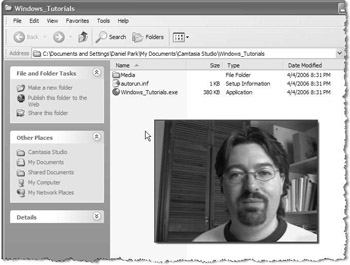
This opens up a new world of possibilities in terms of “staging” your work. While generally intended as a way for you to capture your face when delivering a presentation or walking someone through a software procedure, there are a number of other uses you should definitely consider when putting together your storyboard:
-
Live-action sequence. Camtasia Studio can import AVI, MPEG, and WMV files, so why not take things up a notch with the introduction of some real-world video segments? In our home design software example from earlier in the chapter, you could give your video a new dimension by showing how a particular blueprint plan evolved into a finished house.
-
Diagram or animation. If a table, diagram, or animated figure would help illuminate the current topic, you can show it without having to leave the procedure you’re working on.
-
Close-up shots. Sometimes you need to focus in on a particular part of the user interface, and Camtasia Studio’s zoom and pan effects are quite useful to this end. But if you’d like to show a close-up while allowing the user a bird’s-eye view of the entire window at the same time, a PIP video fits the bill nicely.
-
Déjà vu: Recalling an earlier segment. Training videos tend to proceed in a stepwise manner, with advanced topics building upon the basic ones. With PIP, you can quickly remind your audience of something you’ve covered previously while simultaneously forging ahead into new material.
As you can see, this picture-in-picture technology offers all sorts of neat ways to lay out your content visually. We’ll be talking more about this handy feature in Chapters 5, 10, and 11, but in the meantime, don’t forget about it when designing your storyboards. Rather than being forced into a strictly linear progression of images, PIP can let you produce content that has the potential to be even more engaging.

EAN: 2147483647
Pages: 146