Flylib.com

Books Software


Chapter 5. applying special effects


Chapter 5. applying special effects

Special effects are filters that change the appearance of video either to fix underlying problems or to enhance the video artistically. In both roles, they can help make your video much more watchable.

For example, if your video is too dark, perhaps because the lighting was inadequate during shooting, you can use effects to brighten it up before your viewers see it. In addition, you can use artistic special effects to change the pace and appearance of your video to help retain the viewer's interest.

Make no mistake, however; overusing special effects will likely have the reverse impact, like throwing too many different spices into a casserole. However, as you'll see, a dash here and a pinch there really helps make your movie more palatable to your viewers.
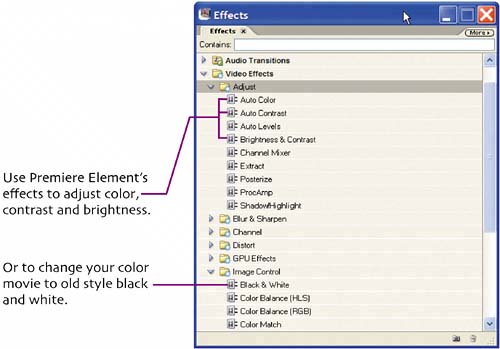

explore effects

In the taskbar on the top right of Premiere Elements, click Effects to load the Effects Workspace.

This should look pretty familiar, since you found transitions here in the last chapter.


fade video in and out

I start most movies by fading in, and fade out at the end, which are generally considered effects. However, with Premiere Elements, you fade in or out by applying the dissolve transition to the beginning or end of a clip.

Click and drag the Cross Dissolve transition to the first clip in the Timeline.

\dn32 Release your mouse button.

\dn32 Premiere Elements will fade that clip in from black.

To extend the duration of either the fade in or fade out effect, click and drag the edge to the desired duration.


effects workspace

To apply and configure effects, you'll have to open the Effect Controls palette, which you haven't seen yet. To minimize clutter in your working space, you should arrange your effects workspace so you can see your content, Effects and Effect Controls tabs, all at the same time. Here's how, assuming that you're already in Effects Mode.

Click and drag the Effects window to the right so you can see the Project tab in the Media window below.

Media window

Effects window

Click and drag the Effects tab from the Effects window over to the Media window tab bar and release.

Media window tab bar

Effects tab

Premiere Elements combines the two windows into one tab-selectable window.

Now let's add the Effect Controls window.

Click and drag the Effect Controls tab from the Effect Controls window over the Media window tab bar and release.

Effect Controls tab

Media window tab bar

This workspace configuration will appear when you click on the Effects button unless you return to the original configuration by clicking Window > Restore Workspace > Effects.

This configuration makes it simple to switch back and forth between the Effects tab, where you choose your effects, and the Effect Controls tab, where you configure the effects.


color correct video

One of Premiere Elements' strongest features is color correction, which can improve video shot with improper white balancing and fix other problems. Fortunately for me, the birthday video doesn't have color issues, so I'll switch to another source to show you this feature. Notice the blue color cast on the video below. Find a clip with similar color problems and work along.

You apply all effects the same way.

Hold down the mouse button and drag it to the target clip.

Release the mouse button.

Here's the result, a vast improvement!

I typically accept the automatic results that Premiere Element produces, since they're usually excellent .

You should do the same, so we'll hold off looking at the Effect Controls window until we go back to the birthday project and adjust color and brightness.
