| Want your handheld to be an open book? A top-secret dossier? A combination of the two? Use a password to protect your entire handheld with Auto Lock, or to block individual entries from prying eyes. Security settings are easy to change if you find them too tight or too loose. | 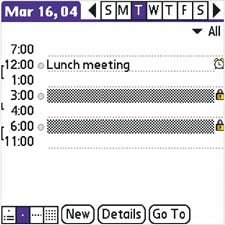
A sample from a Calendar Day View with two masked entries. Masked entries are hidden by gray bars. |
Security apps Applications such as SplashID are available for purchase to help you keep track of all your passwords and credit card info. If you ever lose your purse or wallet, nothing is more helpful than a (carefully protected) handheld full of secure info. |
Password first Masking or hiding a private entry doesn't protect it until you've created a password. Create a password that's familiar enough to remember without writing down, but obscure enough to foil a determined intruder. |
What happened to my info? Do you remember creating an entry that you can't find now? Maybe you marked it private, and hid it. To display hidden info, go to Home > Prefs > Security > Current Privacy Level. Tap Show Private Records. |
Create a password 
| Go to Home > Prefs > Security. Tap the Password box. Follow the prompts. | 
| Enter a hint that'll help you remember your password if you forget it. |
|
Set your level of privacy First, you must create a password. From the Home screen, tap Prefs, select Security, and enter a password and a hint. | 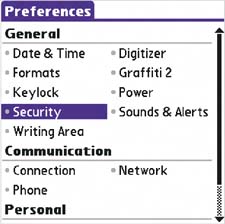
| From the Current Privacy pick list, select Show, Mask, or Hide Private Records. Masking shows something is being hidden; hiding makes it completely invisible. | 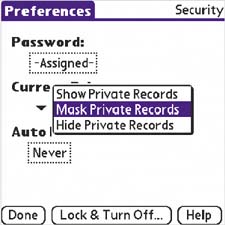
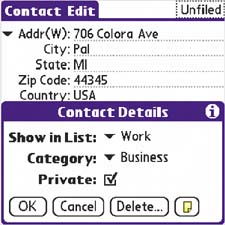
|  To apply the privacy option in Contacts, go to the Details dialog box for the entry and check the box marked Private. To apply the privacy option in Contacts, go to the Details dialog box for the entry and check the box marked Private.
| 
|
|
Lock your handheld Lock your handheld so others can't see any of its contents without entering its password. Select Home > Prefs > Security > Auto Lock. Lock your handheld when the power is off, at a certain time each day, or after a preset delay. |
Create a hint Create a hint when you create your password. The hint shows up in a message box when you enter your password incorrectly. |
Icon to look for 
|
Lock entries Protect sensitive info in any of your major applications. Within an entry, tap Details. (Or, in Calendar or Contacts, select Edit > Details.) Check the box marked Private. Note that the entry will be masked if you've chosen Mask Private Records or hidden completely if you've first chosen Hide Private Records in the Security preferences. |
Security tips Never write your password in any application; instead, add a really good hint. Be careful when you hide entries. Because they don't show up at all, they're easy to forget.
|
Delete or change your password To delete or change your password, select Home > Prefs > Security. Tap Assigned,enter your password, and then tap Unassign. |
|
