| I l @ ve RuBoard |
2.1 Programs from Conception to Execution
C++ programs are written in a high-level language using
Programs start out as an idea in a programmer's head. She
Figure 2-2 shows the steps that must be taken to transform a program written in a high-level language into an executable program. Figure 2-2. Transformation of a high-level language into a program
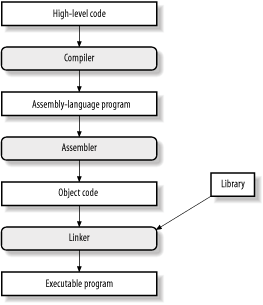
Fortunately you don't have to run the compiler, assembler, and linker individually. Most C++ compilers use "wrapper" programs, which determine which tools need to be run and then run them.
Some programming systems go even further and provide the developer with an integrated development environment (IDE). The IDE contains an editor, compiler, linker, project manager, debugger, and more in one
|
| I l @ ve RuBoard |
| I l @ ve RuBoard |
2.2 Creating a Real ProgramBefore you can actually start creating your own programs, you need to know how to use the basic programming tools. This section will take you step by step through the process of entering, compiling, and running a simple program. This section describes how to use two different types of compilers. The first type is the standalone or command-line compiler. This type of compiler is operated from the command line. You type a command, and the compiler turns your source code into an executable program. The other type of compiler is contained in an IDE.
Most Unix systems use command-line compilers. A few IDE-type compilers are available for Unix, but they are rare. On the other hand, almost all the compilers used with Microsoft
2.2.1 Creating a Program Using a Command-Line CompilerIn this section you'll go through the step-by-step process needed to create a program using a command-line compiler. The program you're going to create will display the message "Hello World" on the screen. Instruction is given for using a generic Unix compiler, the Free Software Foundation's g++ compiler, Borland C++, and Microsoft Visual C++. However, if you are using a Borland or Microsoft compiler, you might want to skip ahead to Section 2.2.2. Note that, because compilers are continually being improved, the information in this section may not be accurate by the time you read it. As new compilers come out, we'll update this section and post the update on the O'Reilly web site at http://www.oreilly.com/catalog/cplus2. 2.2.1.1 Step 1: Create a place for your programIt is easier to manage things if you create a separate directory for each program you are working on. In this case you'll create a directory called hello to hold your hello program. In Unix, type: % mkdir hello % cd hello In MS-DOS, type: C:> MKDIR HELLO C:> CD HELLO 2.2.1.2 Step 2: Create the programA program starts out as a text file. Example 2-1 shows the hello program in source form. Example 2-1. Source for the hello.cpp program
#include <iostream>
int main( )
{
std::cout << "Hello World\n";
return (0);
}
Use your favorite text editor to enter the program. Your file should be named hello.cpp .
2.2.1.3 Step 3: Run the compilerThe compiler changes the source file you just created into an executable program. Each compiler has a different command line. The commands for the most popular compilers are listed below. 2.2.1.3.1 Unix CC Compiler (Generic Unix)Most Unix-based compilers follow the same generic standard. The C++ compiler is named CC. To compile your hello program, you need the following command: % CC -g -ohello hello.cpp
The
-g
option enables debugging. (The compiler adds extra information to the program to make it easier to debug.) The switch
-ohello
2.2.1.3.2 Free Software Foundation's g++ Compiler
The Free Software Foundation, the GNU people, publishes a number of
To compile the hello program using the g++ compiler, use the following command line: % g++ -g -Wall -ohello hello.cpp The additional switch -Wall turns on all the warnings. When warnings are turned on, the compiler will warn you when it sees questionable code. 2.2.1.3.3 Borland's Turbo C++Borland International makes a free Microsoft Windows C++ compiler called Borland-C++. This compiler is ideal for learning. The command line for Borland-C++ is: C:> bcc32 -v -N -w -tWC -ehello hello.cpp The -v switch tells Borland-C++ to put debugging information in the program. Warnings are turned on by -w and stack checking by -N . The -tWC option tells Borland-C++ to output a "Console Application." That's a program that uses the standard C++ API (as opposed to the Windows API) and uses a MS-DOS console window for its input and output. Finally, -ehello tells Borland-C++ to create a program named hello, and hello.cpp is the name of the source file. See the Borland-C++ reference manual for a complete list of options. 2.2.1.3.4 Microsoft Visual C++ .NETMicrosoft Visual C++ .NET is another C++ compiler for Microsoft Windows. To compile the HELLO program, use the following command line: C:> cl /FeHELLO /GZ /RTCsuc /Zi /Wall hello.cpp The /FeHELLO option tells the program to generate a program named HELLO.exe . Runtime checking is enabled by /GZ and /RTCsuc , and debugging is turned on with the /Zi option. All warning messages are enabled by /Wall . [1]
2.2.1.4 Step 4: Execute the programNow, run the program by typing the following at the command prompt. (This works for both Unix and MS-DOS.) hello The message: Hello World will appear on the screen. 2.2.2 Creating a Program Using an Integrated Development Environment
The IDE provides a
Since development environments tend to change, the particular version you use may
Each IDE is a little different, so we've included separate instructions for each one. (Note that compilers change much faster than books, so the information presented in these sections may be
2.2.2.1 Borland C++
2.2.2.2 Microsoft Visual C++
|
| I l @ ve RuBoard |