Easy Microsoft Office Access 2003
Authors: Oap]Hara S.
Published year: 2003
Pages: 39-41/174
Buy this book on amazon.com >>

Displaying Records

graphics/03inf06.jpg

graphics/one_icon.jpg

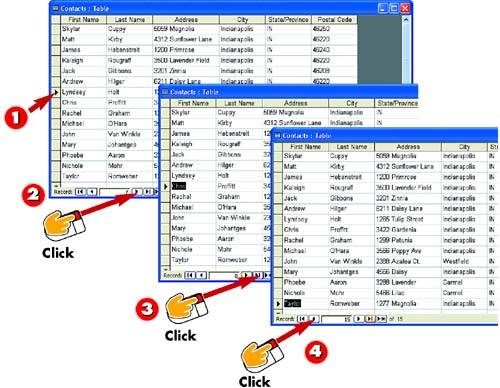
Open the table whose records you want to view. An arrow points to the current record, and the navigation bar lists the record's number and the total number of records in the table.

graphics/two_icon.jpg

To move to the next record in the table, click the Next Record button in the navigation bar.

graphics/three_icon.jpg

The next record in the table is selected. To move to the last record in the table, click the Last Record button.

graphics/four_icon.jpg

The last record in the table (in this case, record 15), is selected. To move to the previous record (that is, record 14), click the Previous Record button.

INTRODUCTION

At first, a database table may include just a few records. As you continue to add records, however, that number will grow. To help you view all the records in a table, the table window includes a row of scroll buttons that allow you to scroll up and down in the window in case the record you need is not currently displayed onscreen. Alternatively, you can use the navigation buttons found at the bottom of the table window to move from record to record, as outlined here.

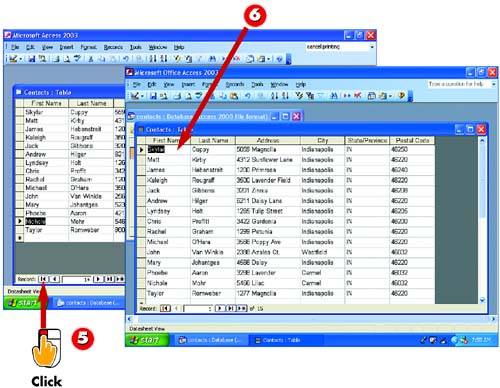
graphics/03inf07.jpg

graphics/five_icon.jpg

The second-to-last record (record 14) is selected. Click the First Record button to select the first record in the table.

graphics/six_icon.jpg

The first record is selected.

TIP

Adding a New Record

The navigation bar also includes a button for creating a new record. You can click this button or the button in the Standard toolbar in the main Access window to create a new record. See the next task for more information.

Creating a New Record

graphics/03inf08.jpg

graphics/one_icon.jpg

After you've opened the table to which you want to add a new record, click the New Record button in the table window's navigation bar.

graphics/two_icon.jpg

Access moves to the first available row in the table and selects the first field. Type the entry for the field, and press Tab .

graphics/three_icon.jpg

Continue typing entries and pressing Tab until you complete the record.

INTRODUCTION

When creating a new table, Access automatically places your insertion point in the first field of a new record. When you press Tab after completing the last field in that row, Access saves the record in that row and creates a new, blank record, ready for your entries. That means that the first time you enter data into your table, you don't have to make a special effort to create new records. If, however, you add records to your table at a later date, you'll need to know how to create manually a new row in which to place records.

TIP

Scrolling to the Last Row

If you prefer, you can scroll to the end of the table or click the Last Record button in the table window's navigation bar to quickly move to the end of the table, which contains a blank row by default. Then, press Tab to begin creating a new record.


Selecting an Entry

graphics/03inf09.jpg

graphics/one_icon.jpg

To select an entire entry, press Tab to move to the field containing that entry.

graphics/two_icon.jpg

To select just part of an entry, click in the field, position the insertion point at the start of the entry you want to select, and click and drag across the desired entry. Just that part is selected.

INTRODUCTION

When you want to select the entire entry in a field ”for example, to edit or delete that entry ”you can press the Tab key on your keyboard one or more times to move to the field you want to select. When you reach the field, the entire entry will be selected. If you select an entry and type, any text you type replaces the selected entry. In some cases, however, you may want to select just part of an entry ”for example, if you need to change or delete only part of the entry. To select part of an entry, you click in the field and drag to select the entry, similar to how you selects text in a word-processing document.

TIP

Using the Keyboard

You can also use the keyboard to select an entry. To do so, move the insertion point to the start of the text you want to select. Press and hold down the Shift key, and then use the arrow keys on your keyboard to highlight the text.

Easy Microsoft Office Access 2003
Authors: Oap]Hara S.
Published year: 2003
Pages: 39-41/174
Buy this book on amazon.com >>