Easy Microsoft Office Access 2003
Authors: Oap]Hara S.
Published year: 2003
Pages: 136-140/174
Buy this book on amazon.com >>

Editing Relationships

graphics/08inf12.jpg

graphics/one_icon.jpg

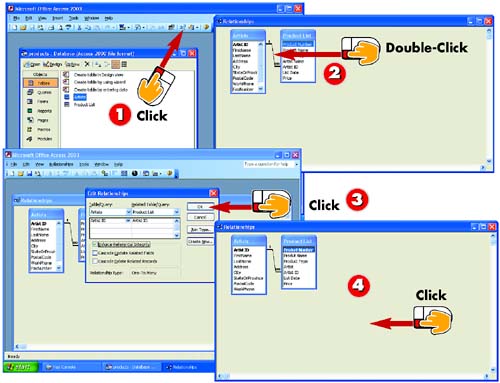
With the database whose relationships you want to edit displayed onscreen, click the Relationships button on the Standard toolbar in the main Access window.

graphics/two_icon.jpg

To change the relationship options, double-click the relationship line.

graphics/three_icon.jpg

The Edit Relationships dialog box opens. Make changes as needed and click OK .

graphics/four_icon.jpg

Click the Save button on the Standard toolbar in the main Access window to save the changes.

INTRODUCTION

After you have established a relationship between tables, you may need to make changes. For example, you might decide to change the options for how the relationship works, or you might want to delete the relationship.

TIP

Deleting Relationships

To delete a relationship, click the relationship line to select it and press the Delete key on your keyboard.


Using Subdatasheets

graphics/08inf13.jpg

graphics/one_icon.jpg

After you've opened the first database table, click the plus sign next to the record whose subdatasheet you want to view.

graphics/two_icon.jpg

The data from the related table is displayed. To hide the subdatasheet, click the minus sign next to the record.

graphics/three_icon.jpg

The subdatasheet is hidden.

INTRODUCTION

You might want to view (and possibly change) data in a table that is related to another table. To do this, you display the first table's subdatasheet . The subdatasheet displays the record information from that related table. You can then collapse (hide) or expand (show) the related record in the other table.

TIP

Editing the Subdatasheet

You can edit data in the subdatasheet. If you have set up the relationship to enforce referential integrity, the changes will be made and saved in the original, related table.

***end tip***


Glossary

A

C

D

F

H “I

L “M

N

O

P

Q “R

S

T

W “Z


A
AutoForm

A type of form that uses default values to create a simple form for data entry.


AutoFormat

A predesigned set of formatting options that you can use with forms and reports to quickly change that object's appearance. AutoFormat options may include different fonts, background colors, and other formatting changes.


AutoNumber field

A type of field that is automatically entered and incremented. If you do not set the primary key, but ask Access to do so, it creates an AutoNumber field and uses this field as the primary key. AutoNumber fields are useful if you need to keep track of the order in which records were entered.


AutoReport

A type of report that uses a default layout to create a simple report.


C
control

Items on a form or report that help create the structure and layout of the form or report. For instance, a label control on a form could identify the field name . In addition to labels, a control can also display data from the database table. For instance, in a typical form, you see the label and the data for that field, both of which are created by controls.


Currency field

A type of field used when you want to enter monetary amounts.


Easy Microsoft Office Access 2003
Authors: Oap]Hara S.
Published year: 2003
Pages: 136-140/174
Buy this book on amazon.com >>