Effects
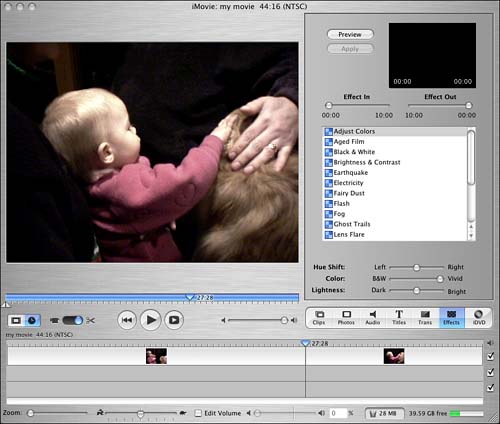
| Effects represent another way that you can enhance your iMovies by adding something to them. You take plain video and make it stand out or spice it up to create your own movie-making style. For example, if you want to give a historic feel to a portion of your iMovie, you could use an effect to make the movie either black-and-white or a sepia tone to give it the feel of an early moving picture. Sometimes the video you use might give you ideas. For example, there might be a scene in a movie that's supposed to represent a person's dreams, and you could use the Fog effect to give that scene a surreal feeling. Maybe you could even combine it with another effect to change the colors around, and when the person in your iMovie wakes up, everything returns to normal and you don't see the effects anymore. In essence, to add an effect, you simply choose a clip in the Timeline and then choose and apply an effect ”you can make your adjustments anytime you want. If you want to add an effect to only a portion of your iMovie, you use the Split Video Clip at Playhead command (for a refresher, see the section Deleting Extra Footage in Chapter 14, "Working with Video in iMovie") to separate a portion of your video, and then apply the effect to it. Effects are similar to transitions and titles in that the magic happens in the relevant palette in iMovie (see Figure 15.18); the Effects palette gives you a convenient place to try out different things. Figure 15.18. The Effects palette in iMovie. If you like to keep things as simple as possible, you can simply choose an effect; but iMovie also enables you to completely customize each effect if you choose to. You might find that you start by simply adding effects with their default settings, and then end up coming back to the Effects palette to try different options when you get ideas for how some adjustment could work better for a particular clip. Table 15.2 lists the effects available in iMovie. Table 15.2. List of Effects in iMovie
|

EAN: 2147483647
Pages: 349