Windows Forms Applications
It is often easier to demonstrate code by running it as part of a Windows application rather than through a console window or via a command prompt. You can do this using user interface building blocks to piece together a user interface.
For now, the following Try It Out shows you just the basics of doing this, and I'll show you how to get a Windows application up and running, though I won't go into too much detail about what the application is actually doing. Later in the book, you will take a detailed look at Windows applications.
Try It Out – Creating a Simple Windows Application
 |
-
Create a new project of type Windows Application in the same location as before (C:\BegVCSharp\Chapter2) with the default name WindowsApplication1. If the first project is still open, then make sure the Create new Solution option is selected in order to start a new solution. These settings are shown in Figure 2-13.
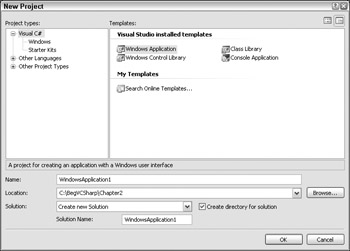
Figure 2-13 -
After you have clicked OK and the project has been created, you should see an empty windows form. Move the mouse pointer to the Toolbox bar on the left of the screen, then to the Button entry of the Windows Forms tab, and double-click the left mouse button on the entry to add a button to the main form of the application (Form1), as shown in Figure 2-14.
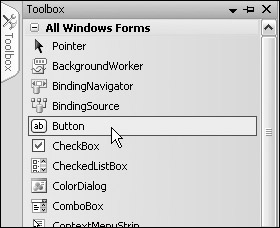
Figure 2-14 -
Double-click the button that has been added to the form.
-
The C# code in Form1.cs should now be displayed. Modify it as follows (only part of the code in the file is shown here for brevity):
private void button1_Click(object sender, EventArgs e) { MessageBox.Show("The first Windows app in the book!"); } -
Run the application.
-
Click the button presented to open a message dialog box, as shown in Figure 2-15.
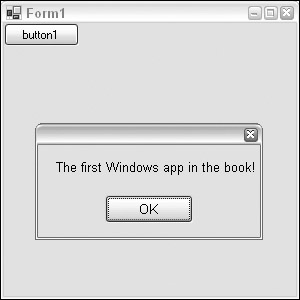
Figure 2-15 -
Exit the application by clicking on the x in the top right, as per standard Windows applications.
How It Works
Again, it is plain that VS has done a lot of work for you and made it simple to create functional Windows applications with little effort. The application you have created behaves just like other windows — you can move it around, resize it, minimize it, and so on. You don't have to write the code to do that — it just works. The same goes for the button you added. Simply by double-clicking it, VS knew that you wanted to write code to execute when a user clicked on the button in the running application. All you had to do was to provide that code, getting full button-clicking functionality for free.
Of course, Windows applications aren't limited to plain forms with buttons. If you have a look at the toolbar where you found the Button option, you will see a whole host of user interface building blocks, some of which may be familiar and some not. You will get to use most of these at some point in the book, and you'll find that they are all just as easy to use, saving you a lot of time and effort.
The code for your application, in Form1.cs, doesn't look much more complicated than the code in the last section, and the same is true for the code in the other files in the Solution Explorer window. Much of the code generated is hidden from you by default and is concerned with the layout of controls on the form, which is why you can view the code in Design View in the main window — which is a visual translation of this layout code. A button is an example of a control that you can use, as are the rest of the UI building blocks found in the Windows Forms section of the Toolbox bar.
You can take a closer look at the button as a control example. Switch back to the Design View of the form using the tab on the main window, and click once on the button to select it. When you do this, the Properties window in the bottom right of the screen will show the properties of the button control (controls have properties much like the files you saw in the last example). Ensure the application isn't currently running, then scroll down to the Text property, which is currently set to button1, and change the value to Click Me, as shown in Figure 2-16.
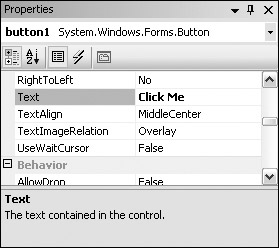
Figure 2-16
The text written on the button in Form1 should also change to reflect this.
There are many properties for this button, ranging from simple formatting of the color and size to more obscure settings such as data binding settings, which allow you to establish links to databases. As briefly mentioned in the last example, changing properties often results in direct changes to code, and this is no exception. However, if you switch back to the code view of Form1.cs you won't see any change in the code.
To see the modified code, you need to look at the hidden file mentioned above. To view this file, you need to click on the Show All Files icon in the Solution Explorer window. This reveals several extra files and folders that you don't need to worry about for now, but more importantly allows you to expand the Form1.cs node, revealing a Form1.Designer.cs node. Double-click on this file to see what's inside.
At a cursory glance, you might not notice anything in this code to reflect the Button property change at all. This is because the sections of C# code that deal with the layout and formatting of controls on a form are hidden from you (after all, you hardly need to look at the code if you have a graphical display of the results).
VS uses a system of code outlining to achieve this subterfuge. You can see this in Figure 2-17.
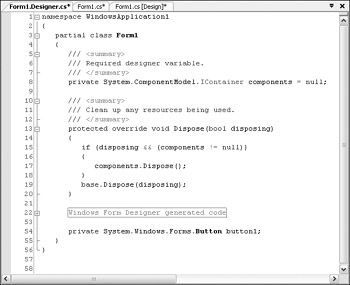
Figure 2-17
Looking down the left-hand side of the code (just next to the line numbers if you've turned them on), you may notice some gray lines and boxes with + and - symbols in them. These boxes are used to expand and contract regions of code. Toward the bottom of the file (line 22 in mine, although this may vary) is a box with a + in it and a box in the main body of the code reading Windows Form Designer generated code. This label basically is saying "here is some code generated by VS that you don't need to know about." You can look at it if you want, however, and see what you have done by changing the button properties. Simply click on the box with the + in it and the code will become visible, and somewhere in there you should see the following line:
this.button1.Text = "Click Me";
Without worrying too much about the syntax used here, you can see that the text you typed in to the Properties window has popped up directly in your code.
This outlining method can be very handy when you are writing code, because you can expand and contract many other regions, not just those that are normally hidden from you. Just as looking at the table of contents of a book can help you by giving you a quick summary of the contents, looking at a series of collapsed regions of code can make it much easier for you to navigate through what can be vast amounts of C# code.
|

EAN: N/A
Pages: 278