Using Top-Level Containers
| < Day Day Up > |
| As we mentioned before, Swing provides three generally useful top-level container classes: JFrame , JDialog , and JApplet . When you use these classes, keep these facts in mind:
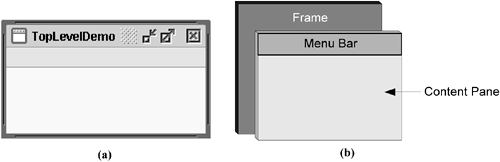
Note: Although JInternalFrame mimics JFrame , internal frames aren't top-level containers. Figure 10 shows a snapshot and a diagram of a frame. The frame contains a menu bar (with no menus ) and, in the frame's content pane, a large blank label. Figure 10. (a) A simple application with a frame that contains a menu bar and a content pane; (b) diagram of the frame's major parts .
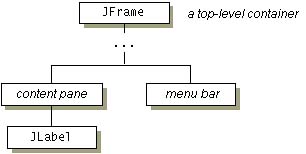
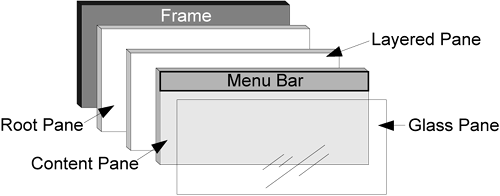
The containment hierarchy for this example's GUI appears in Figure 11. Figure 11. Containment hierarchy for the TopLevelDemo example's GUI. As the ellipses imply, we left some details. We'll reveal them a bit later. Top-Level Containers and Containment HierarchiesAs we mentioned in the previous chapter, each program that uses Swing components has at least one top-level container. This top-level container is the root of a containment hierarchy that contains all of the Swing components that appear inside it. As a rule, a standalone application with a Swing-based GUI has at least one containment hierarchy with a JFrame as its root. For example, if an application has one main window and two dialogs, it has three containment hierarchies and thus three top-level containers. One containment hierarchy has a JFrame as its root, and each of the other two has a JDialog object as its root. A Swing-based applet has at least one containment hierarchy, exactly one of which is rooted by a JApplet object. For example, an applet that brings up a dialog has two containment hierarchies. The components in the browser window are in a containment hierarchy rooted by a JApplet object. The dialog has a containment hierarchy rooted by a JDialog object. Note: To view the containment hierarchy for any frame or dialog, click its border to select it and then press Control-Shift-F1. The containment hierarchy will be written to the standard output stream. Adding Components to the Content PaneHere's the code that the preceding example uses to get a frame's content pane and to add the label to it: frame.getContentPane().add(yellowLabel, BorderLayout.CENTER); As shown, you find the content pane of a top-level container by calling the getContentPane method. The default content pane is a simple intermediate container that inherits from JComponent and uses a BorderLayout as its layout manager. It's easy to customize the content pane ”setting the layout manager or adding a border, for example. However, there's one tiny hitch. The getContentPane method returns a Container object, not a JComponent object. This means that if you want to take advantage of the content pane's JComponent features you need to either typecast the return value or create your own component to be the content pane. Our examples generally take the second approach since it's a little cleaner. Another approach we sometimes take is to simply add a customized component to the content pane that covers it completely. If you create your own content pane, make sure it's opaque. An opaque JPanel object makes a good content pane. Note that the default layout manager for JPanel is FlowLayout ; you'll probably want to change it. To make a component the content pane, use the top-level container's setContentPane method. For example: //Create a panel and add components to it. JPanel contentPane = new JPanel(new BorderLayout()); contentPane.setBorder(someBorder); contentPane.add(someComponent, BorderLayout.CENTER); contentPane.add(anotherComponent, BorderLayout.PAGE_END); //Make it the content pane. contentPane.setOpaque(true); topLevelContainer.setContentPane(contentPane); Note: Don't use nonopaque containers such as JScrollPane , JSplitPane , and JTabbedPane as content panes. A nonopaque content pane results in messy repaints. Although you can make any Swing component opaque by invoking setOpaque(true) on it, some components don't look right that way. For example, tabbed panes generally let part of the underlying container show through so that the tabs look nonrectangular. An opaque tabbed pane just tends to look bad. In most look and feels, JPanel s are opaque by default. However, JPanel s in the GTK+ look and feel, which was introduced in v1.4.2, are not initially opaque. To be safe, we invoke set-Opaque on all JPanel s used as content panes. Adding a Menu BarAll top-level containers can, in theory, have a menu bar. In practice, however, menu bars usually appear only in frames and perhaps in applets. To add a menu bar to a top-level container, you create a JMenuBar object, populate it with menus, and call setJMenuBar . The TopLevelDemo adds a menu bar to its frame with this code: frame.setJMenuBar(cyanMenuBar); For more information about implementing menus and menu bars, see How to Use Menus (page 277) in Chapter 7. The Root Pane (The Missing Details)Each top-level container relies on a reclusive intermediate container called the root pane . The root pane manages the content pane and the menu bar, along with a couple of other containers. You generally don't need to know about root panes to use Swing components. However you should get acquainted with root panes if you ever need to intercept mouse clicks or paint over multiple components. Figure 12 is a glimpse at the components that a root pane provides to a frame (and to every other top-level container). Figure 12. A representation of the components that a root pane provides. We've already told you about the content pane and the optional menu bar. The two other components that a root pane adds are a layered pane and a glass pane. The layered pane directly contains the menu bar and content pane, and enables Z-ordering of other components you might add. The glass pane is often used to intercept input events occurring over the top-level container and can also be used to paint over multiple components. For more information about the intricacies of root panes, see How to Use Root Panes (page 316) in Chapter 7. |

| < Day Day Up > |

EAN: 2147483647
Pages: 171