Some shapes include a connector built into the shape, such as the Ethernet shape in a network diagram and the tree shape shown in Figure 3-5. You can drag a control handle on the shape to pull a connector directly out of the shape and attach it to another shape. With these shapes, you can move only one end of the connector; the other end is already attached to the shape.
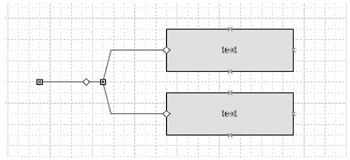
Figure 3-5:
Some shapes, such as the Multi-Tree Sloped shape on the Blocks stencil, have control handles with connectors that you can attach to other shapes.
| Inside Out |
Control handle tips
Control handles are your clue that a shape does something special, but you
|
When you want to create shape-to-shape connections throughout a diagram, don't waste time doing it manually; let Visio 2007 connect the shapes for you. The following technique gives you
Visio 2007 has a new type of auto-connect that makes creating diagrams even easier. Here's how it works. Numerous Visio 2007 shapes have blue auto-connect
Many drawing types in Visio 2007
The language for describing this behavior is a little peculiar. For example, almost all shapes can be
Figure 3-6:
To maintain a point-to-point connection, a connector must bend to avoid the triangle. With a shape-to-shape connection, the connector can move.
Here's how you can ensure good results when connecting shapes:
Create shape-to-shape connections whenever possible.
Make sure the begin point and end point on a connector align with the direction of the diagram you're creating.
Make sure that endpoints are properly connected. When you select a connector, its endpoints
| Inside Out |
You can alter the routing of connectors by clicking on a connector's handle. Drag the handle to where you wish the connector to route, and there you have it: a rerouted connector. |
The shapes provided on the stencils for connected drawing types are already set to perform automatic layout and routing
Figure 3-7:
To control a shape's layout behavior, select the Lay Out And Route Around option, and then specify the settings you want.
Follow these steps to access the placement settings for any shape:
Select a 2-D shape, and then choose Format, Behavior.
Click the Placement tab.
To disable placement behavior, select the Do Not Lay Out And Route Around option in the Placement Behavior list.
Placement Select Do Not Move During Placement to prevent a shape from moving at all when you use the Configure Layout command. Select Allow Other Shapes To Be Placed On Top to allow Visio 2007 to place other shapes on top of the selected shape, if need be, during automatic layout.
Move Shapes On Drop
Use this option to specify a shape's plow behavior, which controls how a shape reacts to the proximity of other shapes. As the
Interaction With Connectors Use these check boxes to allow connectors to route straight through a shape (either horizontally or vertically), rather than around it.
| Note |
You can make a shape immune to the plow settings of another shape by selecting the Do Not Allow Other Shapes To Move This Shape Away On Drop check box. Shapes for which this option is set don't move when other shapes are dragged onto the page, regardless of the other shapes' settings. |
| Troubleshooting |
All the options are unavailable on the Placement tab in the Behavior dialog box If you select a 1-D shape or connector when you choose the Behavior command, the options on the Placement tab are unavailable, because only 2-D shapes are placeable. Connectors, by contrast, are routable. If you select a 2-D shape and the options are still unavailable, see which option is displayed in the Placement Behavior box. If Let Visio Decide is selected, all the other options are unavailable. Choose Lay Out And Route Around to make the rest of the options available. |
With the Configure Layout command, you can rearrange the shapes on your page in a completely new layout style and vary the spacing between shapes. For example, you can easily flip a vertical flowchart to change from top-to-bottom to bottom-to-top orientation, as Figure 3-8 shows.
Figure 3-8:
With the Configure Layout command, you can change the placement style for an entire diagram.
You can change the placement and connector styles separately for a diagram. Placement options affect the way Visio 2007 can lay out 2-D shapes. Connector options specify the style and direction of lines used between shapes. In theory, the combination of placement and connector options provides an
To set the layout and routing style for a diagram, choose Shape, Configure Layout. As you make selections in the Configure Layout dialog box, the preview gives you an idea of the intended outcome, as Figure 3-9 shows. However, the results on the drawing page can vary depending on the direction of your connectors and whether your shapes use point-to-point or shape-to-shape connections.
Figure 3-9:
To change the layout, depth, and routing style in a connected diagram, choose Shape, Configure Layout.
In the Configure Layout dialog box, you can set the following Placement options:
Style Select an option to place shapes in a radial, circular, or traditional flowchart/tree pattern.
Direction
Select an option to
Alignment Select this option to choose how shapes are aligned. This option will only be available if you select the Hierarchy placement style in the Style drop-down list above.
Spacing You can set the spacing between your shapes here. Click the arrows to change the spacing, or just type in the spacing that you like. If you aren't pleased with the results after clicking OK, simply press Ctrl+Z to return to your previous formatting.
To customize the routing behavior of connectors, you can choose the following Connectors options in the Configure Layout dialog box:
Style
Select an option to determine the
Direction Select an option to change where connectors attach to shapes. For example, choose Left To Right to attach connectors to the left and right sides of 2-D shapes. In most cases, this setting should match the Placement Direction setting.
Appearance
Use this setting to specify straight or
Apply Routing Style To Connectors
With this option you can apply settings to all the connectors on your page. Clear this check box to change shape placement options without
Align Shapes To Grid When Possible Select this check box to Configure Layout and route connectors at regular intervals based on the settings in the Layout And Routing Spacing dialog box.
Enlarge Page To Fit Drawing
Select this check box to allow Visio 2007 to increase the page
| Inside Out |
Undoing unwanted shape layout
If you're unclear about the effect a particular combination of placement and connector options might have on your diagram, you're not alone. Shape layout involves many
|
When you work in a multiple-page diagram, you can specify different layout and routing settings for each page. The Configure Layout command works in combination with a page's settings to control the way shapes and connectors are displayed. You can adjust the shape spacing and the connector routing to control Visio's behavior with more finesse.
If you want to
|
Option |
Description |
|---|---|
|
Space Between Shapes |
Specifies the amount of space between placeable shapes when you use the Configure Layout command. |
|
Average Shape Size |
Determines the "block" that Visio uses to calculate optimum shape layout and the placement of reference lines when the dynamic grid is displayed. |
|
Connector To Connector |
Specifies the minimum amount of space between parallel segments of connectors. |
|
Connector To Shape |
Specifies the minimum amount of space between connectors and shapes. |
{% if main.adsdop %}{% include 'adsenceinline.tpl' %}{% endif %}
Figure 3-10:
Use the Layout And Routing Spacing dialog box to adjust horizontal and vertical spacing for shapes and connectors.
In earlier versions of Visio, the spacing options are called block size and avenue size, because of the way they specify a map-like grid. Shapes are like city blocks, and the routes a connector can take when you use the Configure Layout command are the avenues. It might help to envision blocks and avenues when you adjust the settings in this dialog box.
| Inside Out |
Selecting smaller average shape sizes can help your layout If your drawing contains shapes of various sizes, you might need to experiment with the average shape size. If your shapes vary significantly, using a smaller average shape size could yield better results. |
| Troubleshooting |
The Configure Layout command doesn't lay out certain shapes in the diagram. Only placeable shapes respond to the Configure Layout command. If you create your own shape and it isn't placeable, the connectors can't detect it and so won't route around it. To make any shape placeable, select the shape, choose Format, Behavior, and then click the Placement tab. For Placement Behavior, select Lay Out And Route Around. This setting allows Visio to apply automatic layout and routing features to the shape. You can clear this check box for any shape to prevent connectors from routing around the shape. |
If a connector takes one too many bends in its route through your diagram, you can adjust its path. A dynamic connector includes vertices on each corner (
Figure 3-11:
To change the path of a connector, drag a vertex or a midpoint.
| Note |
Some Visio connectors, such as the Line-Curve connector, have a yellow control handle in the middle of a segment. The control handle provides another way to change the connector's path. On a Line-Curve Connector, the control handle
|
Where connectors cross in a diagram, you can specify the styles of line jump that Visio 2007 uses, such as the arc shown in Figure 3-12. Line jumps make it easier to see the route a connector takes. To accommodate different types of business and technical drawings, Visio 2007 includes several styles of line jump, including gap, square, and multisided options. You can customize the look of line jumps for all the connectors in your diagram or for an individual connector.
Figure 3-12:
You can specify whether and how Visio 2007 displays a line jump where connectors cross.
Follow these steps to specify the line jump style:
Do one of the following:
To specify the style for the entire diagram, choose File, Page Setup, and then click the Layout And Routing tab.
To change an individual connector, select the connector, and then choose Format, Behavior and click the Connector tab.
Under Line Jumps, select an option from the Style list.
Click OK.