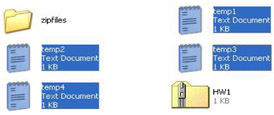
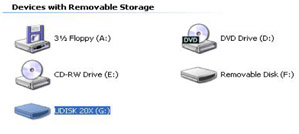
All homework for these lectures is to be submitted
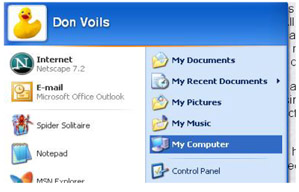
The first step is to
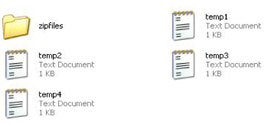
For example you might see the following:
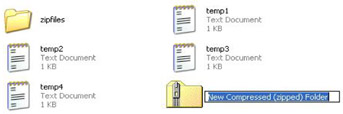
Next click on File , New and then Folder and then you will see the following:
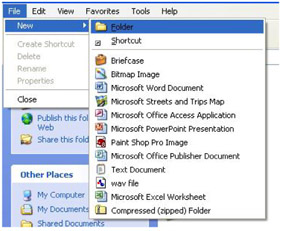
Notice the
Compressed (
The folder:
New Compressed (zipped) Folder
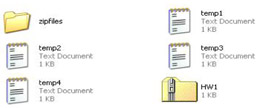
appears on the screen as in the above graphic. Change this
Holding the
Ctrl
button, click with your mouse on each of the files:
temp1
,
temp2
,
temp3
and
temp4
(of course the
What you will see is the following:
Pointing at one of the files colored blue, click your right mouse button and you will see the following:
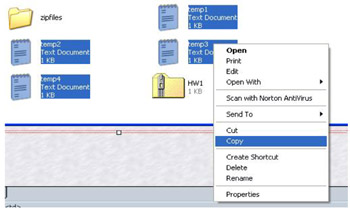
Next click the word Copy . This will store these instructions in the computer's memory. Follow this by clicking on the HW1 folder and click your right mouse button again and you will see:
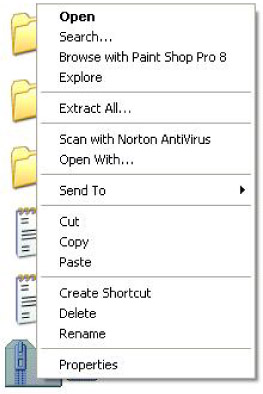
Then click Paste which copies the files into the zip folder. If you double click on the zip folder, you should see your files in the folder as in the following:

The next step is to log on to course into Blackboard and click on Tools on the menu and then click on the Digital Dropbox:
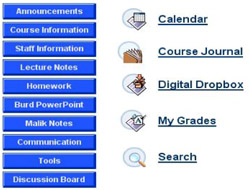
When you do, you will see the following:
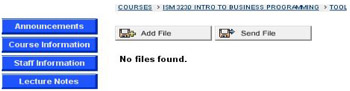
Next click on the Send File button and you will see:
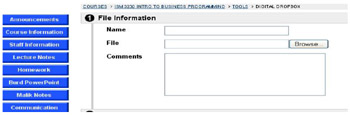
Click on the Browse button and you will see:
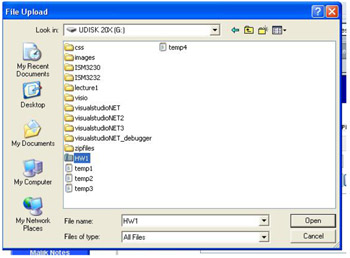
Click on the folder (in this case HW1 ) and the click on the Open button. The screen will now appear as the following:
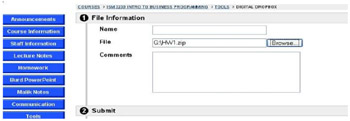
Follow this by clicking the Submit button on the right. This should then show you a screen like the following:
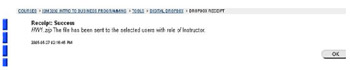
Now click the OK button and you will see:
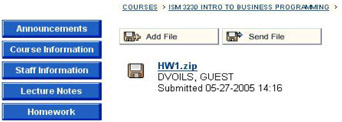
Each time you submit your homework the same steps should be followed. (Of course you see would be your name rather than mine as in the above graphic.) This file will be there until it is received and removed it from the Digital Dropbox. This is the process you are to use for each of the homework assignments. Notice that the date and time the file was sent appears. As a result, I will know whether you have submitted the homework on time. Remember that no late homework will be accepted for any reason.

This lecture will discuss how to use Microsoft Visio Professional 2003 to create UML charts. Additional discussions on these charts will appear in other lecture notes. There are several books on the market that go into detail on how to use Visio, if you find that necessary. Generally, I have found that these books contain far more information than is needed for these lectures.
I have noticed that Visio 2003 installed on different computers have some of the tool bars in other locations than you will see in these graphics. You may have to experiment to find some of the tools. Look under Tools or Format on the menu bar for additional tools that may not appear like these graphs on your copy of Visio 2003.
During these lectures, you will be provided with a brief introduction to the Unified Modeling Language ( UML ). Among other things, by using UML it is possible to depict structures, classes, instances of structures and objects of classes. Visio can be used to create UML diagrams. For example in this lecture, the design of a class called Company was depicted as the following
The data type Company will have the following fields:
owner - string
address - string
city - string
state - string
zip - string
The
input: name, owner, address, city, state and zip code
output: company information.
UML data type description:
|
|
|
Company |
|---|
|
companyName:string |
|
companyOwner:string |
|
companyAddress :string |
|
companyCity:string |
|
companyState:string |
|
companyZip:string |
|
inputName(name:string) |
|
inputOwner(owner:string) |
|
inputAddress(address:string) |
|
inputCity(city:string) |
|
inputState(state:string) |
|
inputZip(zip:string) |
|
outputCompanyInfo() |
|
|
The diagram above was done using a table. However the class
Company
can be depicted using Visio. To do this,
If the left hand side does not look like the above graphic, you may need to click the UML Static Structure (US units) option. Instead of being above the drawings as in the above graphic, this option may be below the graphic images. Once you have this available and you see these graphic images drag a copy of the Class onto the graphic. When you do it will appear like the following:
Double click on the Class 1 option and when you do the following should appear:
In the textbox:
Name
type in
Company
. In the
Categories
menu on the left, double click on the
Attributes
. When you do you, the attributes' option should appear. (In C# the attributes are called:
fields
.) Type in the field
For the Type select C#::string . When you have completed these steps, the UML Class Properties dialog box should appear as the following. To complete this step, click the OK button.
On the left the Model Explorer should list the class name with the names of the fields listed below as the following:
The Class diagram for Company on the grid should appear as:
Double click on Company in the Model Explorer on the left. This time double click on the Operations menu option. In the Operations column type enter the name of each of the following methods: inputName , inputOwner , inputAddress , inputCity , inputState , inputZip , outputCompanyInfo . When you do, the following should appear:
Select C#::void as the output for the first six of these operations and C#::string for outputCompanyInfo . You should now see something like the following graphic:
Once the names are in, click the OK button. In the Model Explorer you should see:
However the arguments for the operations are missing. For an example on how to place those items on the UML graph, click on the operation inputName . Next click on the button labeled: Properties .
When you do, you should get a dialog box like the following:
When you do this the following dialog box appears:
Next click in the blank in the column below the word: inputName in the column headed: Parameter . Type in the word: name and select as the Type : C#::string .
When you do this step, you should see the following:
For inputOwner enter owner , inputAddress enter address , inputCity enter city , inputState enter state and for inputZip enter zip .
For each of these operations, you should select for the
Type
:
C#::string
. After you have done this process for each method, notice that there is a column labeled:
Kind
and that each argument has by default the word:
in
. This
Now do the same thing for the class Date and the class Sales from the Lecture 1 design example. Do these two classes on the same graph. The difference between this graph and the previous one is that the class Sales is derived from the class Date . Therefore you would need to connect the two class UML diagrams together with an arrow pointing from Sales to Date and the name of the bottom class should be: Sales:Date as in the following graph:
Save this UML diagram as: Date_Sales.VSD and then as: Date_Sales.jpg . Remember to always save in both file types. The .VSD type may be used if it is necessary to redo a Visio graphic.