The Mozilla Sidebar
|
|

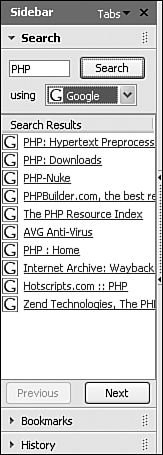
| The Mozilla sidebar is an area where you can keep the items you use often. Each item is accessed using a tab. If the sidebar is not available, click View and select Show/Hide->Sidebar. You can add or remove items from the sidebar. By default, the sidebar contains default items: Search, Bookmarks, and History. If you click a tab, the features for the item open in the sidebar. For instance, if you click the Search tab, the features of the search function open as shown in the window on the right. You see a field where you enter search terms (PHP is entered). You can select a search engine in the drop-down list (Google is currently selected). Click Search. The search results display in the sidebar. Click a result to open the Web page in the browser window. The sidebar retains the search results for your use.
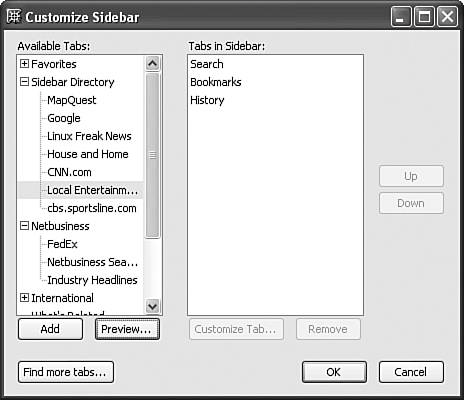
If you click the Bookmarks tab, all your bookmarks are available in the sidebar (shown in Figure 15-4). You can open a bookmarked page by clicking it. The History tab is similar, listing pages you have previously visited. You can add items to your sidebarnews, weather, address book, stock quotes, FedEx, many others. Or you can remove items. Click Tabs in the upper corner of the sidebar. Select Customize Sidebar. The window below opens. The left pane shows available tabs. The right pane shows the current sidebar tabs. To add a tab to the sidebar, click the tab in the left pane and click Add. You can click Preview, before you click Add.
To remove a tab from the sidebar, click the tab in the right pane and click Remove. Notice the dotted area on the middle right border of the sidebarthe sidebar handle. Click this area and the sidebar will close. Click it again and the sidebar opens. |
|
|
