Troubleshooting Lab
|
| < Day Day Up > |
|
In this lab, you troubleshoot a problem related to an Automatic Updates client that is not installing updates correctly. Read the following scenario and then answer the questions that follow. The questions are intended to reinforce key information presented in this chapter. If you are unable to answer a question, review the lessons and try the question again. You can find answers to the questions in the “Questions and Answers” section at the end of this chapter.
Scenario
After performing an MBSA scan, you notice that one of the computers has not had updates installed, as shown in Figure 6.10. You use the Resultant Set Of Policy console to verify that the computer’s Automatic Updates client is correctly configured. Then you check the System event log on the client computer, but you do not find an event that indicates Automatic Updates is having problems.
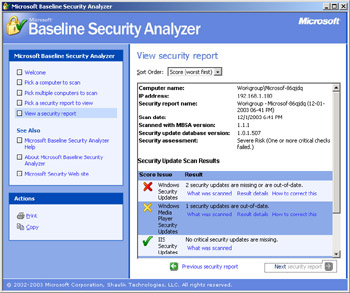
Figure 6.10: MBSA identifies an unpatched computer
You decide to check the IIS usage log in C:\Windows\System32\LogFiles\W3Svc\ to identify the last time the client computer contacted the SUS server. You search for the client’s IP address, 192.168.1.100, and identify the following lines, which were created at the time of the event log error:
#Software: Microsoft Internet Information Services 6.0 #Version: 1.0 #Date: 2003-12-01 19:28:22 #Fields: date time s-ip cs-method cs-uri-stem cs-uri-query s-port cs-username c-ip cs(User-Agent) sc-status sc-substatus sc-win32-status 2003-12-01 19:28:22 192.168.1.100 HEAD /iuident.cab 0312011928 80 192.168.1.131 Industry+Update+Control 401 3 5 2003-12-01 19:28:22 192.168.1.100 GET /iuident.cab 0312011928 80 192.168.1.131 Industry+Update+Control 401 3 5 2003-12-01 19:28:22 192.168.1.100 GET / wutrack.bin V=1&U=42adc102bd4d664dad2564eb4de950f1&C=au&A=s&I=&D=&P=5.2.ece.2. 12.2.0&L=en- US&S=f&E=80190191&M=ver%3D5.4.3790.0&X=031201192821882 80 192.168.1.131 Industry+Update+Control 401 3 5
Questions
-
What is the source of the problem?
-
How would you troubleshoot the problem?
|
| < Day Day Up > |
|
![MCSA(s)MCSE Self-Paced Training Kit Exam 70-299 (c) Implementing and Administering Security in a M[. .. ]twork](/icons/5637-small.jpg "MCSA(s)MCSE Self-Paced Training Kit Exam 70-299 (c) Implementing and Administering Security in a M[. .. ]twork")
EAN: 2147483647
Pages: 217