The Active Directory Sites and Services snap-in is the main GUI tool that allows an administrator to configure Active Directory as a distributed network service. (Other administrative tools consider Active Directory as a whole, at a logical level.) You might almost forget about this snap-in in a small, single-site network with just a few domain controllers. However, in large networks with many sites, this snap-in becomes one of the essential administrative tools.
The Active Directory Sites and Services snap-in allows you to perform the following operations:
Modify forest replication topology (create/delete sites, subnets, links, link bridges, and connections); view replication contexts.
Enable caching of universal
Design a location scheme used by the printer, computer, site, and subnet objects (for detailed information, search in the Help and Support Center for "Enabling printer location tracking").
Trigger intra-site and inter-site replication events.
Trigger the Knowledge Consistency Checker (KCC) to re-generate replication topology.
Change schedules and intervals for intra-site and inter-site replications.
Assign costs to links.
Designate domain controllers as bridgehead servers.
Delegate control over sites, subnets, servers, and other containers to users or groups.
Define security and auditing settings for various replication topology objects.
Select Group Policy Objects (GPO), link GPOs to sites, and start the Group Policy Object Editor snap-in for editing GPO.
Select LDAP query policies.
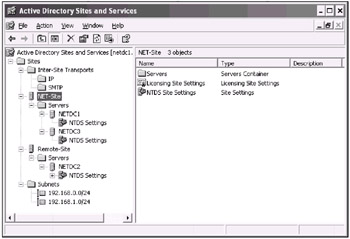
In Fig. 7.17, you can see the main window of the
Active Directory Sites and Services
snap-in, which displays practically all major elements of network configuration: sites, subnets, inter-site links, connections, and servers (domain controllers). Use and configuration of these elements is discussed in other chapters of the book, since it is more advantageous to describe these questions in the context of specific administrative
Fig. 7.17:
An example of a simple network with two sites
Domain controllers running Windows .NET can store universal group membership information locally, and refresh it periodically (by default, every 8 hours). This diminishes the necessity to have a Global Catalog server in branch office locations; as well, it
To enable that option:
In the tree pane, select a site where GC server is not designated.
Right click the corresponding NTDS Site Settings object (of the nTDSSiteSettings type) and select the Properties command on the context menu.
On the Site Settings tab of the Properties window, check the Enable Universal Group Membership Caching box and select a site from the Refresh cache from list (Fig. 7.18).
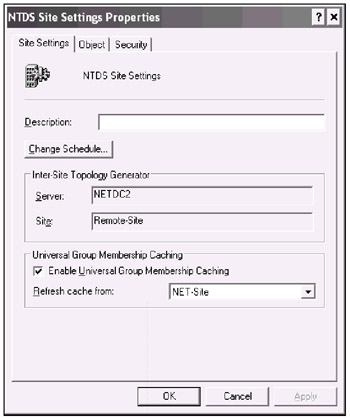
Fig. 7.18:
Enabling universal group caching
Click Apply and OK.
The Active Directory Domains and Trusts snap-in is an enterprise administrator's tool that allows you to look up the forest easily and select a domain for administering. Other purposes of the Active Directory Domains and Trusts snap-in are discussed below in detail.
An example of a forest (which contains two non-adjacent trees —
net.dom
and
dotnet.dom
) represented in the snap-in's main window is shown in Fig. 7.19. If you point to a domain in the tree and select the
Manage
command on the context or
Action
Fig. 7.19:
Selecting a domain for management in the enterprise (domain forest)
Using the
Active Directory Domains and Trusts
snap-in, you can raise the domain as well as the forest functional level. In
Fig. 7.20:
Selecting functional level of a domain
If the domain consists of Windows .NET-based domain controllers only, you can raise the domain level to Windows .NET (version 2002) right away. Select a level and click Raise . If there are domain controllers on other platforms (Windows NT 4.0 or Windows 2000), then the operation will fail. The system will report the controllers that prevent raising the functional level. Such a report will contain lines similar to the following:
The following domains include domain controllers that are running earlier versions of windows: Domain NameDomain Controller Version of Windows subdom.net.dom w2kdc3.subdom.net.dom Windows 2000 Server 5.0 (2195)
Otherwise, the operation will be replicated over other controllers in the same domain. Wait until replication has been completed. Then, you can verify functional levels by querying the RootDSE object on domain controllers (see Chapter 1, "LDAP Basics").
To raise the forest level, point to the root in the tree pane (Fig. 7.21) and select the
Raise Forest Functional Level
command on the context menu. Again, all errors that have occurred will be
Fig. 7.21:
Raising forest functional level
If two domain forests have the Windows .NET (version 2002) functional level, then the Active Directory Domains and Trusts snap-in will allow you to establish forest trusts between root domains of those forests.
The concept of
user principal names
can considerably simplify the logon process in large domain trees. While logging on, the domain users can use one of two
Enter a UPN
Enter a pre-Windows 2000 (SAM account) user name (without the "@" symbol) and then select a domain from the list.
Each method has certain advantages. It may be inconvenient to enter long domain names, such as dom1.comp1.ent1.com. The first method is, in fact, just a particular instance of a general format: userName@UPNSuffix. The default UPN suffix is the DNS name of that domain where a user account is located. It is possible to add alternative suffixes that can be used by all users of a domain forest .
To add a UPN suffix,
Fig. 7.22:
Adding an alternative UPN suffix
Now you can choose any UPN suffix for a new user (the current domain, parent domain and alternative UPN suffixes) or change the UPN name for an existing user. Let us create, for example, a user with the logon parameters shown in Fig. 7.23. Initially, the logon name and the pre-Windows 2000 name are the same, but you can specify any name you like.
Fig. 7.23:
Choosing UPN suffixes during new user creation
The created user will be able to log onto the domain tree with the following names (the password will be the same for both logon names):
EntAdmin@net — UPN name
EAdmin (and a domain name selected from the list) — SAM account name
You can also check these names using the ADSI Edit snap-in ( sAMAccountName is a mandatory attribute, and userPrincipalName is an optional attribute).
| Note |
Notice that, by default, the "built-in" Administrator and Guest accounts do not have UPN names. |
| Attention |
UPN names are not supported by Windows 9x/ME
|
Understandably, all account names must be unique. SAM account (pre-Windows 2000) names in the same domain cannot be repeated. A
full name
must not be used more than once in an OU. However, the same full name
can
be used for accounts in
different
OUs (because the canonical names of objects will
A domain administrator can use the Active Directory Domains and Trusts snap-in for verifying trusts between domains and for creating new trusts. This process primarily concerns trusts with Windows NT 4.0 domains. Such trusts must be manually created (see Chapter 5, "Installing Active Directory").
However, you may also want to create explicit, unidirectional trusts between AD-based domains that belong to different domain trees (or forests — if the forest trusts are established) or even to the same tree. This, for instance, may be required in order to reduce logon time into a
"remote"
domain. Here, "remote" is
For example, the dom1.comp1.ent1.com and dom2.comp2.ent2.com domains (Fig. 7.24) can be regarded as "remote", because trusts between trees in a forest are established through the root domains.
Fig. 7.24:
A shortcut trust between two "remote" domains
To check a trust between domains:
Open the Properties window for a domain.
Select a trust on the Trusts tab and click Properties (in Windows 2000 — Edit ).
In the
You can also use the NetDom tool for verifying and resetting trusts.