|
Sams Teach Yourself Microsoft Office Word 2003 in 24 Hours Authors: Steele H. Published year: 2003 Pages: 208-210/315 |
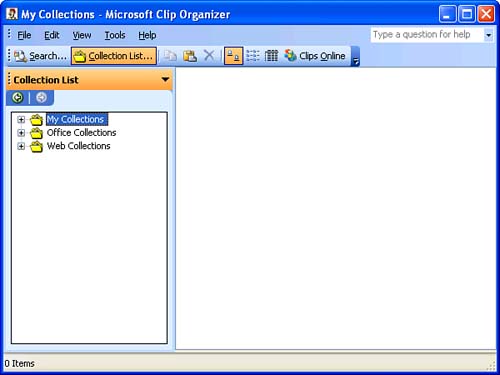
Using the Clip OrganizerThe Clip Organizer, shown in Figure 16.12, comes with Microsoft Office. It is accessible from Word's Clip Art task pane, but it is not specific to Word. You can open it at any time by choosing Start, All Programs, pointing to Microsoft Office, then Microsoft Office Tools, and then clicking Microsoft Clip Organizer. You can use the Clip Organizer as a "binder" of sorts to collect all your images in one place. For example, if you have a corporate logo, or a scanned image of your signature that you typically place at the end of your letters , you might add these images to the Clip Organizer so that they are readily available in the Clip Art task pane. Figure 16.12. You can use the Clip Organizer to catalog all of your clip art, as well as other types of media files.
To display the Clip Organizer, click the Organize Clips link at the bottom of the Clip Art task pane. The first time you do this, the Add Clips to Organizer dialog box appears to ask whether you want it to catalog all of the media files it finds on your computer. It won't move or rename them; it will just catalog the ones it finds under the My Collections folder. In addition, it will use their filenames to generate a list of keywords you can use to search for the clips in the Clip Art task pane. If you'd like to go ahead and catalog your clips, click the Now button. (Even if you don't catalog existing clips, you can still use the Clip Organizer to create new collections, add images to existing collections, and so on.) Because the Clip Organizer isn't a part of Word, it is not covered here in detail. To learn more about the Clip Organizer, choose Help, Clip Organizer Help in the Clip Organizer, and search for help on new collections or add clips . |
Deleting ImagesTo delete an image from your Word document, click it to select it and then press the Delete key. When an image is selected, small black squares or white circles (called selection handles ) appear around its edges (see Figure 16.13). The color and shape of the selection handles vary depending on whether the image is in the same layer of the document as the text, or floating above the text. (You'll learn more about this in the next hour .) Figure 16.13. To delete an image, select it and then press Delete.
|
Drawing ShapesSometimes you don't need a complex image in your documentyou just need something simple, such as an arrow or a box. Word's Drawing toolbar lets you quickly draw all manner of arrows, rectangles, ovals, callouts, banners, and so on. (You can also create text boxes, which are discussed at the end of this section.) Figure 16.14 shows one example of a drawing you can create with Word's drawing tools. After you have inserted a drawing object, you can modify the image in a variety of ways, as you'll see in the next hour .
Figure 16.14. This software architecture drawing is an example of what you can create with Word's drawing tools.
To delete a drawing object, click it to select it. When you see the selection handles, press the Delete key. One drawing object that deserves special attention is the text box. The Text Box tool on the Drawing toolbar lets you draw a rectangular box in which you can type text. Putting text in a text box gives you control over the position of the text in your document because you can drag the text box around just as you do other drawing objects (see the next hour). In Figure 16.14 earlier in this hour, the text labels in the diagram were all created with text boxes. (Their borders were removed, and some of them were placed on top of other drawing objects.) To create a text box, click the Text Box tool, drag to create a rectangle of about the right size, and then release the mouse button. An insertion point appears in the box to let you type text, and the Text Box toolbar appears in your Word window (see Figure 16.18). Figure 16.18. When a text box is selected, an insertion point appears in it to let you type.
After you've typed your text, you can apply all the usual font and paragraph formatting to it. In addition, you can format the box itself, adjusting the appearance of the borders, changing the fill color , and so on. (You'll learn these techniques in the next hour.)
|
|
Sams Teach Yourself Microsoft Office Word 2003 in 24 Hours Authors: Steele H. Published year: 2003 Pages: 208-210/315 |
![]() SAMS Teach Yourself Microsoft Office Access 2003 in 24 Hours | ![]() Sams Teach Yourself Excel 2003 in 24 Hours | ![]() Sams Teach Yourself Microsoft Office PowerPoint 2003 in 24 Hours |
![]() SAMS Teach Yourself Microsoft Office Access 2003 in 24 Hours | ![]() Sams Teach Yourself Excel 2003 in 24 Hours |
![]() Sams Teach Yourself Microsoft Office PowerPoint 2003 in 24 Hours |