Output Preview
The Output Preview feature enables you to see how the colors will break when producing separations and is for reference only. The preview doesn't display traps or halftone screens, and it shouldn't be used for proofing but only as way to check on the amount of ink coverage on the printed page (see Figure 44.7) or to spot any
overprints
quickly (see Figure 44.8).
Preflight
If you are reviewing a PDF file created by someone else, you can have Preflight generate a report in text or PDF format that you can use for reference (see Figures 44.9 and 44.10).
Convert Colors
Sometimes, due to time constraints or because the document has just too many images that need to be converted from one color mode to another, you may want to do the conversion with one click. The Convert Colors dialog is there for you. It is a no-
nonsense
way to straighten colors across a document quickly,
especially
if it's a long one (see Figure 44.11). It gives you options for three types of images: RGB, CMYK, and grayscale. You select the intended output and Acrobat converts the images. Keep in mind that this tool does not magically retouch and correct color. If an embedded image is of poor quality there's nothing that Acrobat can do about it.
Because the cost of reproducing a job
increases
with the number of inks required, you can also use the Ink Manager to reduce the amount of inks by mapping an ink to another. There are times, for example, when an artist may have
chosen
two slightly different spot colors when only one was needed. By mapping one of them to the other in the Convert Colors dialog (using the Action pop-up menu), you tell Acrobat to create one separation plate for both rather than two individual plates (see Figure 44.12). After color has been mapped to another, it can't be
reversed
to its original.
Ink Manager
The Ink Manager is a fast way to preview how many inks are going to be required to reproduce a job. This is of special importance when working with spot colors since the cost of reproducing a job increases with the number of inks required. If you need to reduce the amount of inks used in a job but don't want to map similar inks, you can use the Ink Manager to alias one ink to another (see Figure 44.12). Aliasing inks produces the same result as mapping but, unlike mapping, it doesn't alter the images in the PDF.
The Ink Manager also enables you to change the
trapping sequence
of inks (the order in which inks are printed in a press). Because inks are not entirely
opaque
but have varying degrees of transparency, the order in which they are printed can make a difference to the final look of your printed document, especially in trapped areas.
Add Printer Marks
Printer marks
are
markings
placed on film, outside the actual print area, that help printers by identifying what plate should be what color, the positioning of the page, the
name
of the job, registration marks, and so forth. Without printer marks a printer would be clueless as to what to do with a piece of film after it's produced. Acrobat can generate these printer marks automatically based on parameters you feed it in the Add Printer Marks dialog (see Figure 44.13).
Crop Pages
What happens if the page size in Acrobat is not the final page
size
intended? A page in Acrobat could contain
bleed
areas or be a
two-page
spread, for example, in which case autogenerated printer marks would be placed in the wrong places. In situations like that, the Crop Pages dialog enables you to set up margins to define the exact size the finished product should be.
The
crop box
is the area that the final product will be and it is the area that the printer marks will frame. The
trim box
represents the actual size of your PDF page. The
bleed box
is the area that will be printed outside the trim box when there are bleeding objects or images (a
bleed
is when a page is printed all the way out to its edge). The
art box
(or
media box
) is the size of the page as it was exported from the application that created it (see Figure 44.14).
Fix Hairlines
Fix Hairlines is a straightforward feature. If there are any thin lines in the PDF that are part of text strokes or part of a vector object, Acrobat makes sure that they're not too thin and bumps up their width so that they show when the document is printed. Acrobat uses the parameters you supply in the Fix Hairlines dialog to accomplish this.
Transparency Flattening
If your document contains overlapping raster images with transparency (like embedded GIF or PNG images), Acrobat flattens them at print time. However, if your document contains overlapping transparency vectors, Acrobat breaks each transparent area into pieces of solid (flat) color that can be either new vectors or rasters. You can determine how much of these transparent areas are converted to rasters or vectors using the Transparency Flattening feature and its Raster/Vector Balance slider. The
lowest
setting produces all the areas to become rasters, and the highest setting makes them all vectors. You can also determine the resolution of these generated rasters.
The vector/raster conversion is important if you are
concerned
about file size. Converting all transparent areas to raster produces larger files, and having Acrobat generate too many small vector images adds an extra demand on processing to the RIP or printer, which can translate to a longer processing time.
PDF Optimizer
The PDF Optimizer dialog has several panels with options to clean up your PDF and make it smaller and easier to transport. Clicking on the Audit Space Usage button generates a report telling you what elements use how much space and their percentage in relation to the entire file size. After you have edited these settings you can save them for future use:
-
Images
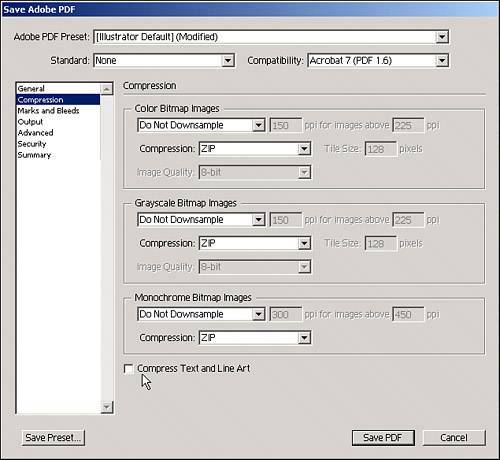
: In this panel you can apply compression to all rasters embedded in your file and downsample them if their resolution is too high. These settings apply across the document, not to individual images (see Figure 44.15).
-
Scanned Pages
: The settings on this panel apply compression and correction filters to images that have been
acquired
using the Create PDF From Scanner function. However, turning on this option disables the settings in the previous panel (see Figure 44.16).
-
Fonts
: As explained in Chapter 43, you can use this panel to unembed fonts that are no longer required.
-
Transparency
: The settings on this panel are the same settings found in the Transparency Flattening option.
-
Discard Objects
: Use the settings on this panel to select types of elements to be discarded from your PDF. You should be careful using these options because discarded objects can't be brought back. The Discard Embedded Thumbnails option, for example, removes the page thumbnails you see in the Pages tab. The Discard Document Structure option
removes
tags and
reflow
information. If you have layered objects (like drawing done in Illustrator) Discard Hidden Layer Content merges all
layers
.
-
Clean Up
: This panel contains complementary settings to the previous one. You can choose to apply Flate (ZIP) compression to text or other
parts
of the file or remove bookmarks to pages that no longer exist. The Remove Unreferenced Named Destinations option looks for destinations that have no link within the same document, so if you have links in other documents you should not check this option (see Figure 44.17).
JDF Job Definitions
Job definition files (JDFs) are small files that can be attached to a PDF and contain information, such as number of copies to be made; the type of stock to be used for cover, body, and any other special sections in your document; the person to contact; billing information; a preflight report; and more. The job definitions are saved in a file of JDF format that you can reuse in future jobs (see Figure 44.18).
Show/Hide Print Production Toolbar
Choose Tools, Print Production to toggle between showing and hiding the Print Production toolbar.