| If you prefer to create text in another program, such as a word processor, you can import that text file into InDesign using the Place command. Choose File, Place. Search for the file you want to import and select it. InDesign supports importing many types of text files, including Microsoft Word documents, plain text, and rich text files. Select Show Import Options in the Place dialog to prepare your text for importing if you choose. Depending on the type of file you are importing, the import options are different. Importing Text Files If you are importing a plain text document, saved with the extension .txt, the Place dialog offers the following options: Plain text files (.txt) enable you to specify character set, platform, and the dictionary to use with the imported text. The Extra Carriage Returns option deals with hard returns in your document. If you choose, InDesign can remove these extra returns at the end of lines or between paragraphs. Under Formatting, choose the number of consecutive spaces that should be replaced with a tab and whether to use typographer's, or "curly," quotes in the placed text.
Importing Word or RTF Files InDesign offers extra support for Microsoft Word or rich text (.rtf) files (see Figure 27.37). After you choose your import options, you can save these choices as a preset by clicking Save Preset and naming your import style. This enables you to choose the same options quickly if you are importing many similar documents: In the Include section you can choose to include Table of Contents Text, Index Text, Footnotes, and Endnotes. You can choose to use typographer's quotes. In the Formatting area, select the option to either remove or include the styles and formatting applied in the original program. If you choose to remove them, any styles such as color, font, and type are stripped, although you can check a box to preserve local overrides or styles that are applied to parts of paragraphs. If you choose to preserve styles, you have the following options: When dealing with manual page breaks, you can choose to preserve page breaks, convert them to column breaks or include no breaks. Click the check box to import any inline graphics or graphics that are attached within the text. Click the check box to import any styles that were created in the document but not applied to any text.
InDesign alerts you to any style name conflictsthat is, styles that are named the same but have different characteristics. You can choose to import styles automatically and resolve any character or paragraph style conflicts by choosing to use the InDesign style definition, to redefine the InDesign style, or to rename the style automatically. You can also choose to customize the style import. Click the Style Mapping button to see the style in your text document and the InDesign styles. Use the pop-up menu to choose the InDesign style to which you want to map the document style. When you place your text on the page, the styles are preserved as you specified in the import options, and any styles you chose to preserve are available in the Character or Paragraph Styles palettes.
Figure 27.37. When you place Microsoft Word or rich text files in your InDesign document, you have many options for formatting text or matching styles. 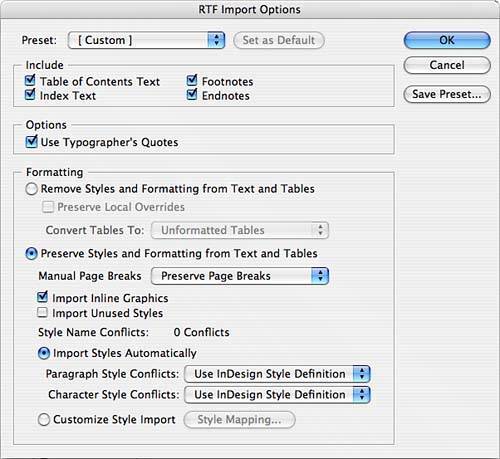
|
