Working with Scenarios
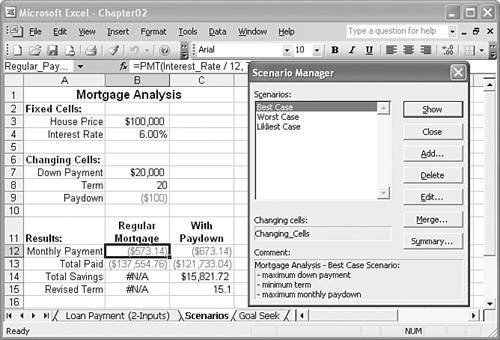
| In what-if analysis, a particular set of input values that you plug into a model is called a scenario. Because most what-if worksheets can take a wide range of input values, you usually end up with a large number of scenarios to examine. Instead of going through the tedious chore of inserting all these values into the appropriate cells, Excel has a Scenario Manager feature that can handle the process for you. As you've seen in this chapter, Excel has powerful features that enable you to build sophisticated models that can answer complex questions. The problem, though, isn't in answering questions, but in asking them. For example, Figure 2.7 shows a worksheet model that analyzes a mortgage. You use this model to decide how much of a down payment to make, how long the term should be, and whether to include an extra principal paydown every month. The Results section compares the monthly payment and total paid for the regular mortgage and for the mortgage with a paydown. It also shows the savings and reduced term that result from the paydown. Figure 2.7. A mortgage-analysis worksheet.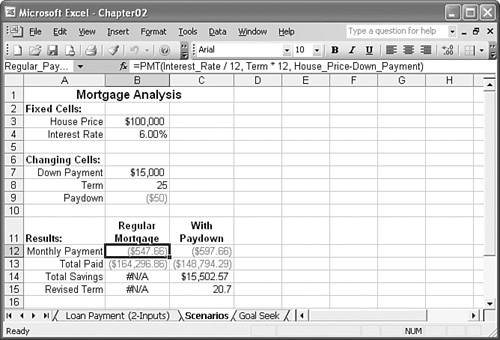 Here are some possible questions to ask this model:
These are examples of scenarios that you would plug into the appropriate cells in the model. Excel's Scenario Manager helps by letting you define a scenario separately from the worksheet. You can save specific values for any or all of the model's input cells, give the scenario a name, and then recall the name (and all the input values it contains) from a list. Setting Up Your Worksheet for ScenariosBefore creating a scenario, you need to decide which cells in your model will be the input cells. These will be the worksheet variablesthe cells that, when you change them, change the results of the model. (Not surprisingly, Excel calls these the changing cells.) You can have as many as 32 changing cells in a scenario. For best results, follow these guidelines when setting up your worksheet for scenarios:
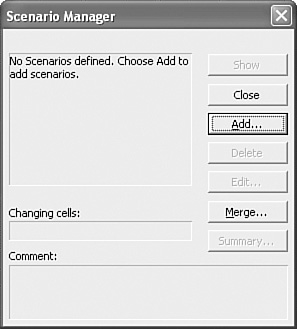
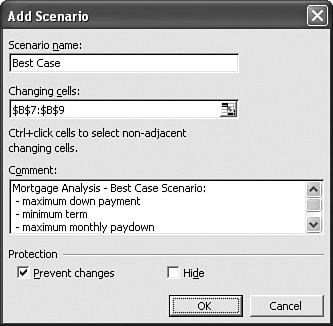
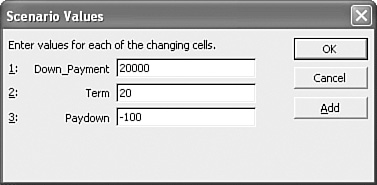
Adding a ScenarioTo work with scenarios, you use Excel's Scenario Manager tool. This feature enables you to add, edit, display, and delete scenarios, as well as create summary scenario reports. When your worksheet is set up the way you want it, you can add a scenario to the sheet by following these steps:
Displaying a ScenarioAfter you define a scenario, you can enter its values into the changing cells by displaying the scenario from the Scenario Manager dialog box. The following steps give you the details:
|

EAN: 2147483647
Pages: 129