Teach Yourself Visually Word 2003
Authors: Marmel E.
Published year: 2004
Pages: 39-43/175
Buy this book on amazon.com >>

Switch Document Views

You can view a document five different ways. The view you should use depends entirely on what you are doing at the time; select the view that best meets your needs. For more on the various views, see the section “Understanding the Document Views.”

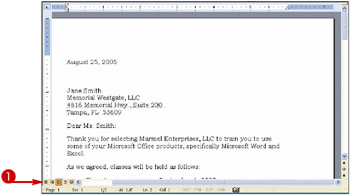
The button for the currently selected view appears in orange.
image from book

  1. To switch to a different view, click one of these buttons :

    image from book Normal

    image from book Web Layout

    image from book Print Layout

    image from book Outline

    image from book Reading Layout

    image from book

    Word switches your document to the view you selected.
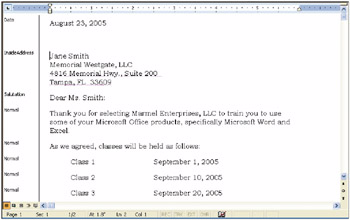
    image from book


Understanding the Document Views

As mentioned in the section “Switch Document Views,” you should select the view that best meets your needs. But, which view is right for you? The purpose of each view is described in this section.

To switch between views, see the section “ Switch Document Views .”

Normal View

Normal view is designed for editing and formatting; it does not display your document the way it will print. Instead, you can view elements such as the Style Area, but you cannot view the document’s margins.

image from book

Web Layout View

Web Layout view is useful when you are designing a Web page or a document that you intend to view only on-screen.

image from book

Print Layout View

Print Layout view presents a “what you see is what you get” view of your document. In Print Layout view, you see elements of your document that affect the printed page, such as margins.

image from book

Outline View

Outline view helps you work with the organization of a document. Word indents text styled as headings based on the heading number; you can move or copy entire sections of a document by moving or copying the heading.

image from book

Reading Layout View

Reading Layout view is designed to minimize eye strain when you read a document on-screen. This view removes most toolbars . To return to another view, click the Close button ( image from book ).

image from book


Work with the Document Map

You can use the Document Map view to navigate through a document that contains text styled in one of the Heading styles.

The Document Map pane is blank for documents that do not contain Heading styles. For more information on styles, see Chapter 6 .

image from book

  1. In a document containing text styled with Heading styles, click View .

  2. Click Document Map .

    image from book

    The Document Map pane appears.

    image from book Each item in the Document Map pane represents a heading in your document; you can click any item to move the insertion point to that place in the document.

    image from book You can click a minus sign ( image from book ) to hide subheadings .

    Repeat steps 1 to 2 to hide the Document Map pane.

    image from book


Using Thumbnails

You can view thumbnails of each page in your document to get an impression of the visual appearance of each page.

You can also navigate to various pages using thumbnails. Thumbnails are not available in Web Layout view or when you are using the Document Map.

image from book

  1. Click View .

  2. Click Thumbnails .

    image from book

    Word displays thumbnail views of each page in your document.

  3. Click a thumbnail to view that page.

    You can repeat steps 1 to 2 to hide the thumbnails.

    image from book


Zoom In or Out

You can use the Zoom feature to enlarge or reduce the size of the text on-screen. Zooming in enlarges text. Zooming out reduces text, providing more of an overview of your document.

The available zoom settings change from view to view. See the section “ Understanding the Document Views ” for details on views.

image from book

  1. Click image from book on the Zoom button ( image from book ).

  2. Click a zoom setting.

    image from book You can click Page Width to fit the page, including margins, across the width of the screen or Text Width to fit text, excluding margins, across the width of the screen.

    image from book You can click Whole Page or Two Pages to display one or two pages on-screen.

    image from book

    image from book The document appears on-screen using the new zoom setting.

    image from book

    Note 

    Text Width , Whole Page , and Two Pages are available only in Print Layout view.

    Zoom settings do not affect the arrangement of text when you print the document.


Teach Yourself Visually Word 2003
Authors: Marmel E.
Published year: 2004
Pages: 39-43/175
Buy this book on amazon.com >>

Similar books on Amazon