| The power of ClickOnce lies in its ability to automatically update applications after they have been deployed. Imagine that 1000 of your customers have downloaded your application and that you've decided you need to add some new features or fix a fatal bug. With VB 6, it would be a logistical nightmare to inform all these customers of the changes and then to update their machines. ClickOnce automatically ensures that all your users use the latest version of your application. To demonstrate the power of ClickOnce, you'll make a useful change to the Library Application and learn something about the new BackgroundWorker control in the process and then use the automatic update feature of ClickOnce to get the new version into the hands of your users.  | The BackgroundWorker control is a control that executes an operation on a separate thread. |
|
4.4.1. Accessing the Web Services Asynchronously In testing the Library Application in an earlier section (see "Testing the Application), you saw that the application freezes when you request and download keyword search results from Amazon.com. Moreover, the window does not repaint itself when it is covered by some other windows. So, what is the problem? It turns out that accessing a web service is a blocking call, which means that the application will not continue its execution until the web service returns a value. In the real world, web services requests take a finite amount of time to complete and hence it is not acceptable that our application freezes while waiting for the results from Amazon.com. To make the UI of your application responsive, you need to invoke the web service call in a separate thread of execution. While this may sound intimidating (see the sidebar "VB Black Belt: Multithreading" for more information on threading), VB 2005 has made it easy to add this functionality to an application by providing a new BackgroundWorker control. To see how the BackgroundWorker control helps make your application more responsive, you will use it to access the Amazon.com web service in the background, and while so doing, the application can remain active. Here is a summary of the steps involved: VB Black Belt: Multithreading Multithreading is one of the most powerful concepts in programming. Using multithreading, you can break a complex task into multiple threads that execute independently of one another. One particularly good application of multithreading is in tasks that are synchronous in nature, such as web services calls. By default, web services calls are blocking calls; that is, the caller code will not continue until the web service returns a result. But because web services calls are often slow, this can result in sluggish client-side performance unless you take special steps to make the call asynchronous. By default, your Windows application uses a single thread of execution. In our project, we have created an additional thread of execution to access the web service. One particular point you need to bear in mind is that Windows controls are not thread-safe. Put simply, it means that you cannot update the properties of a Windows control in a separate thread; only the main thread can update the controls. |
The user clicks the Get Info button, and the BackgroundWorker control kicks into action. The BackgroundWorker control runs the GetBookInformation subroutine (which is defined by you) in a separate thread, with the main window remaining responsive. When the result is returned from Amazon.com, the BackgroundWorker control updates the controls on the window with the detailed book information.
Here are the steps: First, you need to add the BackgroundWorker control to your application. Drag-and-drop the control from the Components tab in the Toolbox onto Form1.vb of the LibraryApp project. Because the BackgroundWorker control is not a visual control, you will see its icon at the bottom of the form, as shown in Figure 4-38. Figure 4-38. Using the BackgroundWorker control 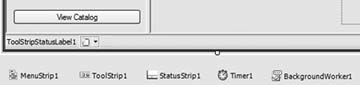
Switch to the code-behind page of Form1 and import the System. ComponentModel namespace which is needed in order to use the classes that the BackgroundWorker control needs to do its work by adding the following line of code (in bold) to the top of the code behind of Form1.vb. Imports System.ComponentModel Public Class Form1 …
When the Get Info button is clicked, you will use the BackgroundWorker control to call the web service in a separate thread using its RunWorkerAsync method, which starts the execution of a background operation. The method takes a single parameter, which in this case is the keyword(s) that the user has entered. To replace the current Click event handler for the Get Info button, double-click on the control on Form1 and replace the existing code with that in Example 4-9. Example 4-9. Revised code for btn Click event handler Private Sub btnGetInfo_Click( _ ByVal sender As System.Object, _ ByVal e As System.EventArgs) _ Handles btnGetInfo.Click '---retrieve the book info in the background BackgroundWorker1.RunWorkerAsync( _ Trim(txtKeywords.Text)) '---changes the cursor to an hourglass Me.Cursor = Cursors.WaitCursor ToolStripStatusLabel1.Text = _ "Retrieving book information…" End Sub
The DoWork event of the BackgroundWorker control will invoke GetBookInformation subroutine in a separate thread. The DoWork event is fired when you call the RunWorkerAsync method, as you did in the previous step. The argument passed to the RunWorkerAsync method can be retrieved in the DoWork event via the System.ComponentModel. DoWorkEventArgs parameter. Add the event shown in Example 4-10 to the Form1 class. Example 4-10. BackgroundWorker DoWork event handler Private Sub BackgroundWorker1_DoWork( _ ByVal sender As System.Object, _ ByVal e As System.ComponentModel.DoWorkEventArgs) _ Handles BackgroundWorker1.DoWork 'This method will run on a thread other than the UI thread. 'Be sure not to manipulate any Windows Forms controls created 'on the UI thread from this method. Dim worker As BackgroundWorker = _ CType(sender, BackgroundWorker) GetBookInformation(e.Argument, worker, e) End Sub
The GetBookInformation subroutine accesses the Amazon.com web service. Replace the GetBookInformation subroutine you have defined earlier with that shown in Example 4-11. Example 4-11. Revised GetBookInformation subroutine Public Sub GetBookInformation( _ ByVal keyword As String, _ ByVal worker As BackgroundWorker, _ ByVal e As DoWorkEventArgs) Dim itemSearchRequest As New AmazonWS.ItemSearchRequest Dim itemSearch As New AmazonWS.ItemSearch '---initialize objects With itemSearchRequest '---set the search keyword(s) .Keywords = keyword '---set the size of the response .ResponseGroup = New String() {"Medium"} '---set the SearchIndex or search mode .SearchIndex = "Books" End With With itemSearch '---set the Amazon.com SubscriptionId .SubscriptionId = "your_subscription_Id_here" .Request = New AmazonWS.ItemSearchRequest() {itemSearchRequest} End With Try '---invoke the Amazon.com web service amazonResponse = _ My.WebServices.AWSECommerceService.ItemSearch(itemSearch) If amazonResponse IsNot Nothing Then amazonItems = amazonResponse.Items(0).Item End If Catch ex as Exception '---an error has occured End Try End Sub
Notice that in this subroutine, you need not worry about displaying the returned result in the Listbox control; you will do that in the next step. The RunWorkerCompleted event is fired when the thread (in this case, GetBookInformation) is completed. In Example 4-12, you will get the result returned from the web service and then add the items into the Listbox control. Example 4-12. BackgroundWorker1_RunWorkerCompleted event handler Private Sub BackgroundWorker1_RunWorkerCompleted( _ ByVal sender As Object, _ ByVal e As System.ComponentModel.RunWorkerCompletedEventArgs) _ Handles BackgroundWorker1.RunWorkerCompleted '--change to cursor to default Me.Cursor = Cursors.Default ToolStripStatusLabel1.Text = "" If Not (e.Error Is Nothing) Then MessageBox.Show(e.Error.Message) Else If amazonItems Is Nothing then Exit Sub lstBooks.Items.Clear() '---add the books to the listbox For i As Integer = 0 To amazonItems.Length - 1 With amazonItems(i) lstBooks.Items.Add(.ItemAttributes.Title) End With Next End If End Sub
That's it! You can now debug the application by pressing F5. You should find the UI of the application is still responsive while waiting for the result from the Amazon.com web service. 4.4.2. Republishing the Application Now that you have modified your LibraryApp application, you should rebuild it and republish it so that users can be automatically updated through ClickOnce. Rebuild the project by right-clicking on the project name (LibraryApp) in Solution Explorer and selecting Rebuild. To ensure that your users can use the updated application, build and publish the application again, following the steps outlined earlier. That's all you need to do. The next time your users launch the application from the Start menu, the application will automatically check the deployment server to see if there is a newer version available. If there is one, the Update Available window will be displayed (see Figure 4-39). Click OK to download, install, and use the newer version of the application. | A network connection is needed for auto-updating to work. The auto-updating is configurable. You could set it to check at some regular interval as well, specified in minutes, hours, or days. |
|
Figure 4-39. Downloading a newer version of the StockQuote application 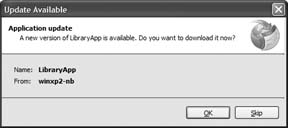
What happens if, after installing the newer version, you decide that you want to use the older version? No worries; just go to Control Panel and click Add or Remove Programs, select the application, and click Change/Remove. You have the option to either restore the application to its previous state or remove the application.
|
